Barber bookings and appointments
Quick answer - Bookings is the live appointment diary. Use it to check the day, plan the week, review the month, and add appointments for walk-ins, calls, DMs, or returning clients.
Use this guide when - Staff need to manage barber appointments during the day.
Before you start - Make sure booking types, staff assignments, hours, and booking policies are already set.
Open Bookings
- Choose Bookings from the left menu.
- Use Day, Week, or Month depending on what you need to check.
- Choose New Booking to add an appointment manually.
- Use Sync Issues if your account connects to another calendar and something looks wrong.
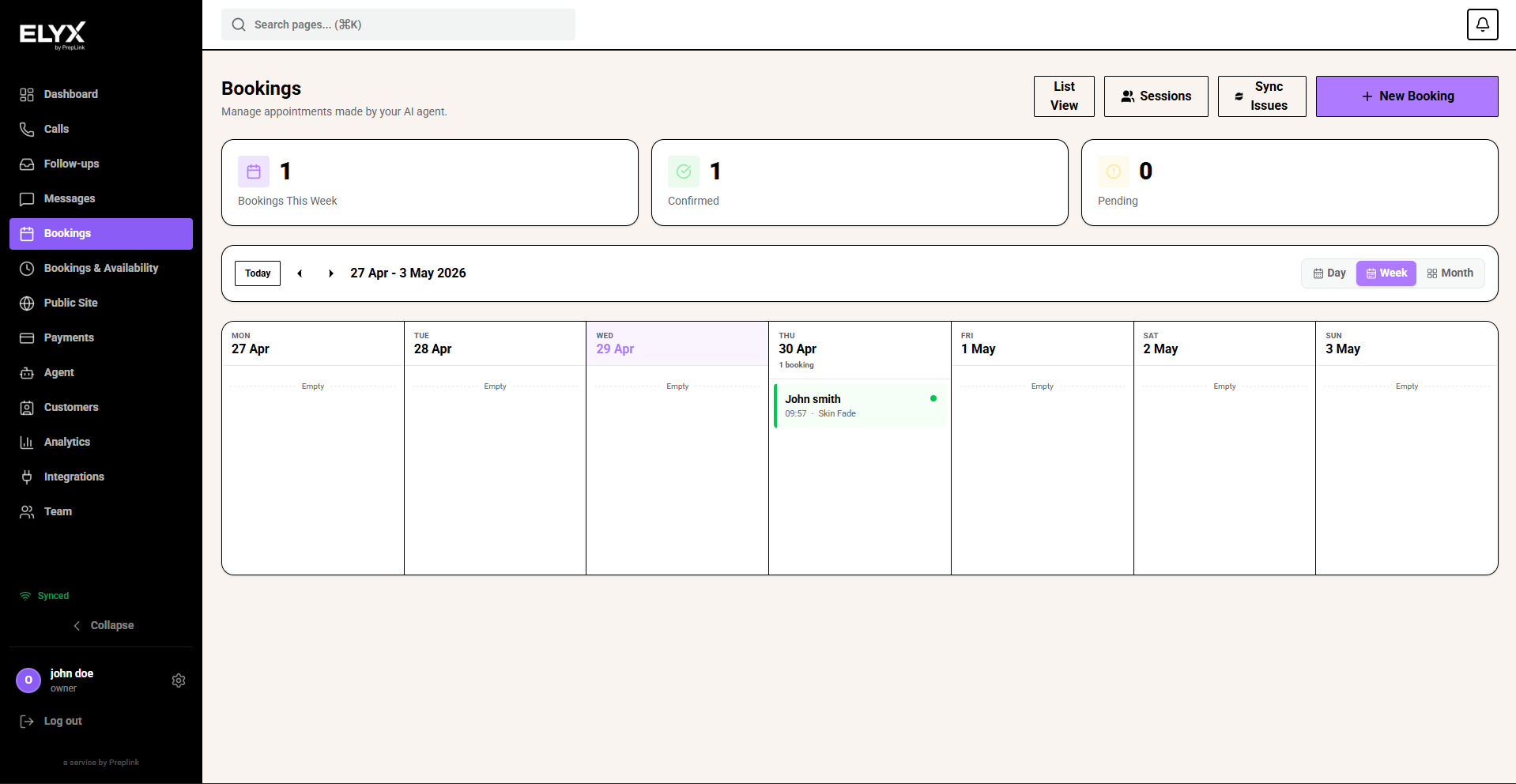
Use week view
Week view is useful for planning staff coverage and spotting busy days.
- Look at total bookings for the week.
- Check confirmed and pending counts.
- Scan each day for busy periods.
- Open a booking if the customer, service, or time needs checking.
- Move to the next week when planning rota or holiday cover.
Use month view
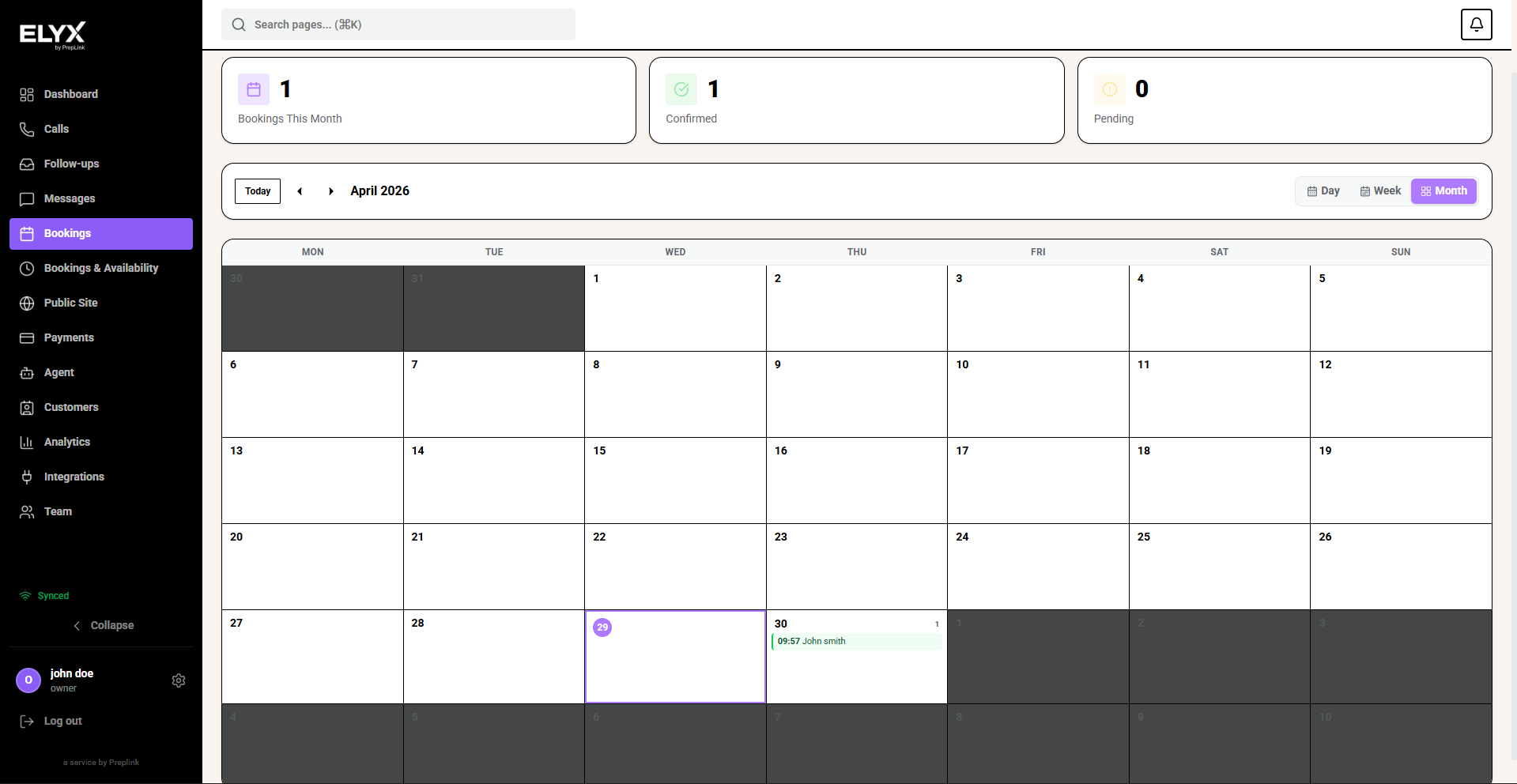
Month view is best for a quick overview.
- Choose Month.
- Look for days with bookings.
- Open a day to see its appointments in more detail.
- Use this view for holiday planning, seasonal checks, and quick diary reviews.
Use day view
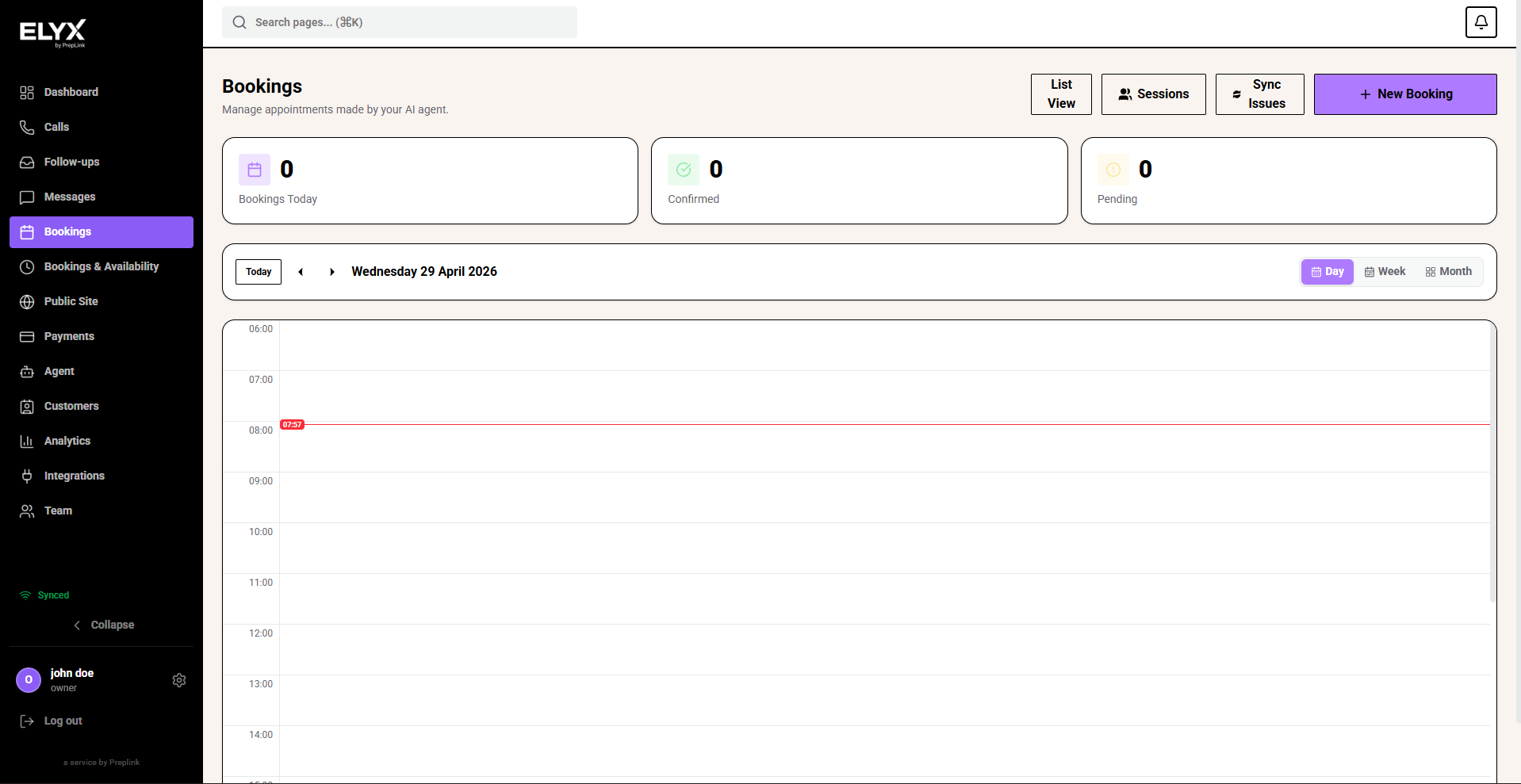
Day view is best while the shop is open.
- Choose Day.
- Check the time grid from morning to evening.
- Watch for empty gaps, back-to-back appointments, and double-booking risks.
- Open appointments from the grid when details need changing.
- Add walk-ins or phone bookings with New Booking.
Create an appointment
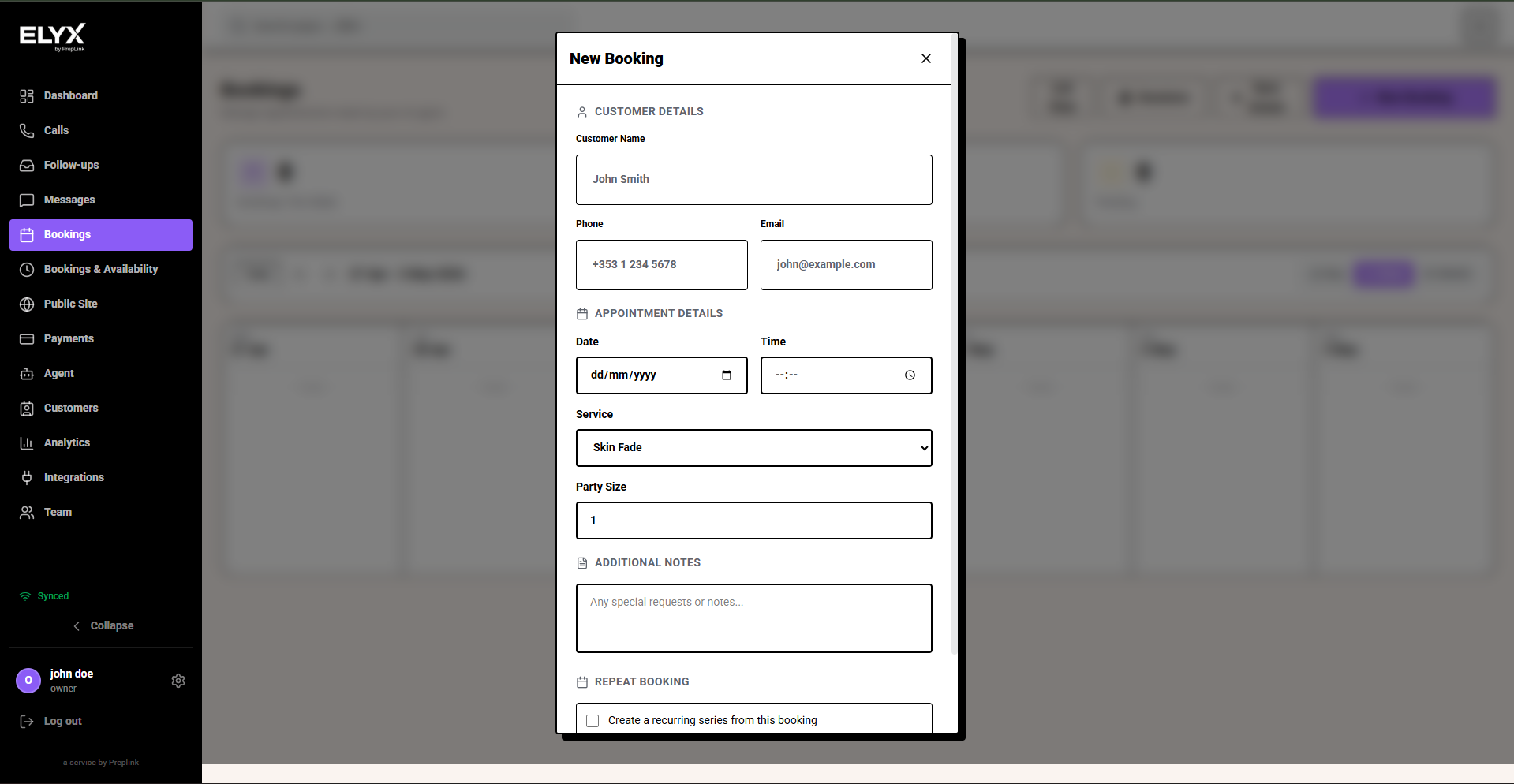
Use New Booking for walk-ins, phone calls, email requests, DMs, partner bookings, or appointments agreed in person.
- Open Bookings.
- Choose New Booking.
- Add the customer name.
- Add the phone number.
- Add the email if you have it.
- Choose the appointment date and time.
- Choose the service.
- Set party size only if the booking supports more than one person.
- Add short notes staff need to know.
- Use repeat booking only when the customer should be booked on a regular pattern.
- Save.
Useful notes tell the team what to do. “Prefers John if available” or “Arriving with child” is useful. “Nice customer” is not enough to change how staff handle the appointment.
Daily appointment routine
At opening:
- Check today’s bookings.
- Review notes and deposits.
- Check unconfirmed or unusual bookings.
During the day:
- Add walk-ins and phone bookings immediately.
- Reschedule changes as soon as they happen.
- Keep customer notes clear and short.
At close:
- Check tomorrow.
- Confirm the right staff are available for the booked services.
- Resolve failed sync or calendar issues.
Last updated: April 2026