First week with Resk - checklist
Quick answer - Before you tell customers to use Resk, make sure one test call works, your real availability is set, your calendar is connected if you take appointments, your team can log in, and notifications are on.
Use this guide when - The owner or manager getting Resk ready for customers.
Before you start - Decide who owns setup, who answers follow-ups, and which phone number customers should use.
Day 1: confirm the basics
- Sign in to Resk.
- Confirm the business name is correct.
- Open Settings and check the business email, phone, address, and hours.
- Open Agent and check the greeting.
- Open Dashboard and copy your Resk number.
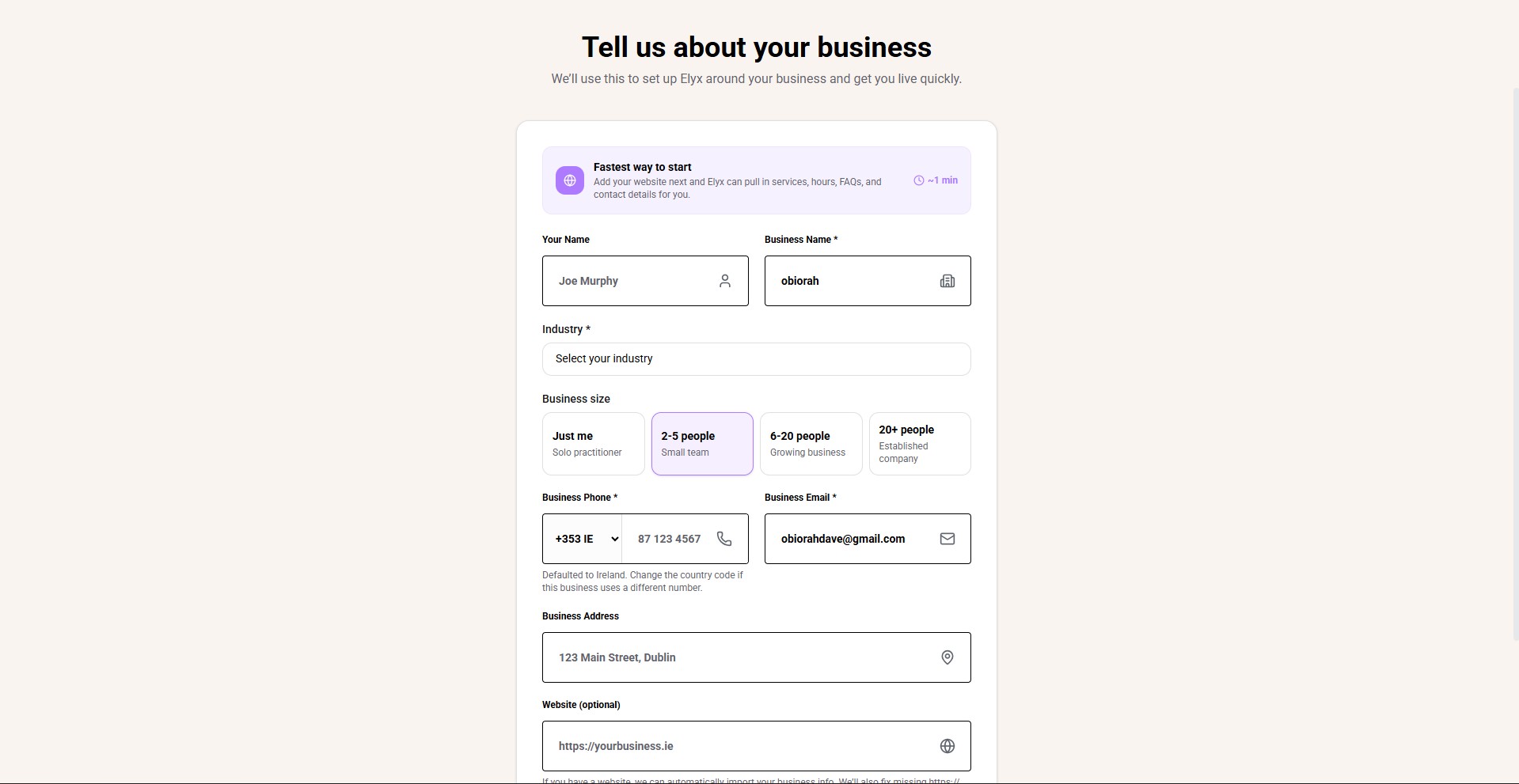
You are finished with this step when the core business details match what customers should hear or see.
Test your first call
- Call your Resk number from your mobile.
- Ask a simple question, such as opening hours.
- Ask for a booking, callback, or message depending on your setup.
- End the call.
- Open Calls in Resk.
- Confirm the call appears.
- Open the call and check the summary, transcript, and any follow-up.
If the call does not appear, check that you called the correct Resk number. If the AI answer is wrong, update knowledge before testing again.
Set up availability and services
- Open Settings -> Availability or the onboarding availability step.
- Add the services customers can book.
- Set the duration for each service.
- Add the days and times customers can book.
- Add buffers, booking windows, or limits if needed.
- Save.
- Create one test booking to confirm the slot appears correctly.
You are finished when a real customer could choose a correct service at a correct time.
Connect your calendar
If your business uses appointments, connect the calendar before going live.
- Open Integrations.
- Choose Calendar.
- Connect the business calendar account.
- Confirm the timezone.
- Create a test booking.
- Check that it appears on the calendar.
If you do not use appointments, you can skip this step.
Invite the team
- Open Team.
- Invite each person using their own work email.
- Choose a role or permission preset.
- Ask each person to sign in.
- Confirm they can see only the areas they need.
Do this before customers start calling so staff can handle follow-ups immediately.
Turn on notifications
- Open Settings -> Notifications.
- Turn on alerts for missed calls, callbacks, bookings, payments, or module activity you cannot miss.
- Send or trigger a test notification if available.
- Confirm the right person receives it.
Before you advertise the number
- Choose whether customers should call your Resk number or your existing forwarded number.
- Update your website.
- Update Google Business Profile.
- Update email signatures.
- Update printed menus, signage, or appointment reminders if relevant.
- Place one final test call.
First-week daily routine
At opening:
- Open Dashboard.
- Check warnings.
- Check Calls and Follow-ups.
- Check today’s bookings or module work.
During the day:
- Keep Follow-ups clear.
- Listen to a sample of real calls.
- Update knowledge when callers ask something Resk could not answer.
At close:
- Clear urgent follow-ups.
- Review missed calls.
- Check tomorrow’s bookings.
- Note any setup change you need to make before opening again.
Related articles
Last updated: April 2026