Sync status and desktop app
Quick answer - Sync status shows whether restaurant data is connected and up to date. The desktop app is used where a more stable front-of-house, kitchen, or printer-connected setup is needed.
Use this guide when - Restaurant managers and front-of-house leads need to check sync health or install the desktop app.
Before you start - Make sure the restaurant module is enabled and the device has a reliable internet connection.
Open the desktop app page
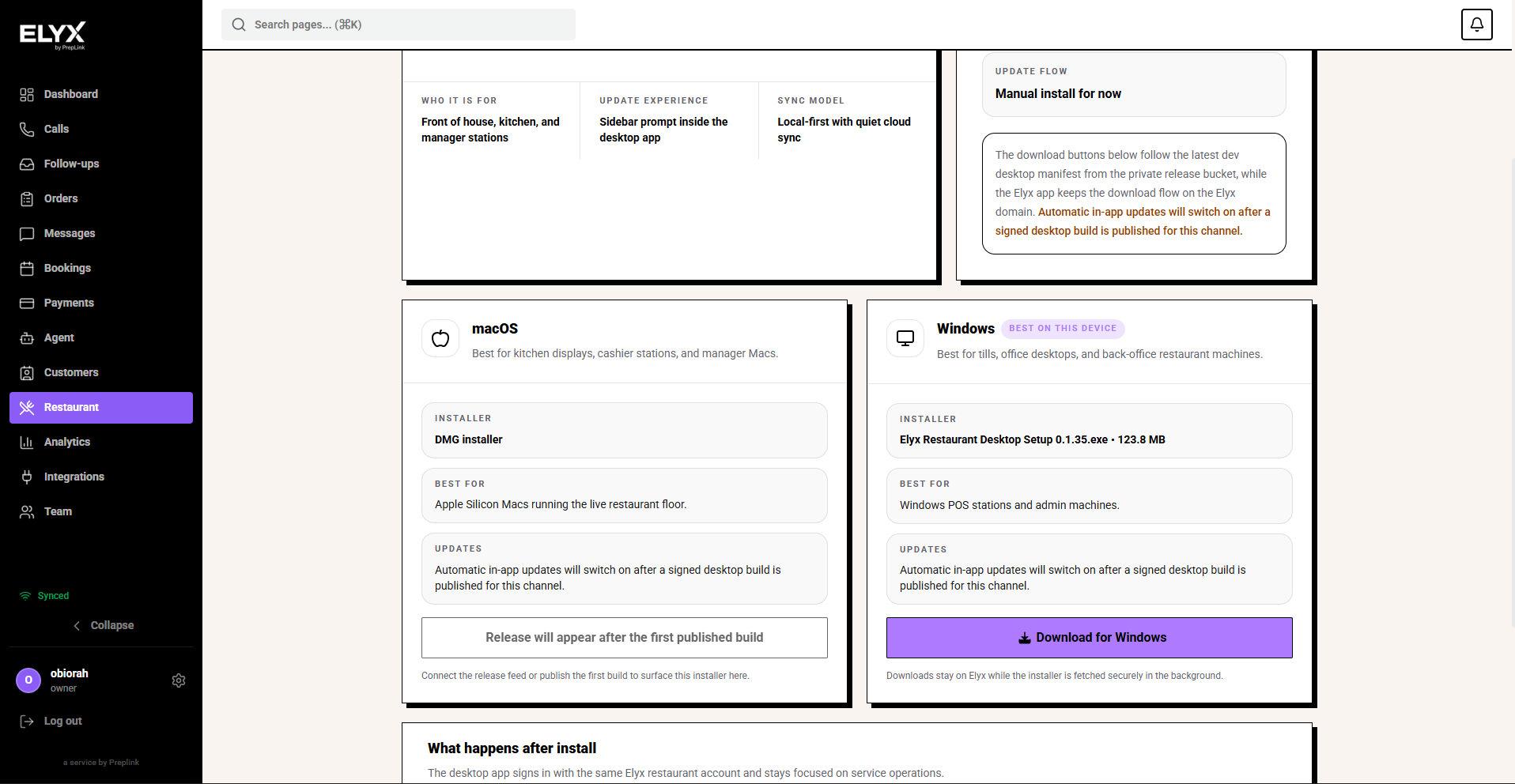
- Choose Restaurant from the left menu.
- Choose Desktop app.
- Pick the installer for the device you use at the counter, pass, kitchen, or office.
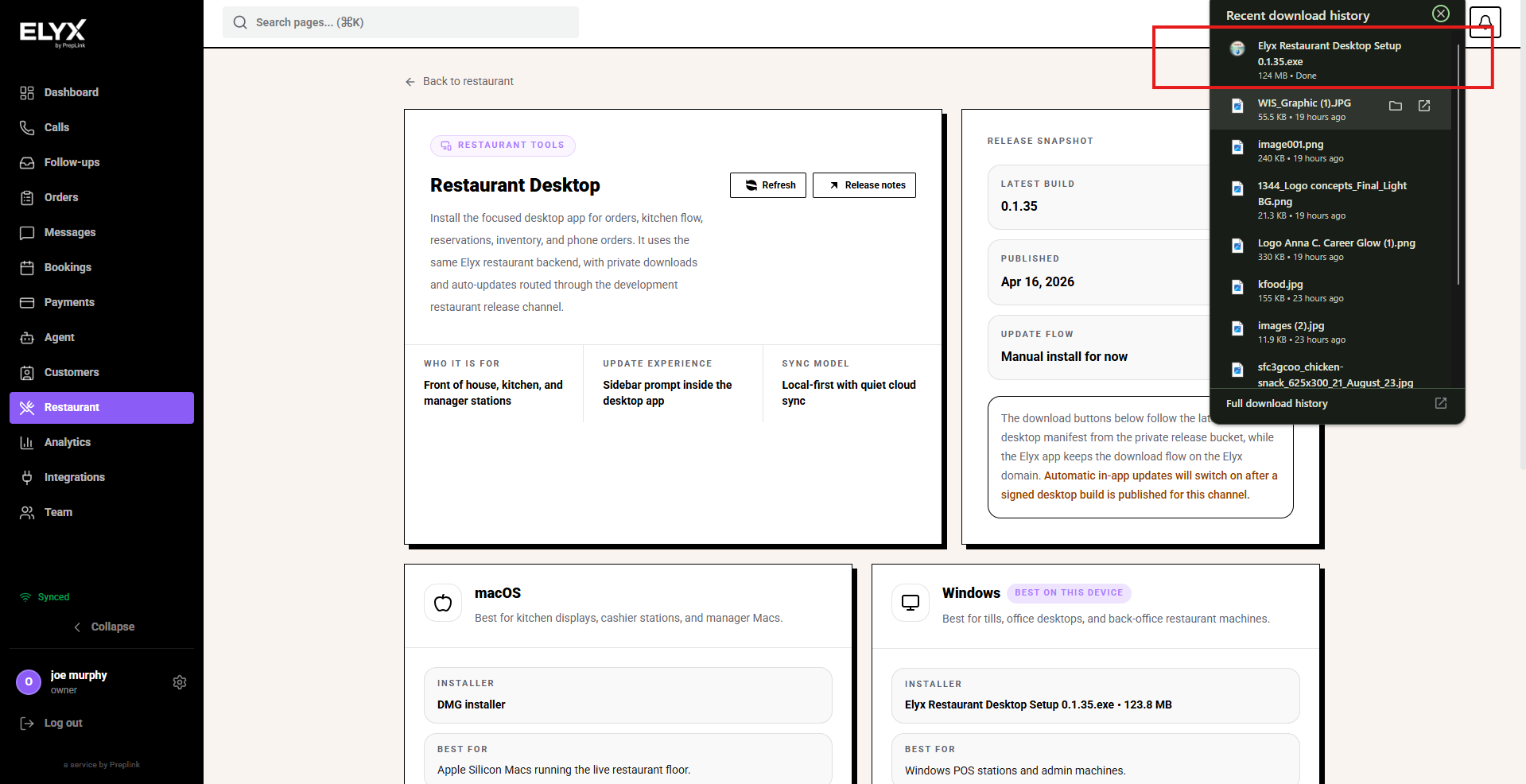
- Download the Windows or macOS installer if it is available for your account.
Use the desktop app
- Open Restaurant -> Desktop app.
- Download or launch the app for the correct device.
- Sign in with a staff account that has restaurant access.
- Confirm orders, kitchen display, and printer-related workflows behave as expected.
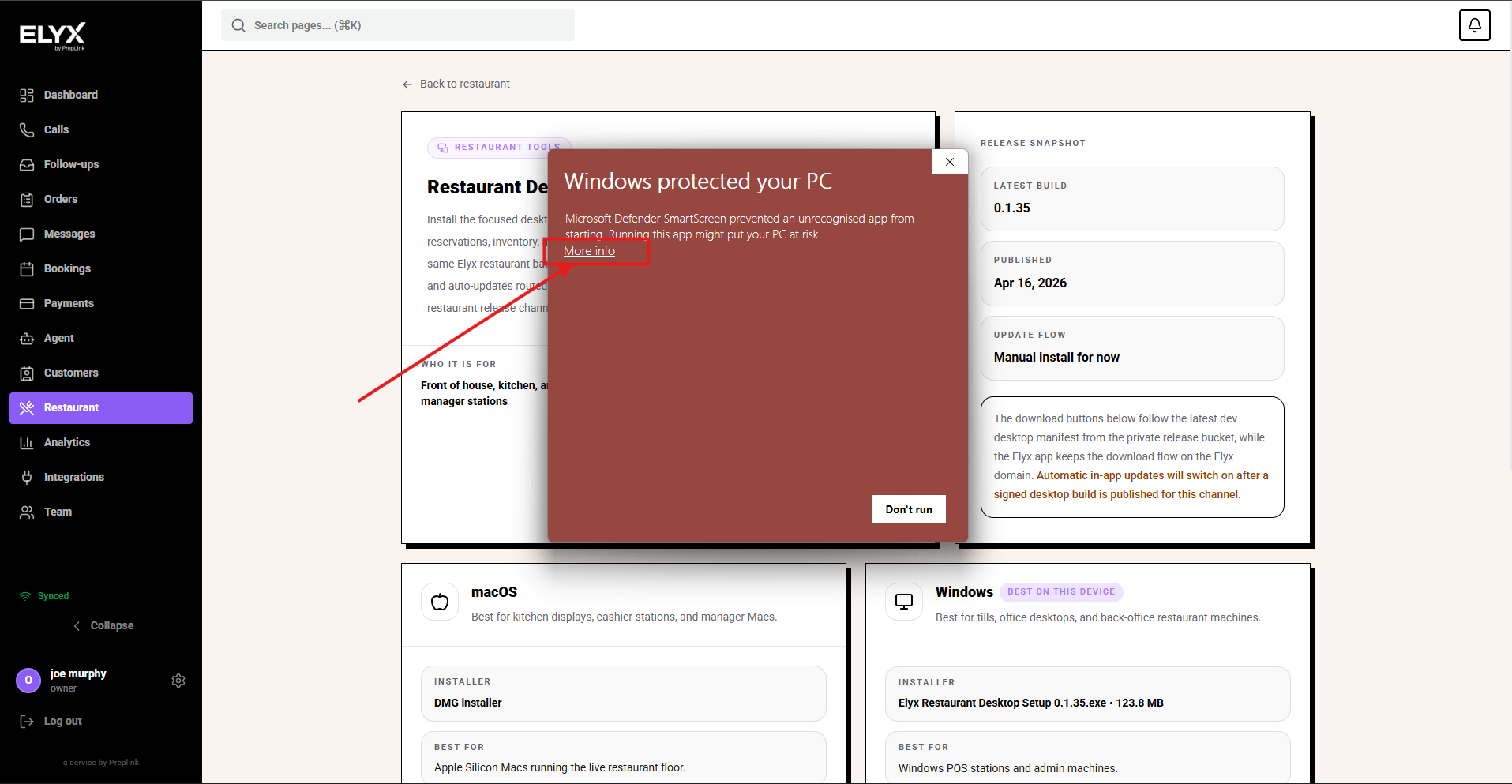
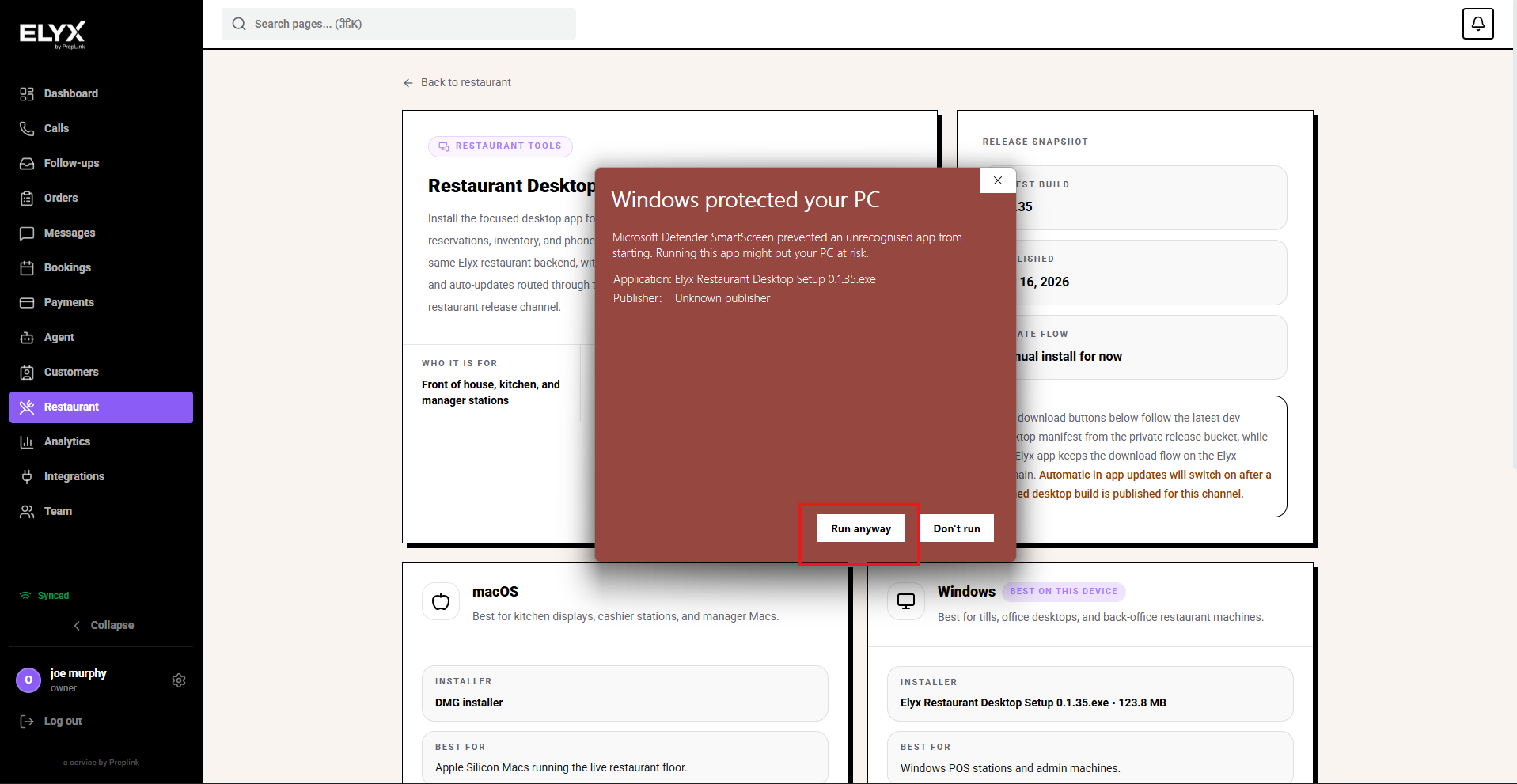
On Windows, the first install may show Microsoft Defender SmartScreen because the build is new or not yet widely recognised. Choose More info, then Run anyway only when the installer came from the Resk desktop page for your account.
After SmartScreen, the installer asks who should use the app on the computer. Use Only for me for a personal back-office machine. Use the all-users option only when the device is shared and your IT policy allows it.
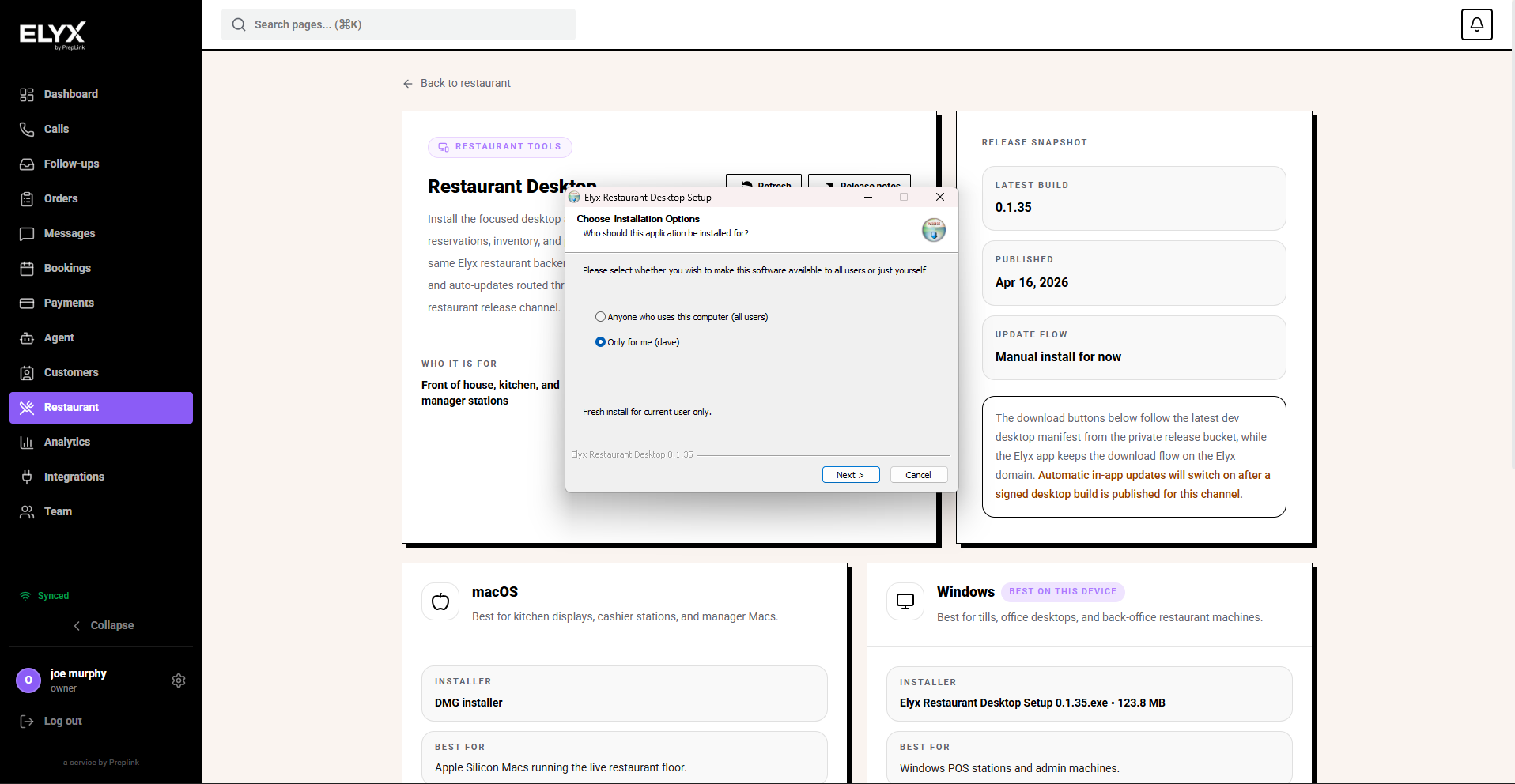
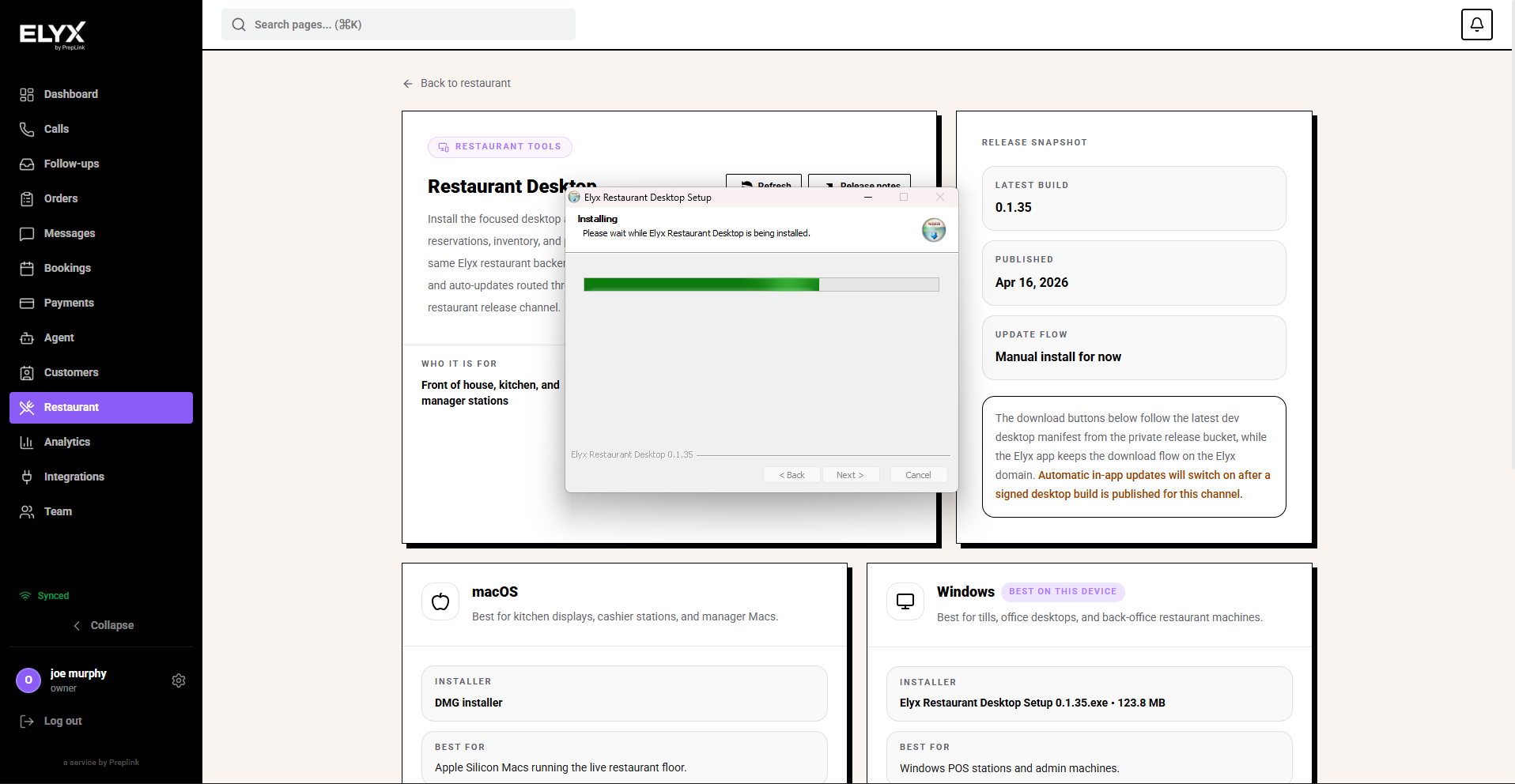
The installer then copies the app files. Leave the setup window open until the progress completes.
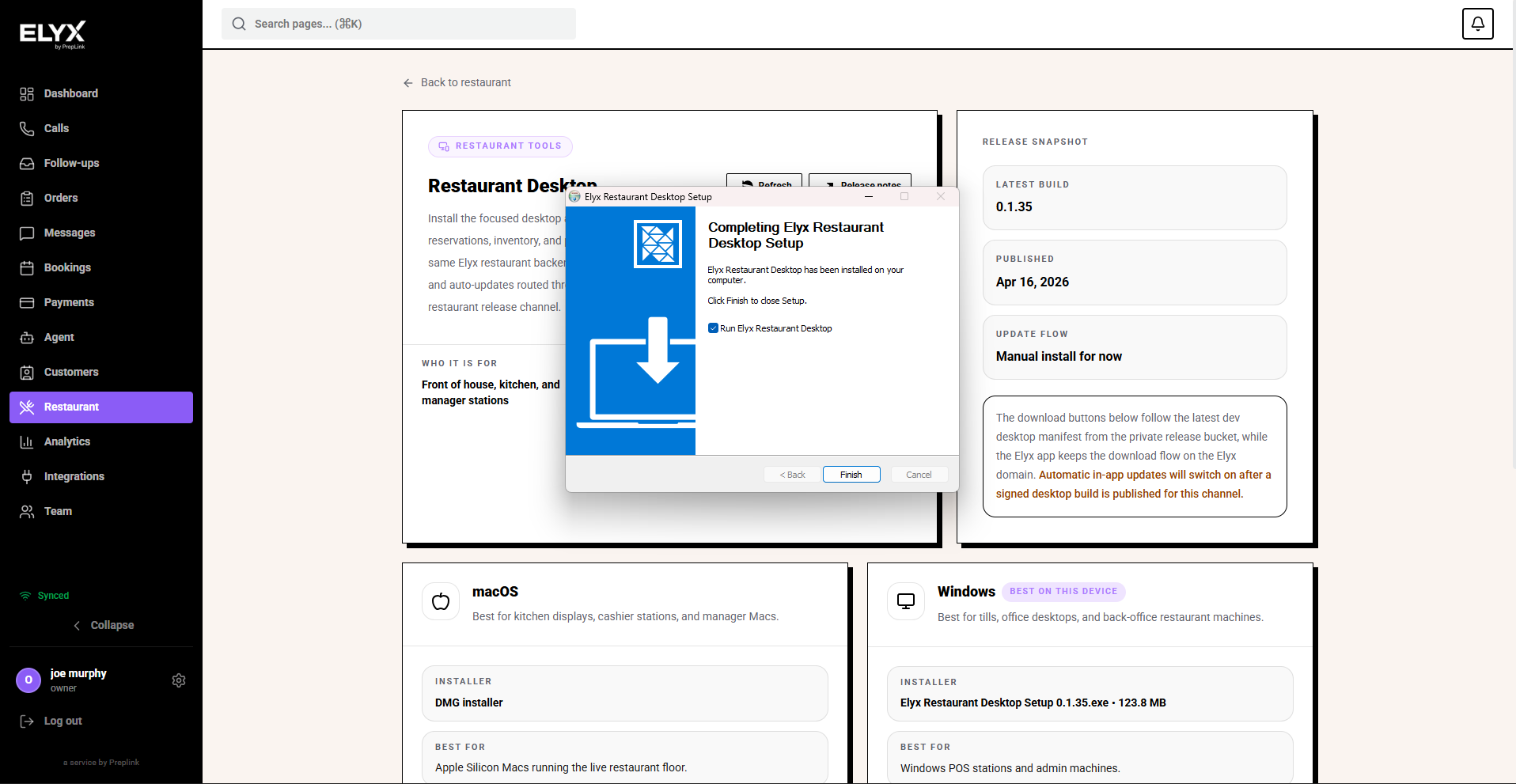
When setup finishes, keep Run Resk Restaurant Desktop selected if you want to open the app straight away. Sign in and check that orders, reservations, and kitchen screens match the browser.
When to use the desktop app
- The restaurant needs a stable device at the counter or pass.
- Staff need faster access to orders or kitchen display.
- Printing, local sync, or device-specific workflows are enabled for the business.
Check sync status
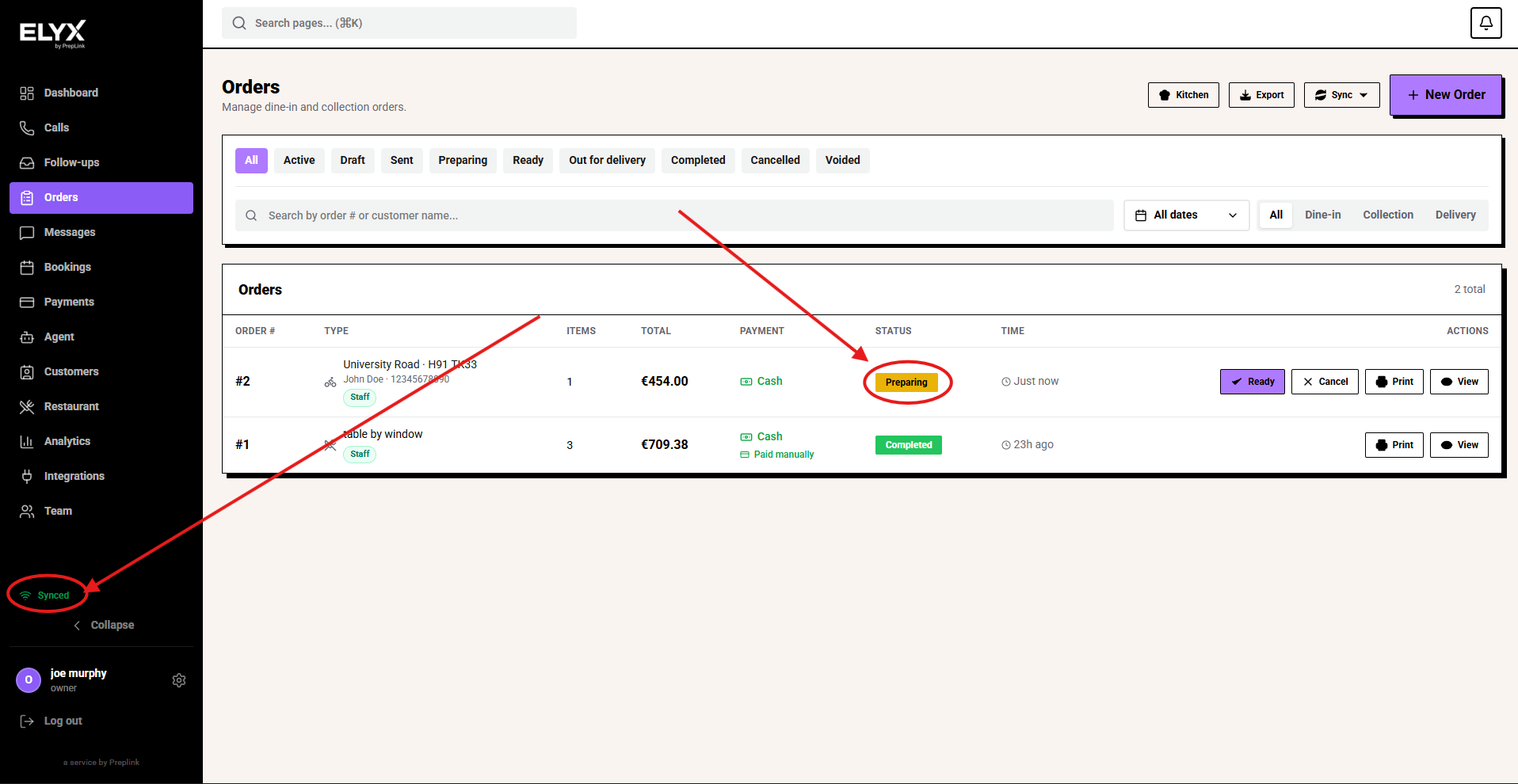
After the desktop app is installed, use sync status as an operating check during service. The sidebar sync label tells staff whether this device is currently connected and caught up. Order status tells you whether the restaurant workflow is moving: for example, an order can be Preparing while the device still shows Synced.
- Check the sync label in the left sidebar.
- Open Orders or the active restaurant screen.
- Confirm new orders, status changes, and payments are appearing where staff expect them.
- If the sidebar does not show Synced, wait briefly and refresh before creating duplicate orders.
- If the same item is missing on one device but visible on another, note the order number, status, time, and device before contacting support.
Common mistakes
- Leaving the desktop app signed in as an owner on a shared device.
- Ignoring sync warnings before a busy service.
- Assuming a browser tab and desktop app always have the same local state at the same second.
If something goes wrong
Refresh the page or restart the desktop app, then check sync status. If data is missing in one place but present in another, avoid duplicate orders or reservations until support confirms which record is current.
Related articles
Last updated: April 2026