Restaurant settings
Quick answer - Restaurant settings control how Resk understands your business: hours, service periods, VAT, service charge, reservation rules, party limits, notifications, and delivery or booking defaults. Get this page right before you turn on public booking, AI booking, delivery, or live ordering.
Use this guide when - Owners, GMs, and admins. Staff can read this page, but only trusted admins should change tax, service charge, payment, or availability rules.
Before you start - Confirm your legal VAT treatment, real opening hours, last seating time, kitchen close time, average table turn times, largest normal party size, and who should receive booking or order notifications.
Open restaurant settings
- Choose Restaurant from the left menu.
- Choose Settings.
- Review the sections on the page.
- Update one area at a time.
- Save before moving to another section.
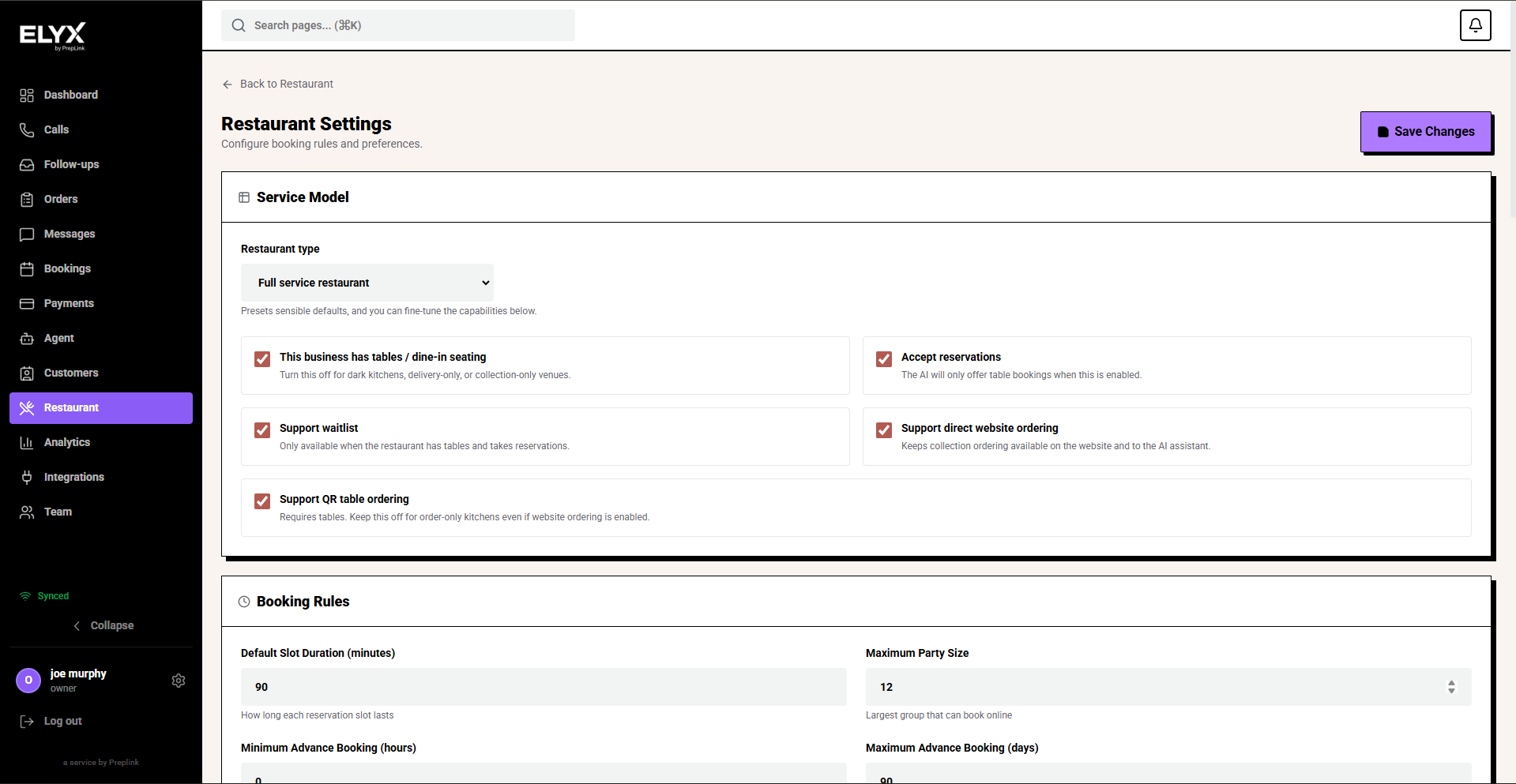
What settings affect
| Setting area | Affects |
|---|---|
| Business hours | Public booking, AI answers, staff availability, service planning. |
| Service periods | Lunch/dinner availability, booking slots, reports, staff expectations. |
| Reservation duration | Table availability, double-booking risk, AI booking accuracy. |
| Party limits | Whether guests can book small, large, or unusual party sizes. |
| VAT and service charge | Order totals, customer receipts, reporting, and payment expectations. |
| Notifications | Which staff know about bookings, cancellations, waitlist movement, and delivery. |
| Delivery defaults | Prep time, available delivery windows, fees, and platform expectations where enabled. |
Configure general details
- Open Restaurant.
- Choose Settings.
- Check the restaurant name, address, phone number, timezone, and currency.
- Confirm the timezone is correct before you check any booking times.
- Choose Save if you change anything.
Note: A wrong timezone can make bookings appear one hour off during daylight saving changes. Fix the timezone before adjusting individual reservations.
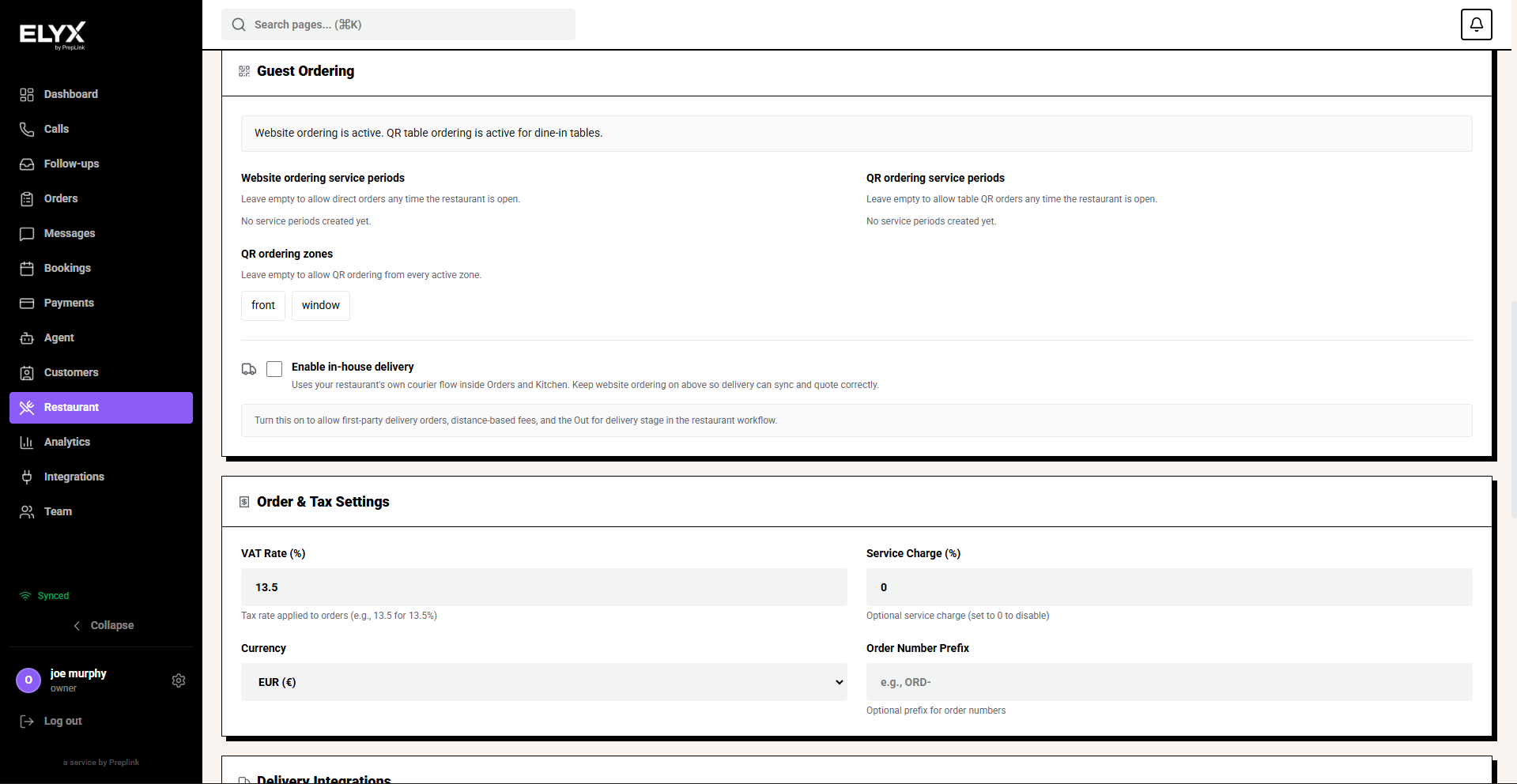
Configure money settings
Use this section carefully. These values can affect customer-facing totals and internal reporting.
- Open Restaurant settings.
- Find VAT, Tax, or Money settings.
- Set the correct currency.
- Set the correct VAT rate or tax treatment for your account.
- Set service charge only if your business uses one.
- Confirm whether service charge applies to dine-in, collection, delivery, or all orders.
- Choose Save.
Common checks
- Menu prices should match how you advertise them.
- Staff should know whether service charge is optional, automatic, or not used.
- Receipts, public booking copy, and menus should use the same policy wording.
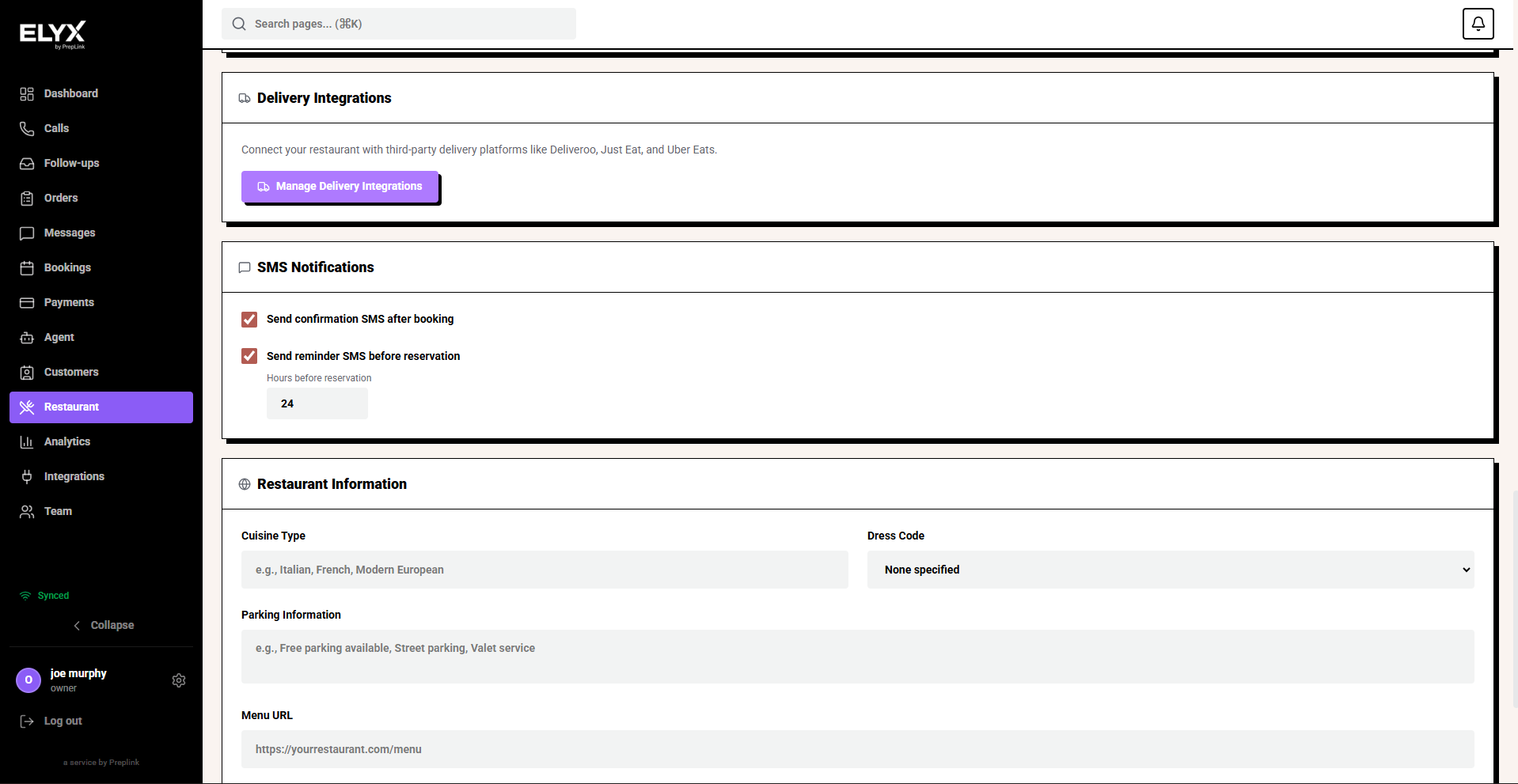
Configure opening hours
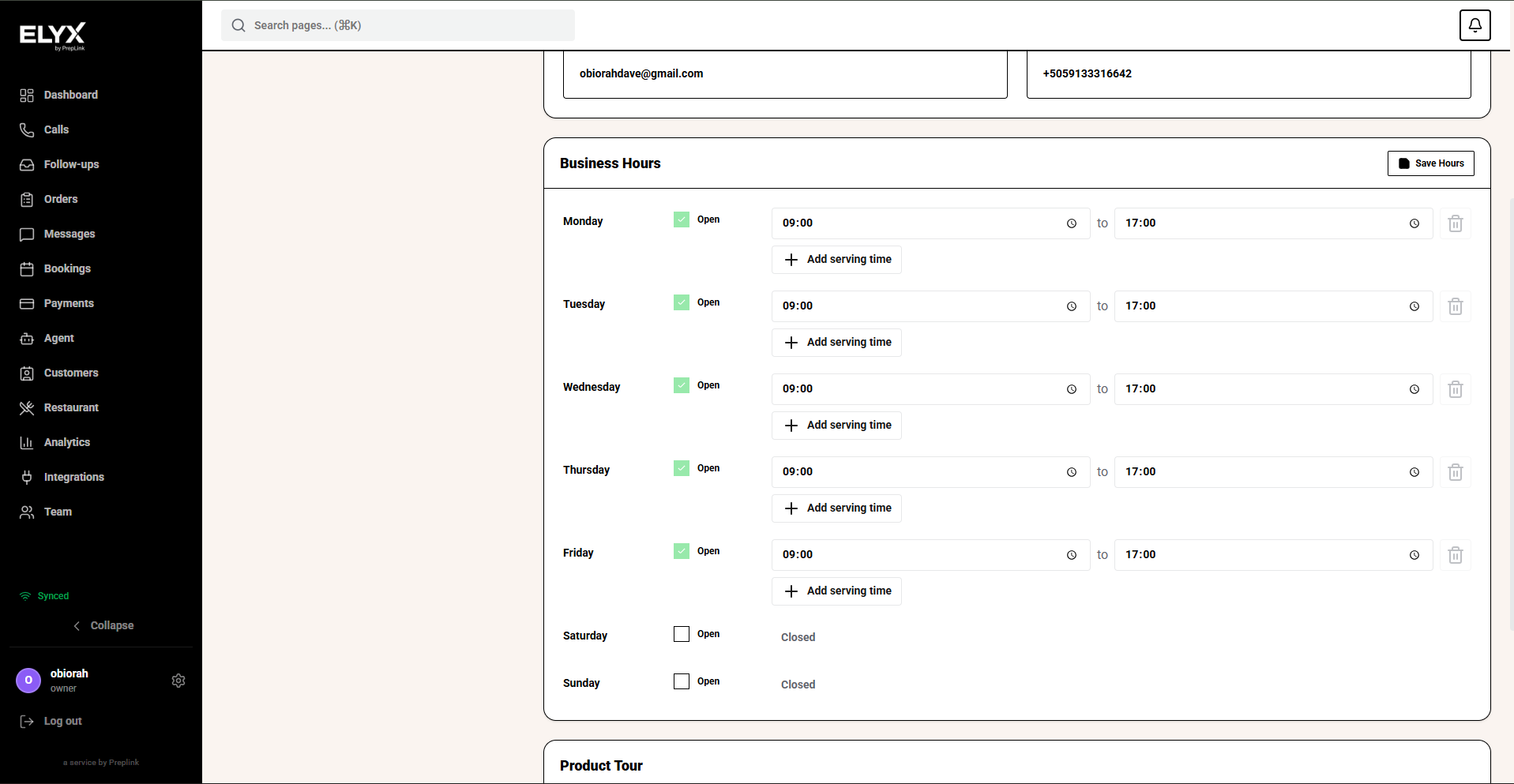
Opening hours should describe when customers can interact with you. They are not always the same as kitchen hours.
- Open Hours or Operating hours.
- Set each day to Open or Closed.
- Add the opening and closing time for each day.
- Add special hours for holidays, private events, or seasonal changes if your screen supports them.
- Choose Save.
Use separate hours when your restaurant has split service, for example lunch and dinner.
| Day pattern | Example |
|---|---|
| Closed day | Monday closed. |
| Single service | Tuesday 17:00-22:00. |
| Split service | Saturday 12:00-15:00 and 17:00-22:30. |
| Special event | New Year’s Eve 17:00-01:00. |
Configure service periods
Service periods tell Resk how your day is divided. They help staff, public booking, AI booking, and analytics use the same language.
- Open Service periods.
- Add periods such as Breakfast, Lunch, Dinner, Brunch, or Bar.
- Set the start and end time for each period.
- Set the last seating time if it is separate from close time.
- Choose Save.
Example: If dinner runs 17:00-22:00 but the last seating is 21:00, do not let public booking offer 21:45 unless you genuinely seat guests then.
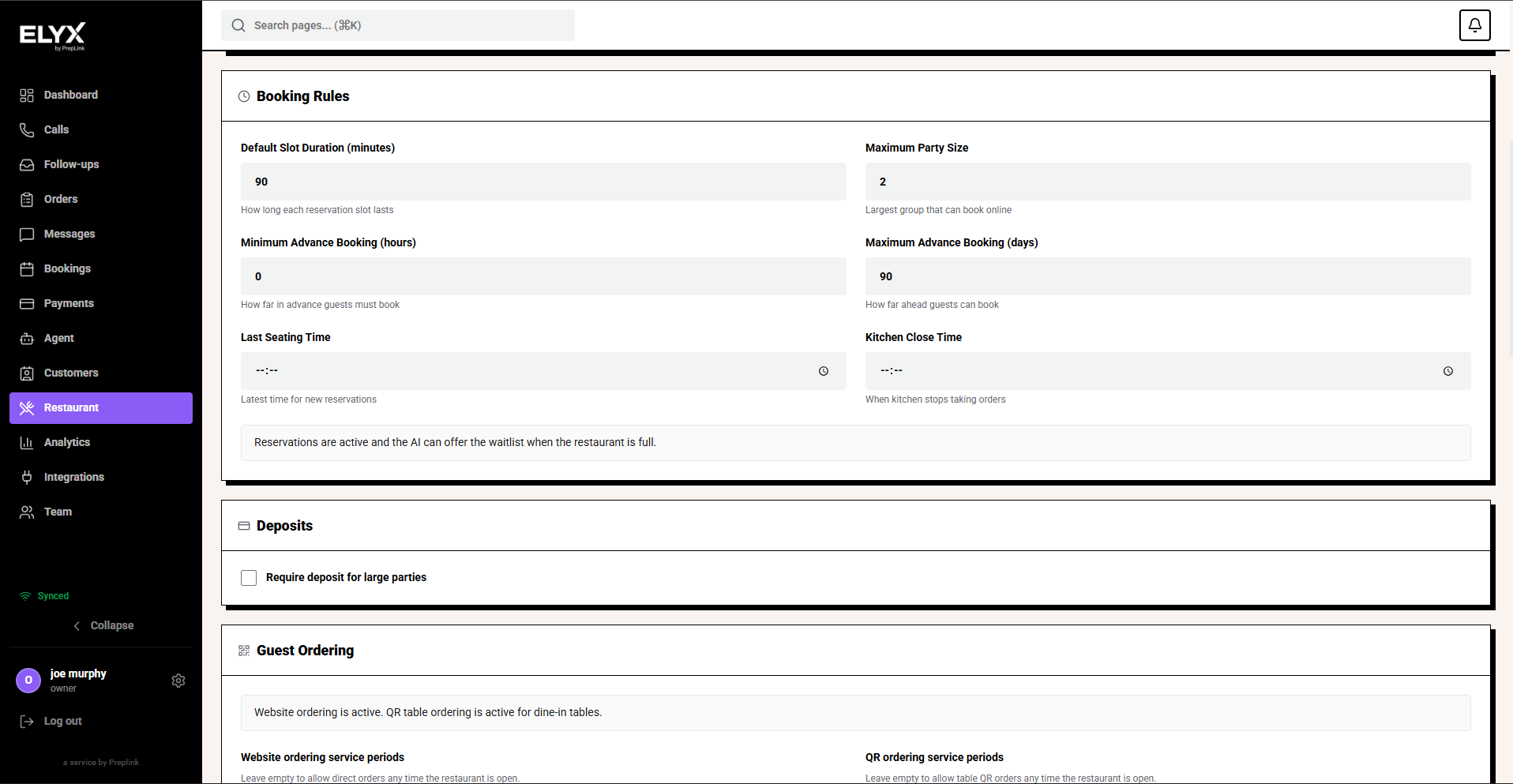
Configure reservation rules
Reservation rules decide what guests and staff can book.
- Open Reservations inside settings.
- Set the default reservation duration.
- Add duration rules by party size if your screen supports it.
- Set minimum and maximum advance booking windows.
- Set minimum and maximum party size.
- Choose whether bookings are automatically confirmed or require staff review.
- Add cancellation, confirmation, deposit, or no-show rules if available.
- Choose Save.
Recommended starting point:
| Party size | Suggested duration to start |
|---|---|
| 1-2 guests | 75-90 minutes |
| 3-4 guests | 90-105 minutes |
| 5-6 guests | 105-120 minutes |
| 7+ guests | Manual review or longer duration |
Adjust these to your actual service style. A tasting menu, busy brunch, or casual cafe may need very different durations.
Configure notifications
Notifications should go to the people who can act on them.
- Open Notifications.
- Choose which roles or users receive new reservation alerts.
- Add cancellation and no-show alerts for managers or hosts.
- Add waitlist alerts for the host station.
- Add delivery or order alerts for the kitchen or pass where enabled.
- Send a test notification if the product offers one.
- Choose Save.
Avoid sending every alert to everyone. Too many notifications cause staff to ignore the important ones.
Test settings before going live
Run these checks before you publish a booking link or let the AI book tables:
- Create a booking for today during service.
- Try to book outside opening hours and confirm Resk blocks it.
- Try a party size above your normal limit and confirm it is blocked or flagged.
- Create bookings that fill a table and confirm the same table is not offered again at the same time.
- Make a cancellation and confirm the right staff are notified.
- Ask the AI or public booking page for availability and compare it with the staff reservation view.
Common mistakes
- Setting closing time as the last seating time.
- Forgetting holiday hours.
- Using default table durations that are too short for real service.
- Allowing large parties to auto-confirm without a deposit or staff review.
- Sending waitlist alerts to managers instead of the host station.
- Setting service charge in Resk but describing it differently on menus or booking pages.
- Changing settings during service without telling the team.
If something goes wrong - Check Availability and business hours, Reservations, and Restaurant FAQ.
Related articles - Tables, Public booking page, Payments overview, Restaurant AI and core.
Last updated: April 2026