Integrations
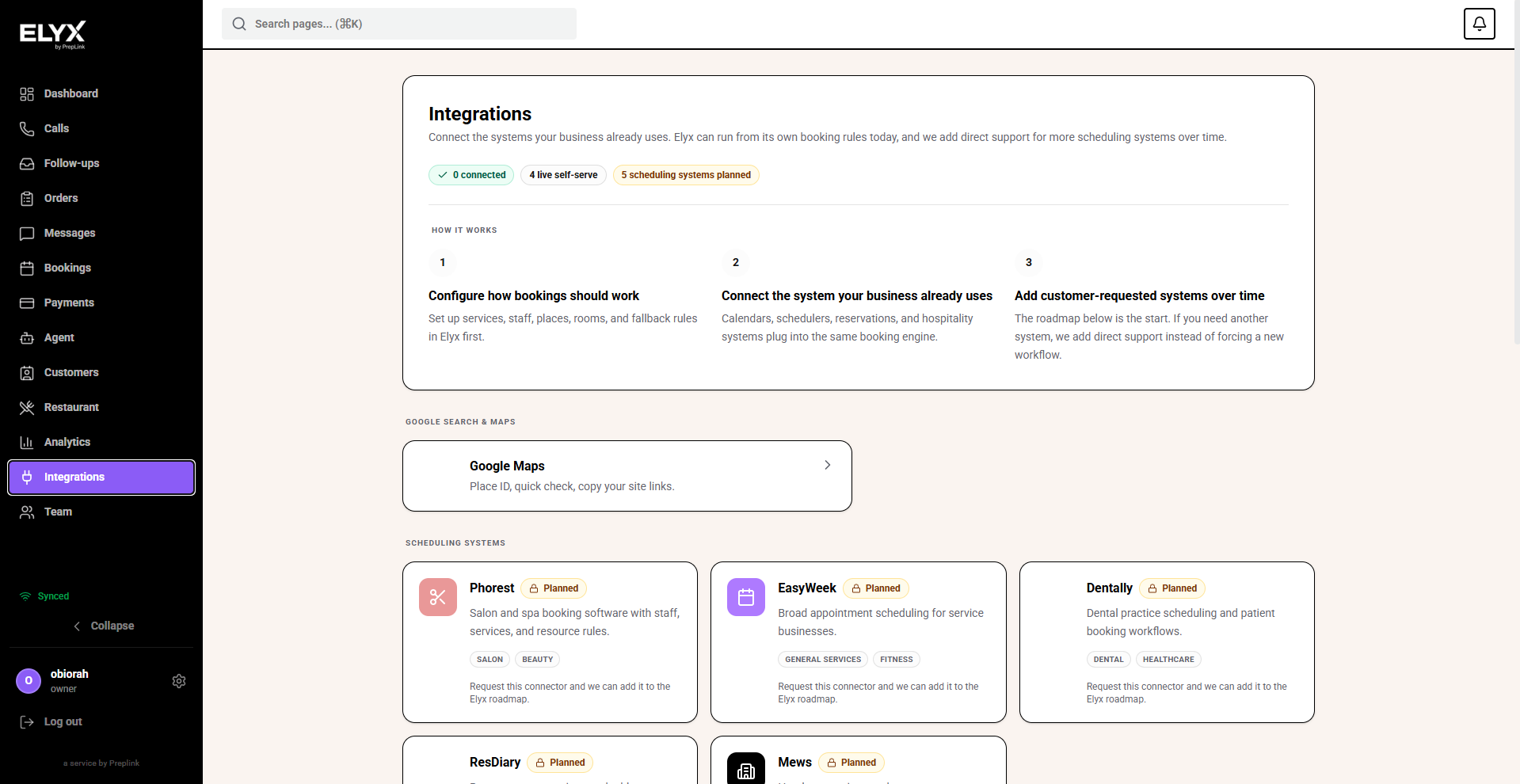
Quick answer - Integrations connect Resk to tools your business already uses, such as calendars, phone setup, notifications, public site settings, and Google booking surfaces where available.
Use this guide when - Owners and admins who connect business tools.
Before you start - Use accounts owned by the business, not a staff member’s personal account, wherever possible.
Open Integrations
- Choose Integrations from the left menu.
- Review the setup panel at the top.
- Look for connected, disconnected, or action-needed statuses.
- Open the integration you want to manage.
Connect a calendar
- Open Calendar.
- Choose Connect.
- Sign in to the business calendar account.
- Approve the requested access.
- Return to Resk.
- Confirm the calendar shows as connected.
- Create a test booking.
- Check that it appears on the calendar.
Use a dedicated Resk calendar if you want to keep business bookings separate from personal events.
Reconnect a calendar
Reconnect if bookings stop syncing or the integration shows a warning.
- Open Integrations -> Calendar.
- Choose Reconnect or Disconnect then Connect.
- Sign in again.
- Create a test booking.
- Confirm the sync works.
Public site and booking links
Use public site settings when customers should book, order, or check status from a link or QR code.
- Open Public Site.
- Review the public URL.
- Check branding and business details.
- Test the customer flow in a private browser window.
Google Actions Center
Use this only after services, availability, and public booking are correct.
- Open Google Actions Center.
- Review the connection status.
- Follow the setup prompts.
- Test the customer booking path once it is live.
Advanced connections
Only use advanced connection settings if your business has a technical partner or internal team that knows where the data should go. If you are not sure, ask support before changing them.
Common mistakes
- Connecting a personal calendar instead of the business calendar.
- Updating availability in two places and letting them drift apart.
- Publishing booking links before services and rules are ready.
- Disconnecting an integration during a busy service period without warning staff.
Related articles
Last updated: April 2026