Orders
Quick answer - Orders are the records of food and drink the kitchen or bar needs to prepare. Create dine-in orders for tables, collection orders for pickup, and delivery orders where enabled. Add items from the menu, include modifiers and allergy notes, then send the order to the kitchen display when it should be prepared.
Use this guide when - Servers, counter staff, kitchen leads, and managers are creating or managing restaurant orders.
Before you start - Make sure Menu management is current and Kitchen display is open on the correct device.
Open Orders
- Choose Orders from the left menu, or choose Restaurant -> Orders if your sidebar groups restaurant tools.
- Choose New Order.
- Choose the service type: Dine In, Collection, or Delivery.
- For dine-in, choose the table.
- Search the menu and add items.
- Review the order basket before sending it.
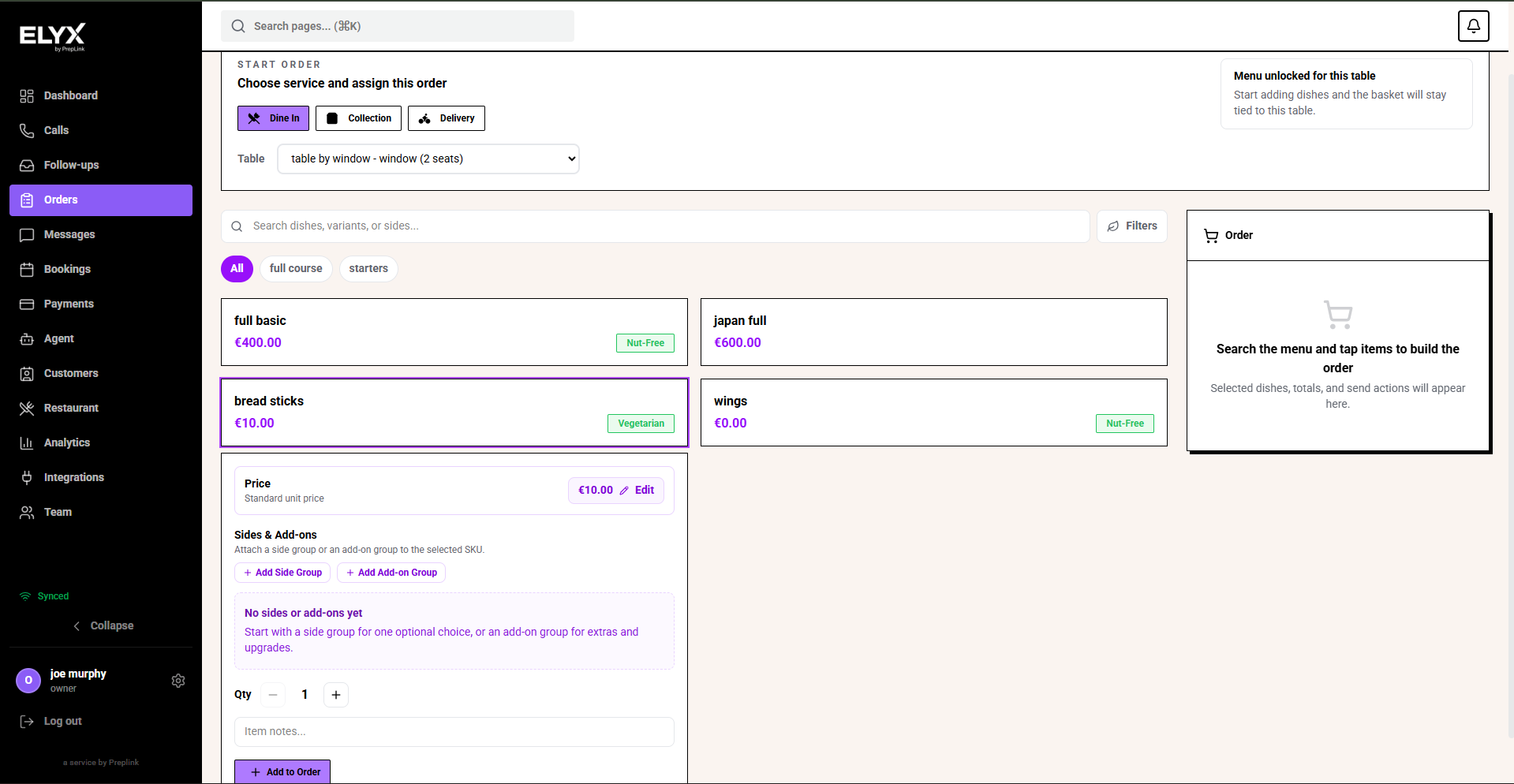
Order types
| Type | Use it when |
|---|---|
| Dine-in | A seated guest orders at a table. |
| Collection | A guest will pick up the order. |
| Delivery | A guest or platform sends a delivery order where enabled. |
| Phone order | Staff or AI records an order from a call, depending on setup. |
The fields may differ by type, but the core process is the same: add items, check notes, send to kitchen, complete the order.
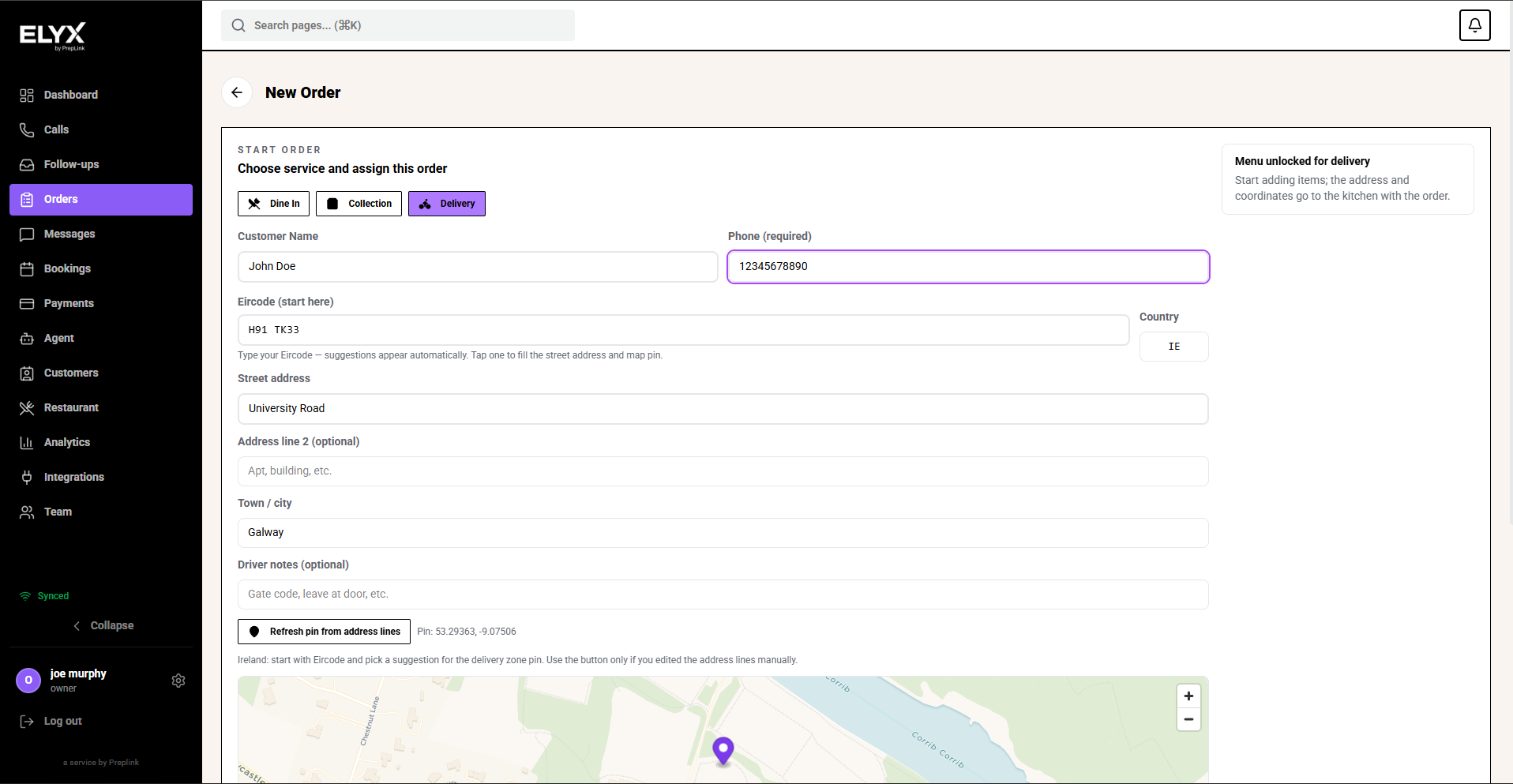
Typical order statuses
| Status | Meaning |
|---|---|
| Draft | Order is being built and has not been sent to kitchen. |
| Sent | Kitchen has received the order. |
| Preparing | Kitchen is working on it. |
| Ready | Food is ready to run, pack, or hand off. |
| Complete | Served, collected, delivered, or closed. |
| Cancelled | Order was voided or will not be made. |
Names may vary by account, but staff should understand the flow before service.
Create a dine-in order
- Open Restaurant.
- Choose Orders.
- Choose New order.
- Select Dine-in.
- Choose the table.
- Add items from the menu.
- Select variants and options.
- Add item notes for allergies, removals, cooking temperature, or special requests.
- Review the order with the guest.
- Choose Send to kitchen when the kitchen should start.
If the guest is still deciding, keep the order as a draft until they are ready.
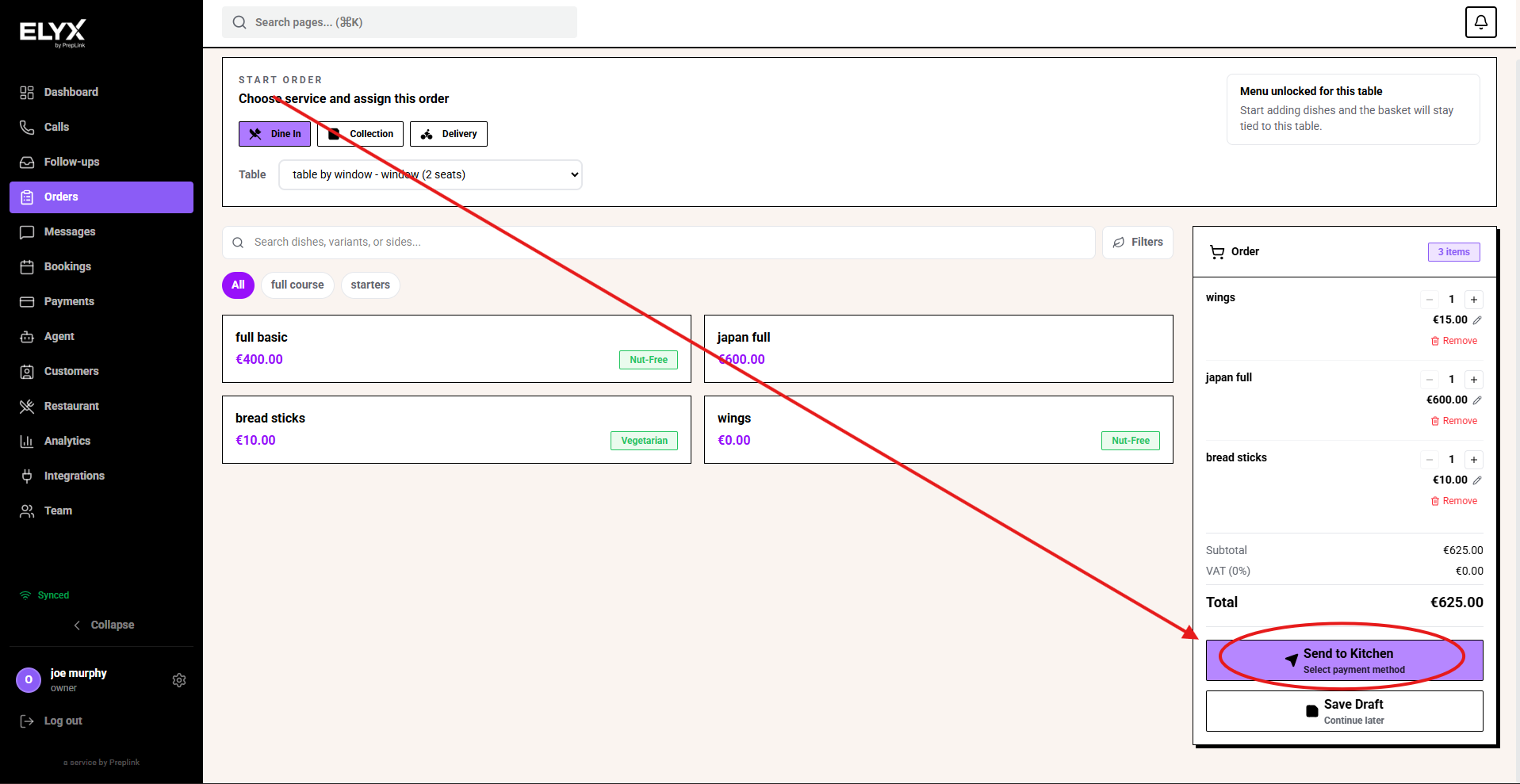
Create a collection order
- Choose New order.
- Select Collection or Pickup.
- Enter the customer name.
- Add phone number if needed for pickup updates.
- Set the requested pickup time if available.
- Add menu items, options, and notes.
- Confirm payment status if payment is required before prep.
- Choose Send to kitchen.
Collection orders need clear names and times. A kitchen ticket without a useful customer name creates confusion at handoff.
Add modifiers and allergy notes
Use structured options when they exist. Use notes for anything unusual.
Good item notes:
- Allergy: peanut. Confirmed with guest.
- No onion.
- Sauce on side.
- Birthday dessert after mains.
- Very well done.
Avoid vague notes like special, careful, or VIP without explaining what staff should do.
Send to kitchen
Send an order only when the kitchen should start preparing it.
Before sending:
- Check table or customer name.
- Check items and quantities.
- Check variants and modifiers.
- Check allergy notes.
- Check requested time for collection or delivery.
- Check payment requirements if applicable.
After sending, the order should appear on the Kitchen display.
Print or review a receipt
- Open the order.
- Choose the receipt or print action.
- Review the items, totals, tax, table, and payment status.
- Print only when the order is correct.
- Use your normal correction or refund process if the receipt shows the wrong total.
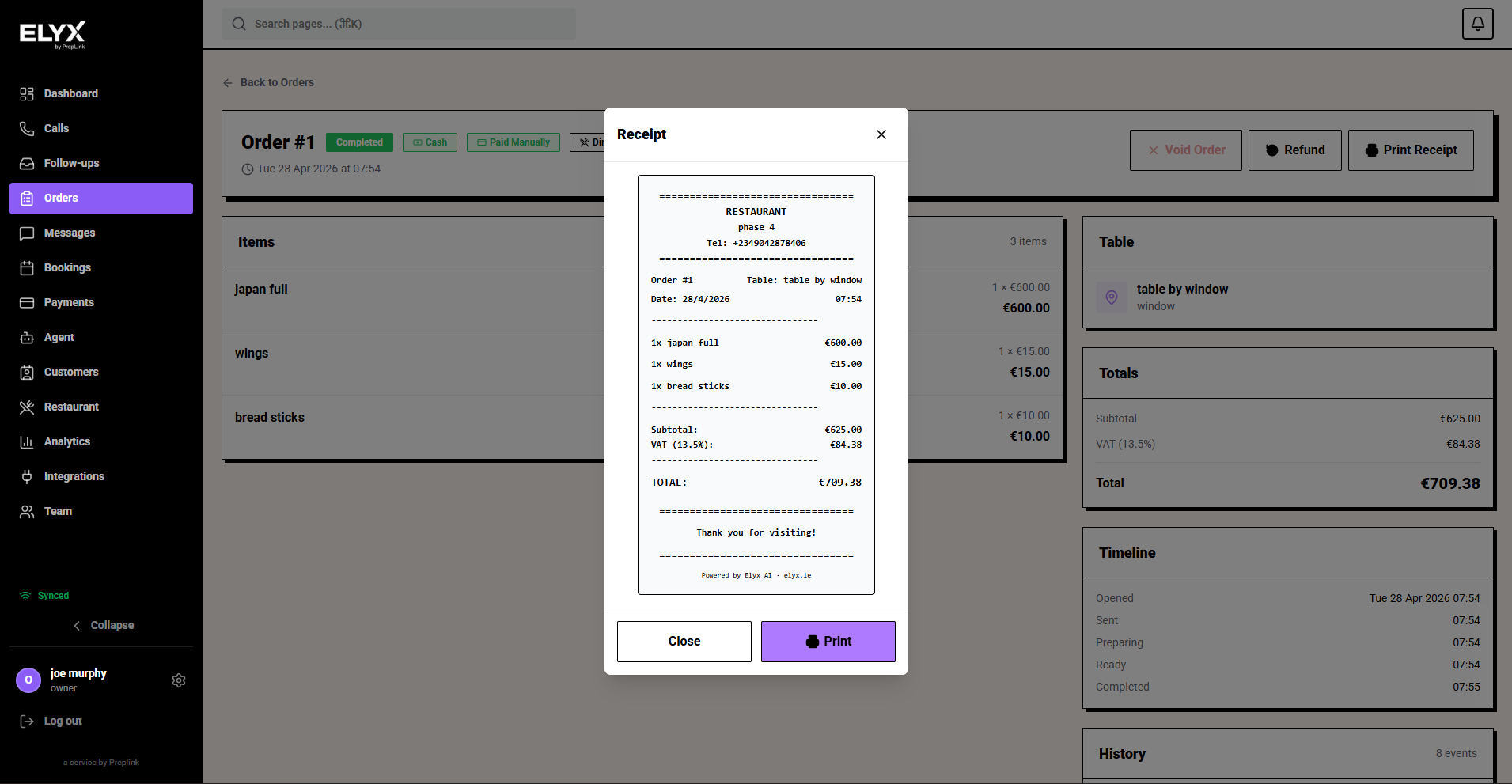
Change an order
- Open the order.
- Choose Edit, Add item, or the available action.
- Make the change.
- Check whether the change needs to be sent to kitchen.
- Tell kitchen or the pass if the change is urgent.
- Save the order.
If an item has already started cooking, use your restaurant’s normal void or remake process.
Cancel or void an order
- Open the order.
- Choose Cancel, Void, or the equivalent action.
- Select a reason if prompted.
- Confirm whether the kitchen should stop making the food.
- Handle refund or payment reversal if needed.
Use cancellation reasons consistently so managers can spot training, menu, or timing issues.
End-of-shift order checks
At close:
- Look for old drafts.
- Complete served or collected orders.
- Review cancelled orders and reasons.
- Check unpaid orders if payments are connected.
- Confirm delivery exceptions were handled.
- Check whether any sold-out item needs to be updated in the menu or inventory.
Common mistakes
- Sending a draft before the guest has finished ordering.
- Adding allergy details only in a general note where kitchen cannot see them.
- Choosing the wrong table.
- Leaving collection orders without a pickup name or phone number.
- Forgetting to cancel items that kitchen should not make.
- Leaving orders open after service.
If something goes wrong - Check Kitchen display, Menu management, Inventory, and Payments overview.
Related articles - Delivery, Guests, Restaurant dashboard and analytics.
Last updated: April 2026