Dashboard
Quick answer - The Dashboard is your daily starting point. Use it to spot missed calls, urgent follow-ups, today’s bookings or module work, and setup warnings before customers are affected.
Use this guide when - Anyone who checks Resk during the day.
Before you start - Make sure you are signed into the correct business and have permission to see the areas you manage.
Open the Dashboard
- Sign in to Resk.
- Choose Dashboard from the left menu.
- Check the business name or account menu if you manage more than one business.
- Wait for cards to finish loading before deciding nothing is due.
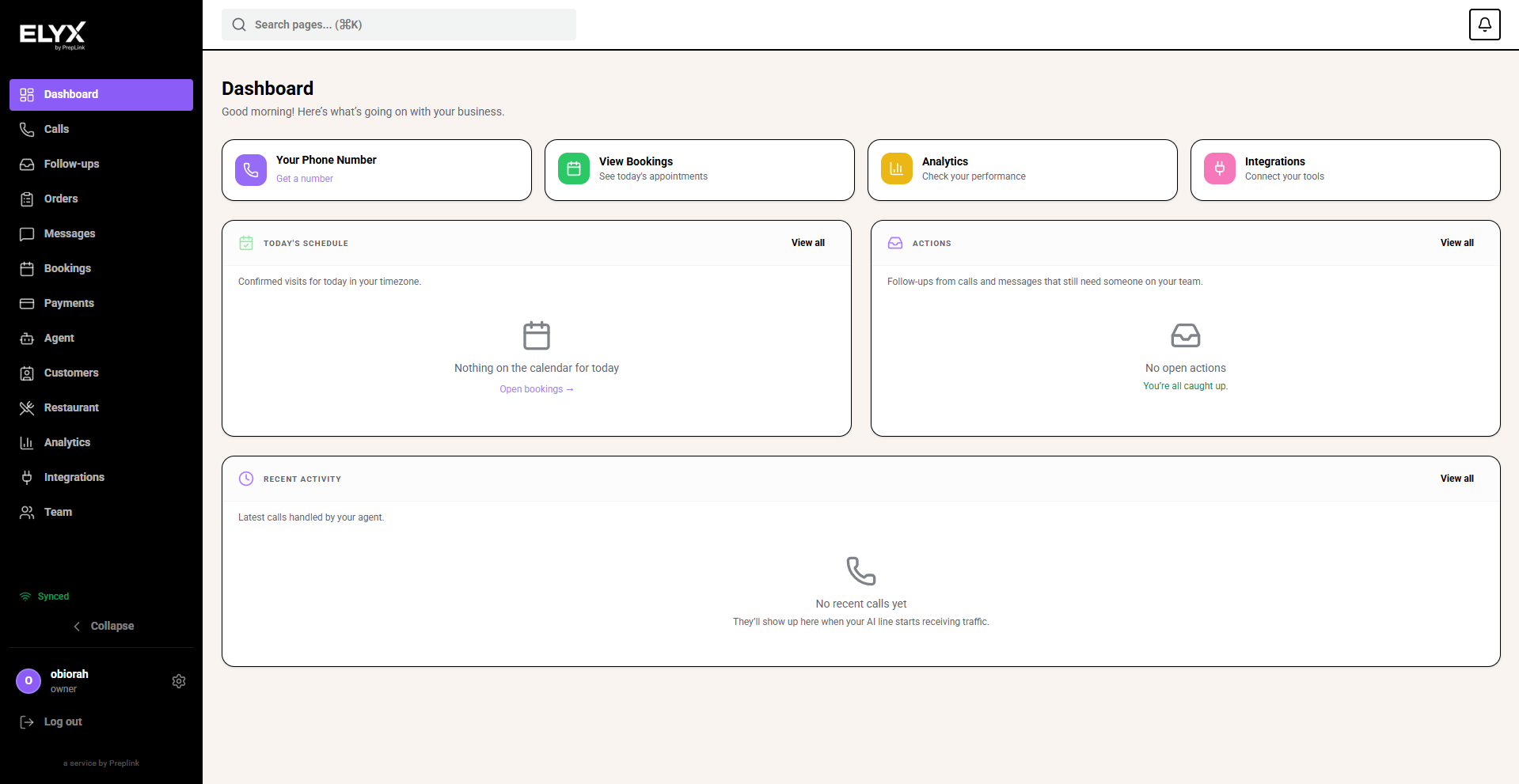
Morning check
Do this at the start of the day:
- Look for warning banners.
- Review unread or missed calls.
- Check follow-ups created overnight.
- Check today’s bookings, reservations, jobs, or orders.
- Open any card that looks unusual.
You are finished when every urgent card has either been handled or assigned to someone.
What the cards mean
| Card | What to check | What to do next |
|---|---|---|
| Your Resk number | The number customers should call. | Copy it only from Resk when updating websites or profiles. |
| Calls | New or unread customer calls. | Open calls that need review or callback. |
| Follow-ups | Work created by the AI or staff. | Complete, assign, or snooze where available. |
| Bookings | Upcoming appointments or reservations. | Check times, customer notes, and conflicts. |
| Payments | Deposits, payment setup, or payment warnings. | Open Payments if money collection is blocked. |
| Integrations | Connected tools and setup warnings. | Reconnect or finish setup before go-live. |
Midday check
- Open Dashboard.
- Check whether new calls or follow-ups arrived.
- Open Calls for anything marked missed, callback, or unresolved.
- Open Bookings or the relevant module if today’s work has changed.
- Clear anything that customers are waiting on.
End-of-day check
- Open Dashboard before closing.
- Clear urgent follow-ups.
- Review missed calls.
- Check tomorrow’s first bookings or jobs.
- Leave notes or assignments for the next shift.
If the Dashboard looks empty
An empty Dashboard can mean there is no activity, but it can also mean your role, plan, module, or filters hide certain cards.
Try this:
- Refresh the page.
- Check Calls directly.
- Check Follow-ups directly.
- Check Bookings or the module you use.
- Ask an owner to confirm your permissions if you still cannot see expected cards.
Common mistakes
- Assuming an empty card means all work is complete.
- Copying the business phone number from an old document instead of Resk.
- Ignoring setup warnings because the page still loads.
- Checking only the Dashboard and never opening the linked page for details.
Related articles
Last updated: April 2026