Analytics
Quick answer - Analytics helps you understand how Resk is performing across calls, bookings, recovery, revenue opportunities, and agent activity.
Use this guide when - Owners and managers want to review what happened, spot trends, and decide what to improve next.
Before you start - Pick the question you want to answer first, such as “Are we missing calls?”, “Which services are getting booked?”, or “Is Resk recovering lost revenue?”
Open Analytics
- Choose Analytics from the left menu.
- Choose the date range you want to review.
- Use the tabs across the top:
- Overview
- Revenue Recovery
- Call Analytics
- Booking Analytics
- Agent Performance
- Wait for the charts and cards to load.
- Use export options if you need to share the report.
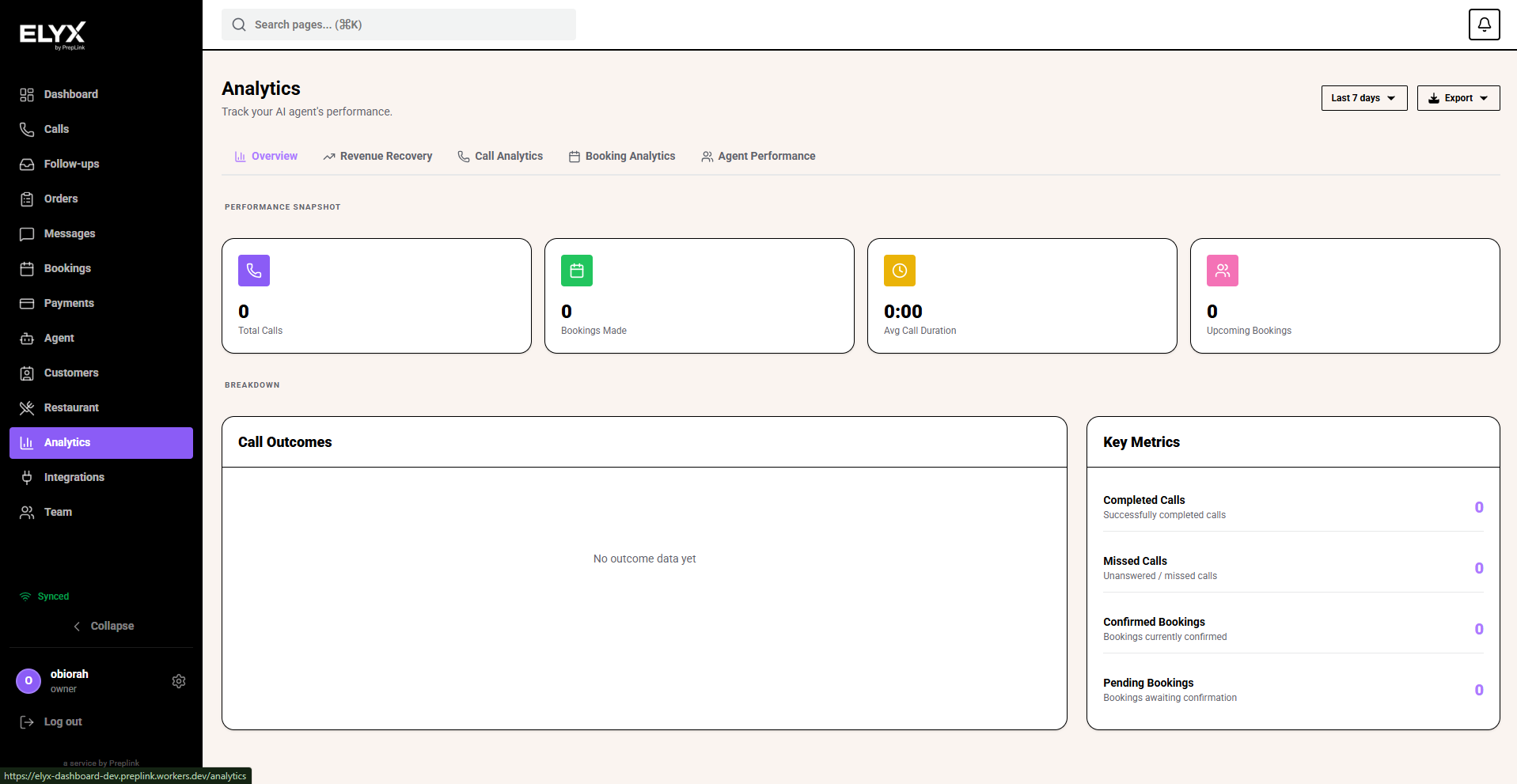
Read the Overview tab
Use Overview for a quick health check.
- Set the date range.
- Look at the main call and booking totals.
- Check whether the numbers are moving up or down compared with the previous period.
- Review call outcomes to see how many calls were completed, missed, escalated, or turned into bookings.
- Look at key metrics such as booking rate, missed call rate, and recovery performance.
- Check sentiment if it is available for your account.
This tab is best for weekly owner reviews. It gives you the shape of the business before you go deeper into a specific area.
Review Revenue Recovery
Use Revenue Recovery to see whether Resk is helping bring back opportunities that may otherwise be lost.
- Open Analytics.
- Choose Revenue Recovery.
- Set the date range.
- Review the recovered revenue summary.
- Check recovery by type, such as missed calls, abandoned calls, reminders, no-shows, or reactivation activity.
- Look at the funnel to see where opportunities are created, contacted, responded to, and recovered.
- Open related calls, bookings, or customers when a number looks unusual.
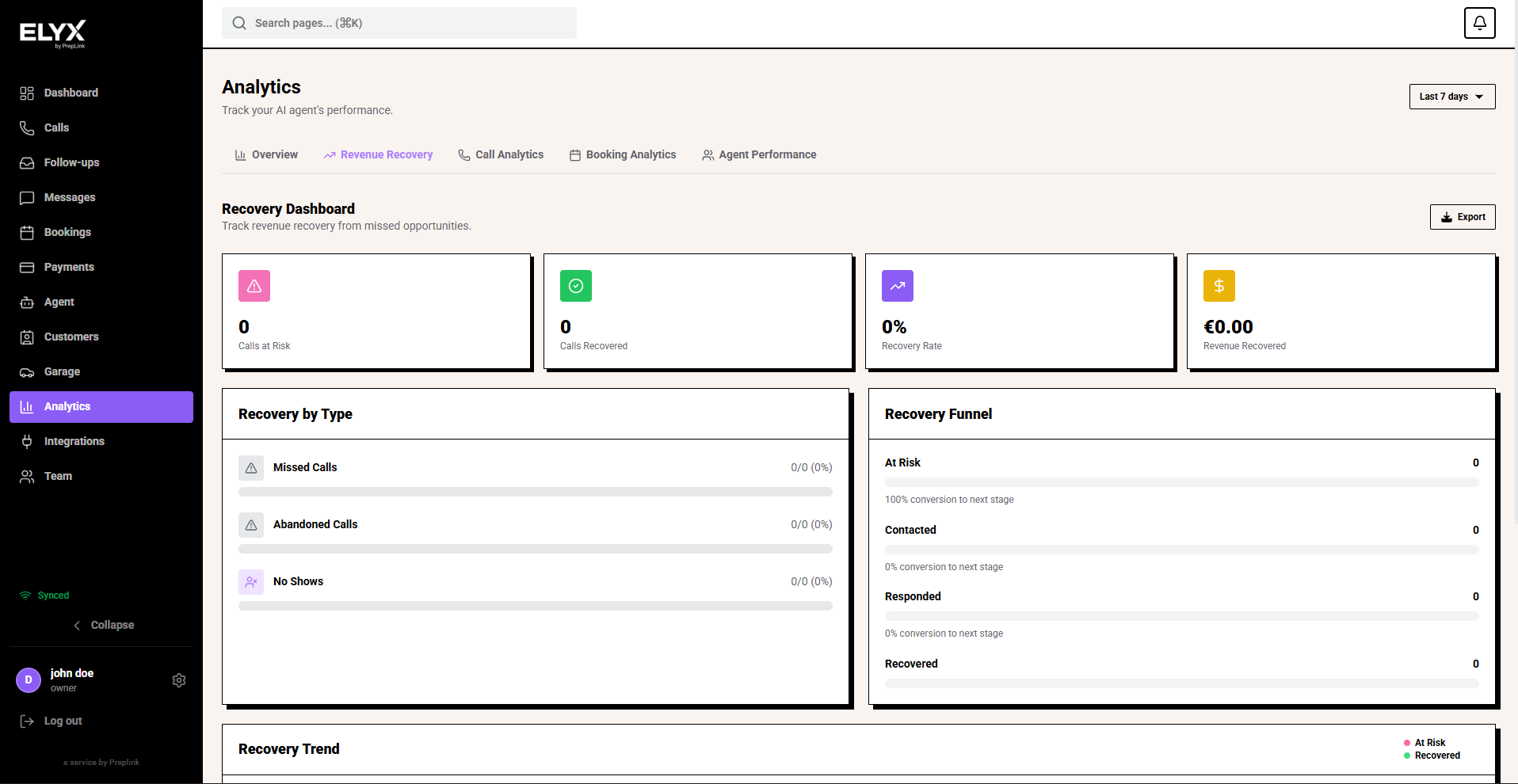
Use this tab when you are asking, “What did Resk save us from losing?” If recovery is low, check the related message templates, recovery workflow delays, business hours, and staff follow-up process.
Review Call Analytics
Use Call Analytics when you want to understand call volume and call handling.
- Open Analytics.
- Choose Call Analytics.
- Set the date range.
- Check total calls, completed calls, missed calls, and average call duration.
- Review the call trend chart to find busy days or unusual spikes.
- Check call outcomes to see what callers needed.
- Review sentiment and summary cards where available.
- Open the Calls page if you need to inspect individual calls behind a spike.
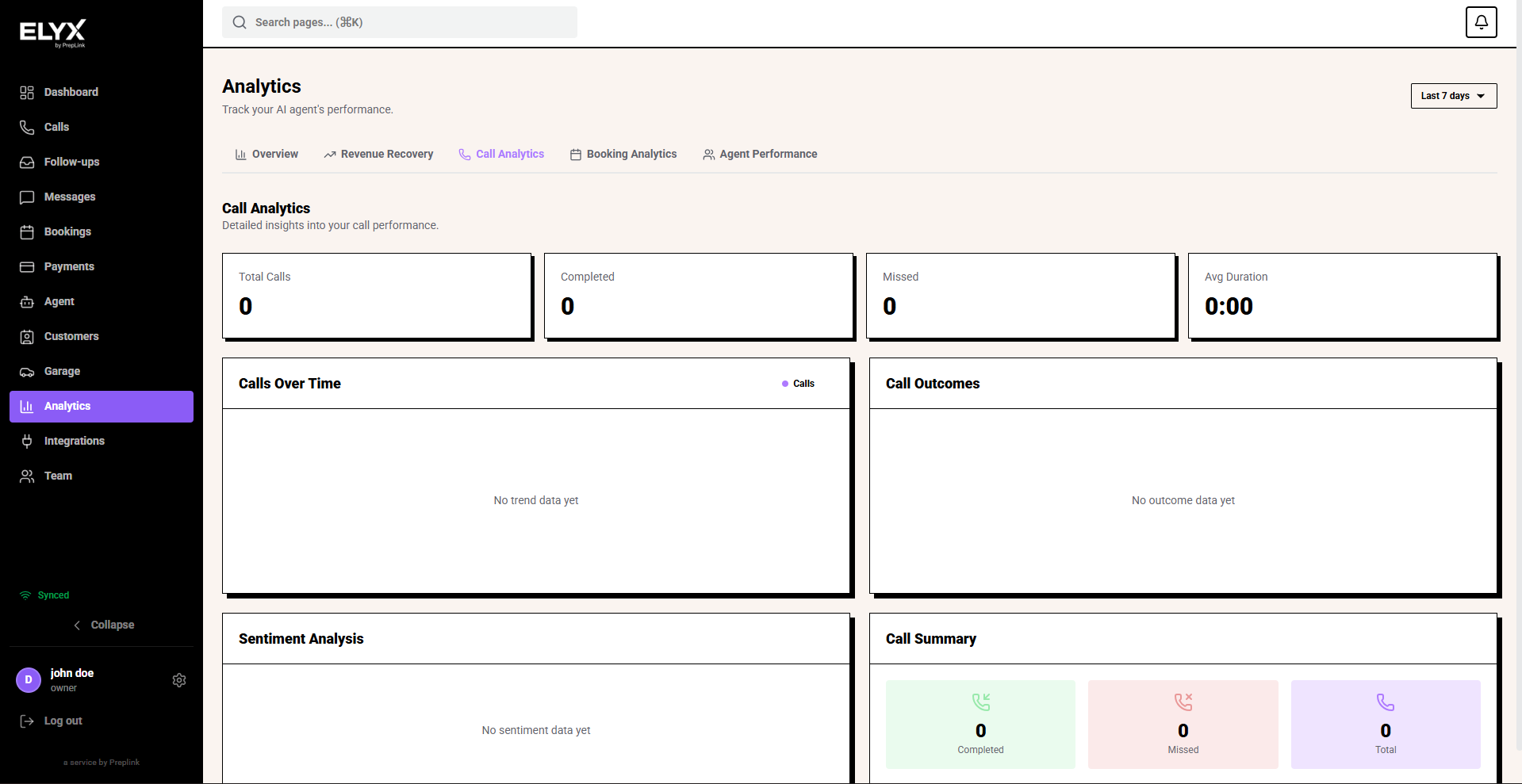
Use this tab to spot staffing gaps, routing issues, unclear knowledge base answers, or services that create lots of caller questions.
Review Booking Analytics
Use Booking Analytics when you want to understand appointments and service demand.
- Open Analytics.
- Choose Booking Analytics.
- Set the date range.
- Check total bookings, confirmed bookings, cancelled bookings, and upcoming bookings.
- Review the booking status breakdown.
- Check the weekly bookings chart to see whether demand is rising or falling.
- Review bookings by service to see which services customers request most.
- Compare changes against your opening hours, availability, campaigns, and seasonal demand.
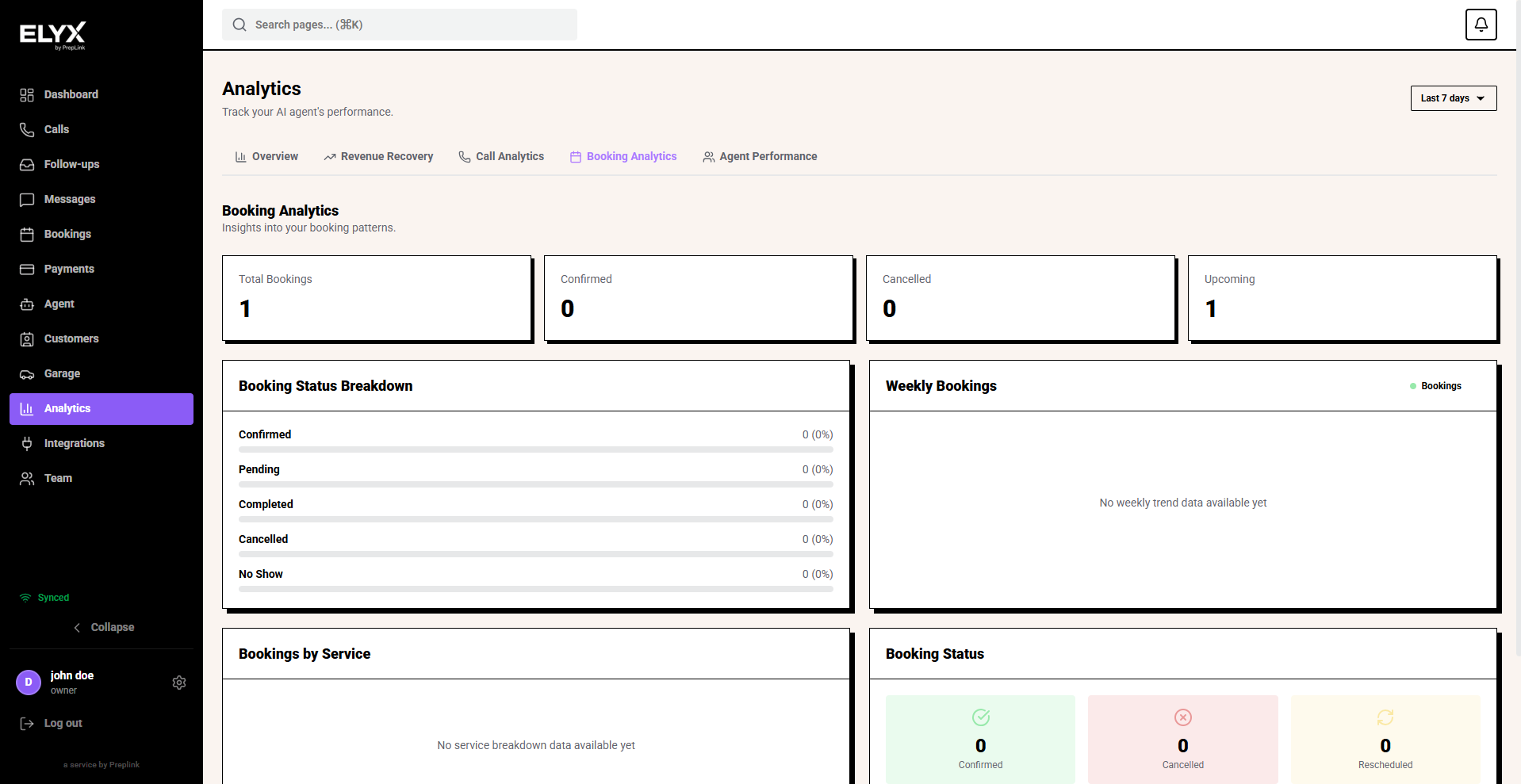
If bookings are lower than expected, check that your services, availability, booking rules, and public booking links are still correct.
Review Agent Performance
Use Agent Performance to see how Resk agents are handling work.
- Open Analytics.
- Choose Agent Performance.
- Set the date range.
- Review each agent’s total calls.
- Check bookings created or completed by agent.
- Compare average call length and completion rate.
- Look for agents with unusual patterns, such as many long calls or fewer completed outcomes.
- Use the findings to update scripts, knowledge, services, or routing.
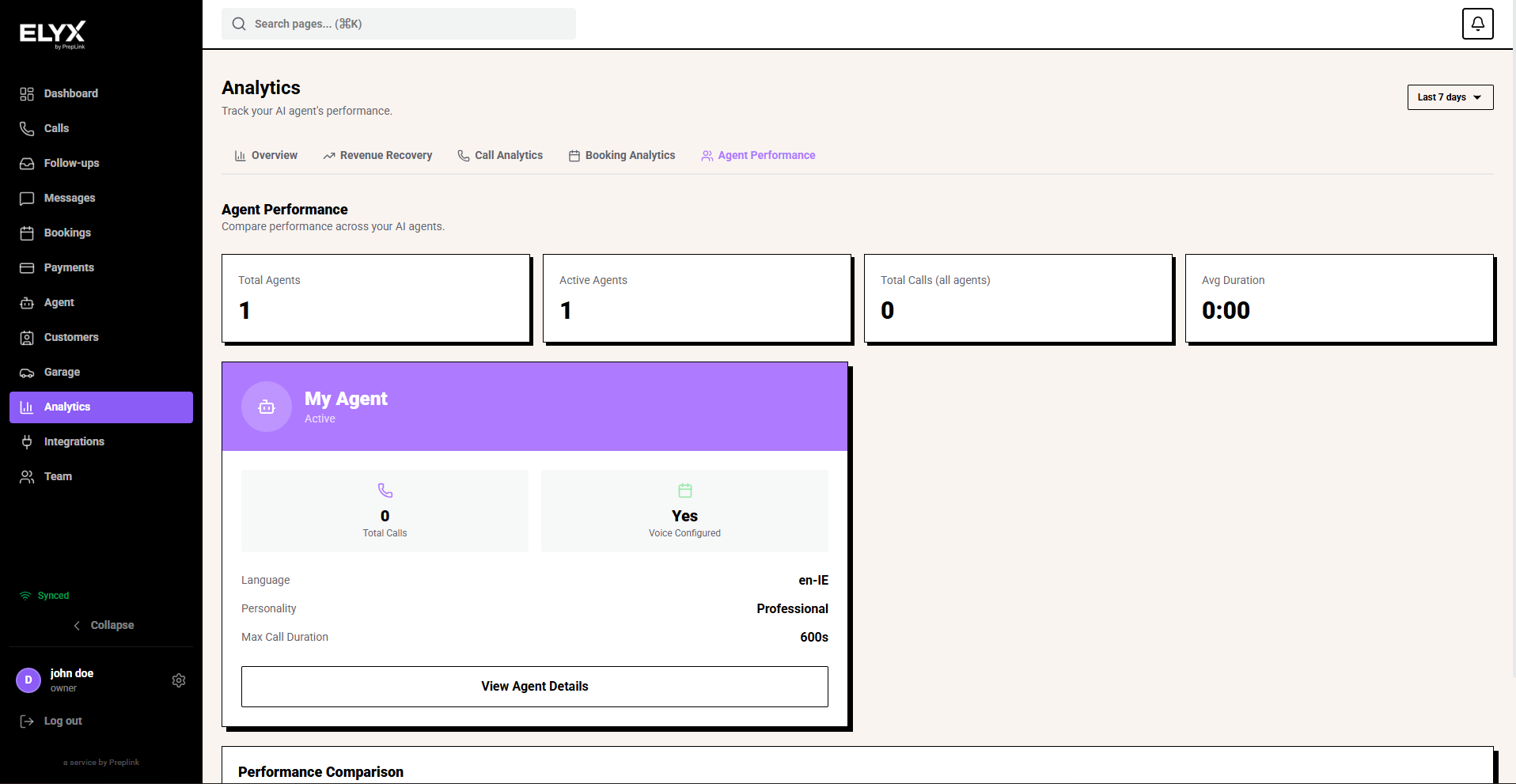
Do not judge an agent from one number alone. A longer average call length may be normal if that agent handles complex requests.
Export analytics
- Open the Analytics tab you want to share.
- Set the correct date range.
- Choose the export option, such as PDF or JSON, when available.
- Save the export for your internal report.
- Add a short note explaining any unusual changes, such as holidays, staff changes, promotions, or temporary closures.
Weekly owner review
Once a week:
- Set the date range to the last 7 days.
- Start on Overview.
- Check missed calls and unresolved outcomes.
- Open Revenue Recovery and check recovered opportunities.
- Open Call Analytics and find the busiest period.
- Open Booking Analytics and check which services are being booked.
- Open Agent Performance and look for coaching or setup improvements.
- Pick one change to make before the next review.
Good weekly changes include updating a service description, fixing opening hours, adding a message template, changing a recovery delay, or improving the agent knowledge base.
Common mistakes
- Judging performance from one strange day instead of a full period.
- Comparing two date ranges that include different holidays or opening hours.
- Treating Resk analytics as your accounting record.
- Looking only at volume and ignoring outcomes.
- Ignoring recovery workflows when revenue recovery looks low.
- Forgetting that analytics depend on which Resk features your account uses.
Related articles
Last updated: April 2026