Account and login
Quick answer - Use the email you signed up with or the email your manager invited. If you land in the wrong business or see an empty dashboard, sign out and sign back in with your invited work email.
Use this guide when - Everyone on the team.
Before you start - Have access to your work email inbox. If you were invited by someone else, use the exact email address they invited.
First-time signup
- Open the Resk signup page or the invite link from your email.
- Enter your name, work email, and password.
- Accept the terms if prompted.
- Choose Create account.
- Check your inbox for a verification email if Resk asks you to verify.
- Return to Resk and continue setup.
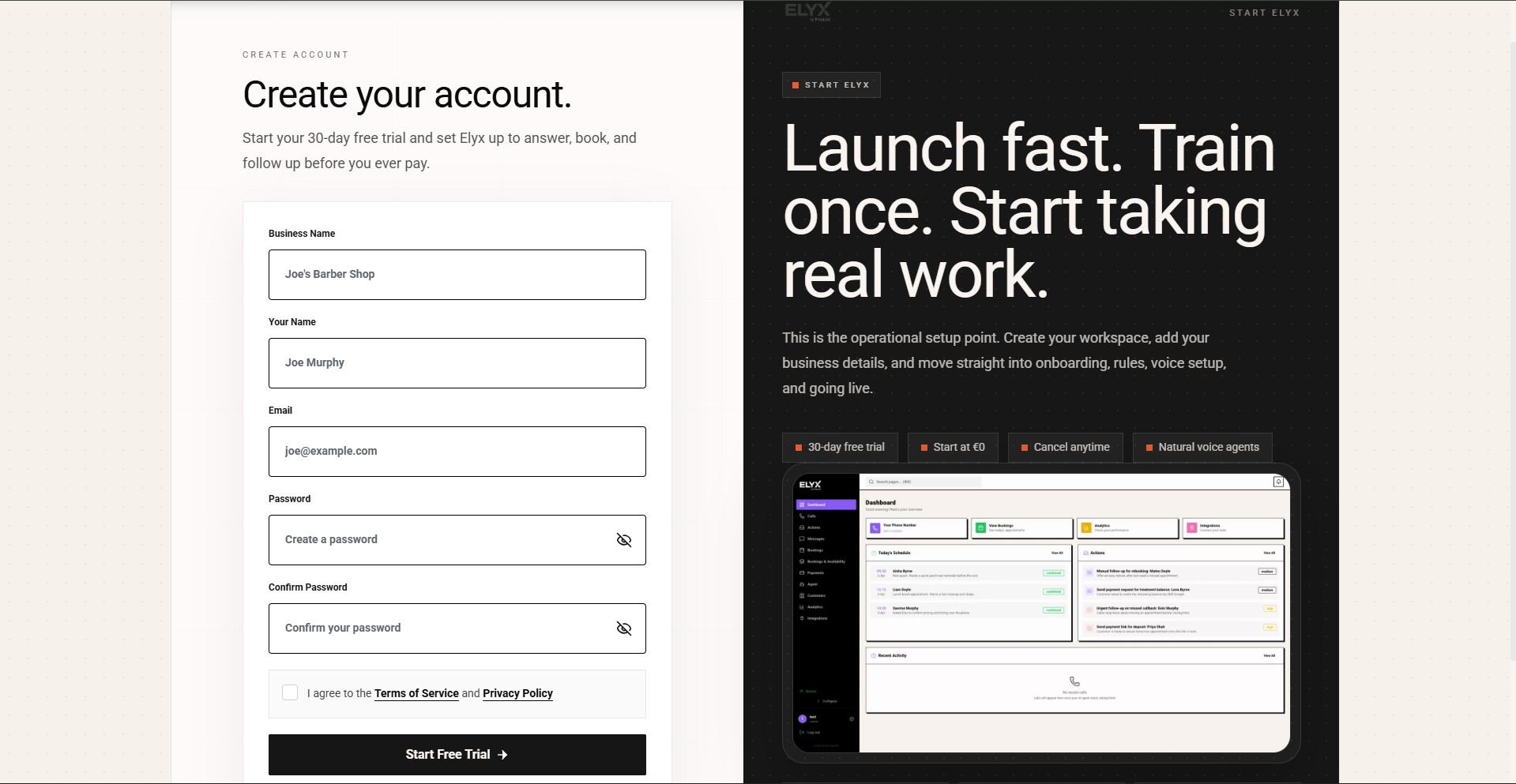
You are finished with this step when Resk takes you into onboarding or the main app.
If you were invited by a manager
- Open the invitation email.
- Choose the invite link.
- Create your login using the same email address that received the invite.
- Sign in.
- Confirm you can see the expected business name in Resk.
Do not create a separate account with a personal email unless your manager specifically asks you to.
Day-to-day login
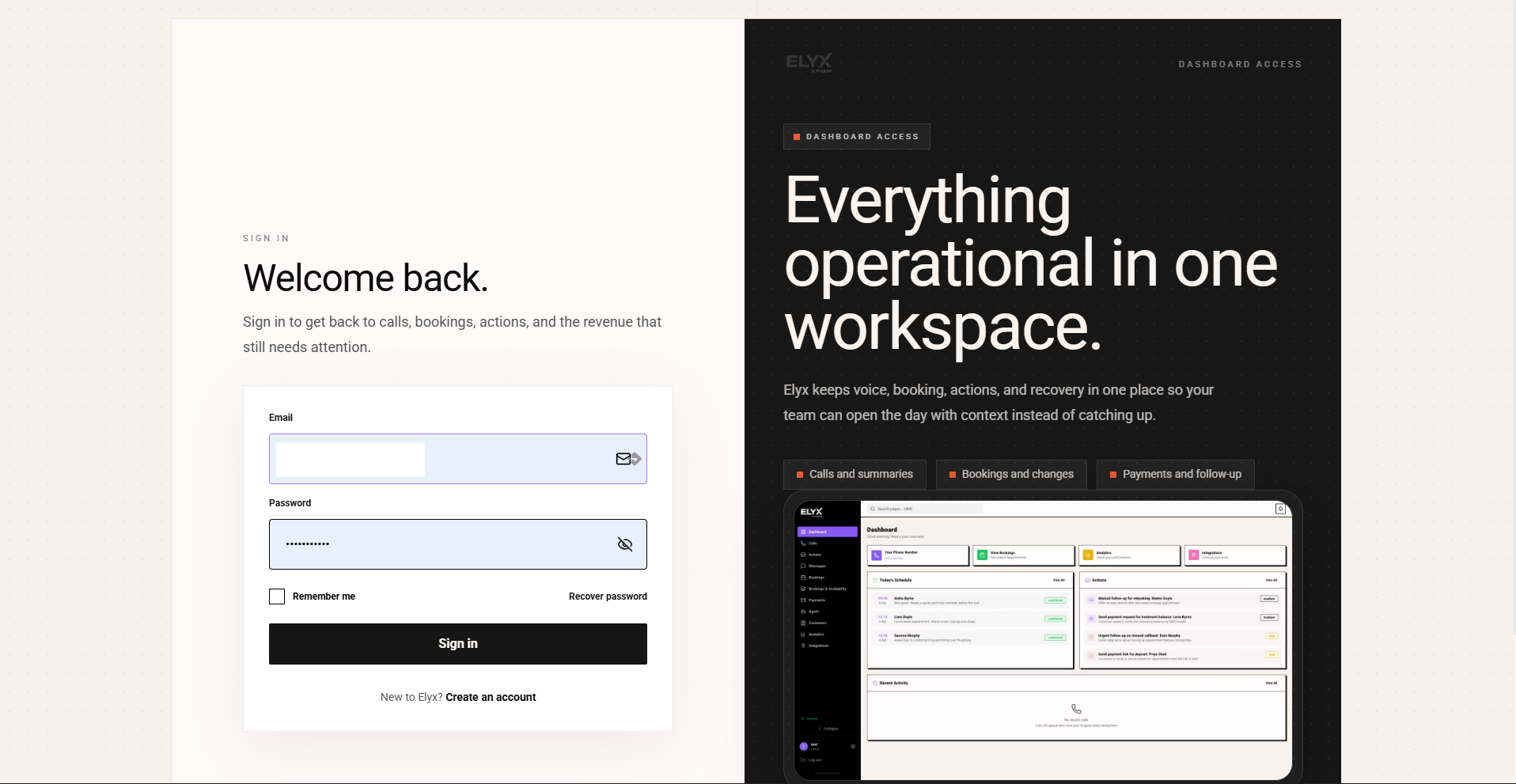
- Open the Resk app.
- Choose Log in.
- Enter your email and password.
- Complete any security step shown on screen.
- Confirm you land in the correct business.
If your company has a special login link, use the link your manager shared.
Reset your password
- On the login page, choose Forgot password.
- Enter your work email.
- Open the reset email.
- Choose the reset link.
- Set a new password.
- Return to Resk and sign in again.
If the reset email does not arrive within a few minutes, check Spam, Promotions, and any quarantine folder your workplace uses.
Wrong business or empty dashboard
This usually means you signed in with a different email than the one invited.
- Choose your profile or account menu.
- Sign out fully.
- Return to the login page.
- Sign in with your invited work email.
- If you still see the wrong business, open the original invite link again.
If an Resk support teammate is viewing your account with you, the screen may show a read-only support banner. That is normal during support.
Security basics
- Use one login per person.
- Do not share the owner password with the team.
- Remove access when someone leaves.
- Use Settings -> Security for password changes when available.
Common mistakes
- Signing up with a personal email after the business invite was sent to a work email.
- Forwarding an invite to someone else. Ask the owner to invite that person directly.
- Sharing one login at reception. This makes it hard to know who changed a booking or setting.
Related articles
Last updated: April 2026