Your AI agent
Quick answer - The Agent area controls how Resk sounds, what it says, what it is allowed to do, and what business knowledge it can use. Test with a real call after every important change.
Use this guide when - Owners or trusted managers who control the customer experience.
Before you start - Have your opening hours, service list, booking rules, prices, and escalation rules ready.
Open Agent
- Sign in to Resk.
- Choose Agent from the left menu.
- Confirm you are editing the correct business.
- Review the setup cards and any warnings.
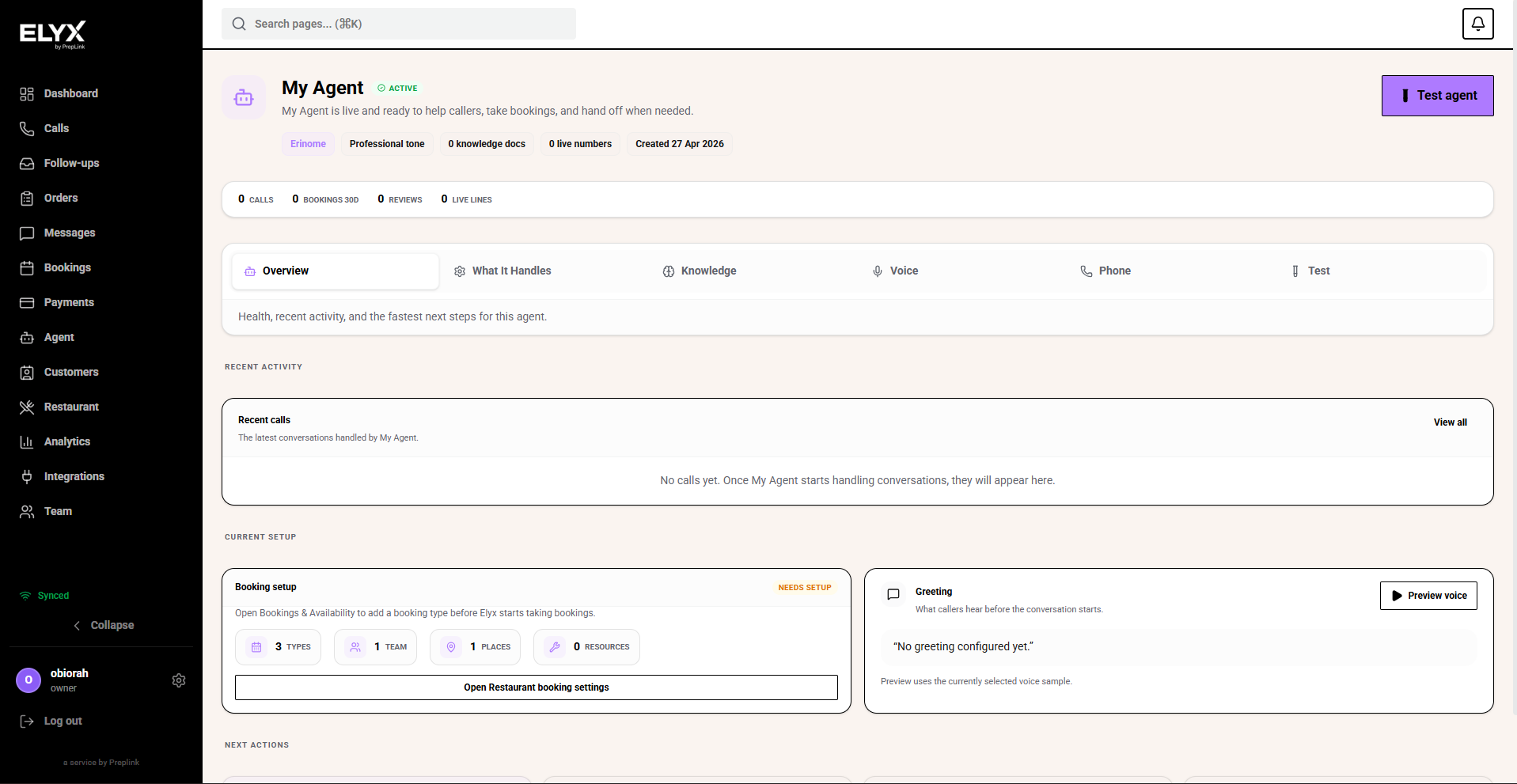
Review agent details
Use the agent detail page when you want to check how one agent is configured.
- Open Agent.
- Select the agent you want to review.
- Check the overview, voice, knowledge, actions, and any warning messages.
- Review recent activity or linked setup areas before changing anything.
- Save after each group of changes.
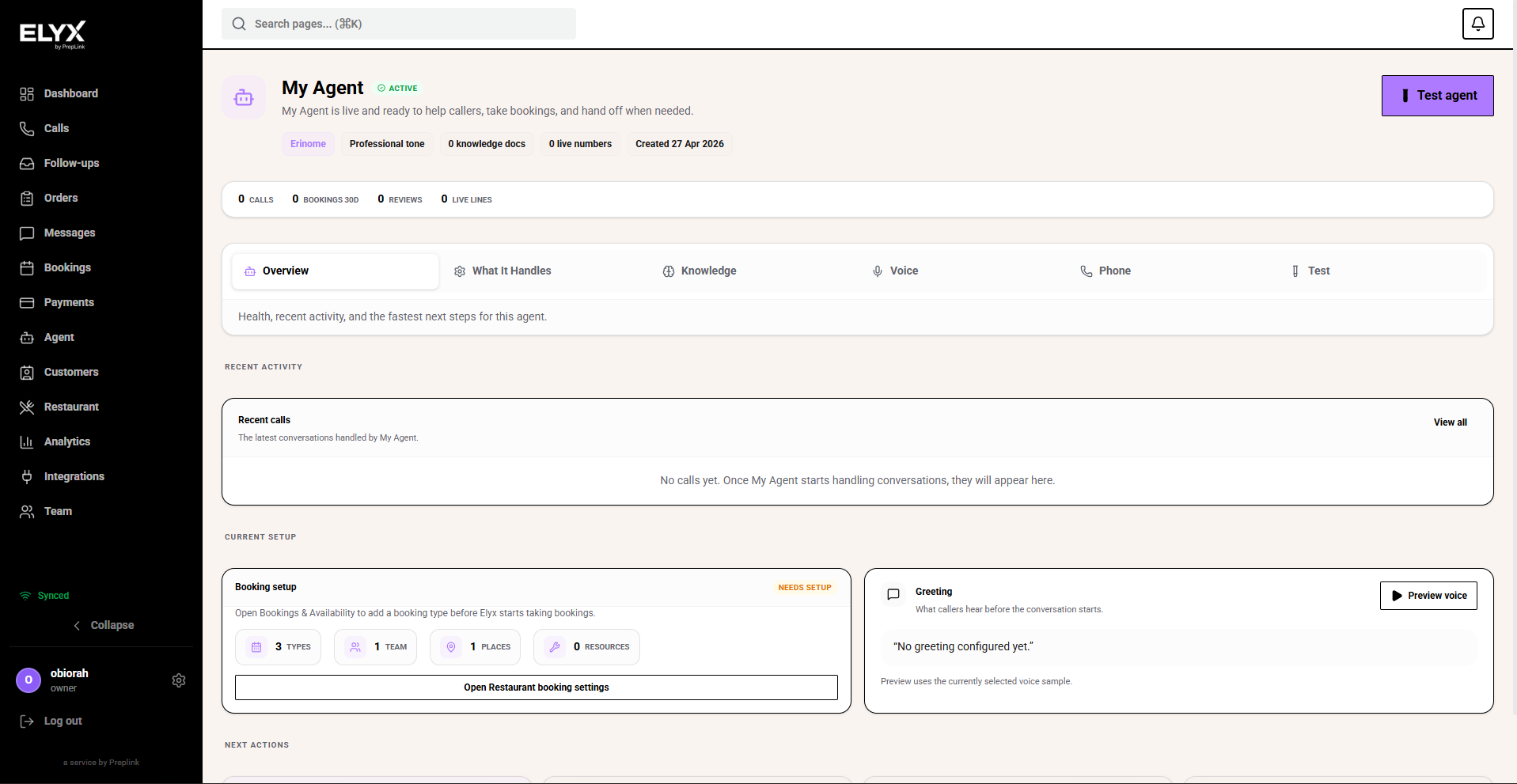
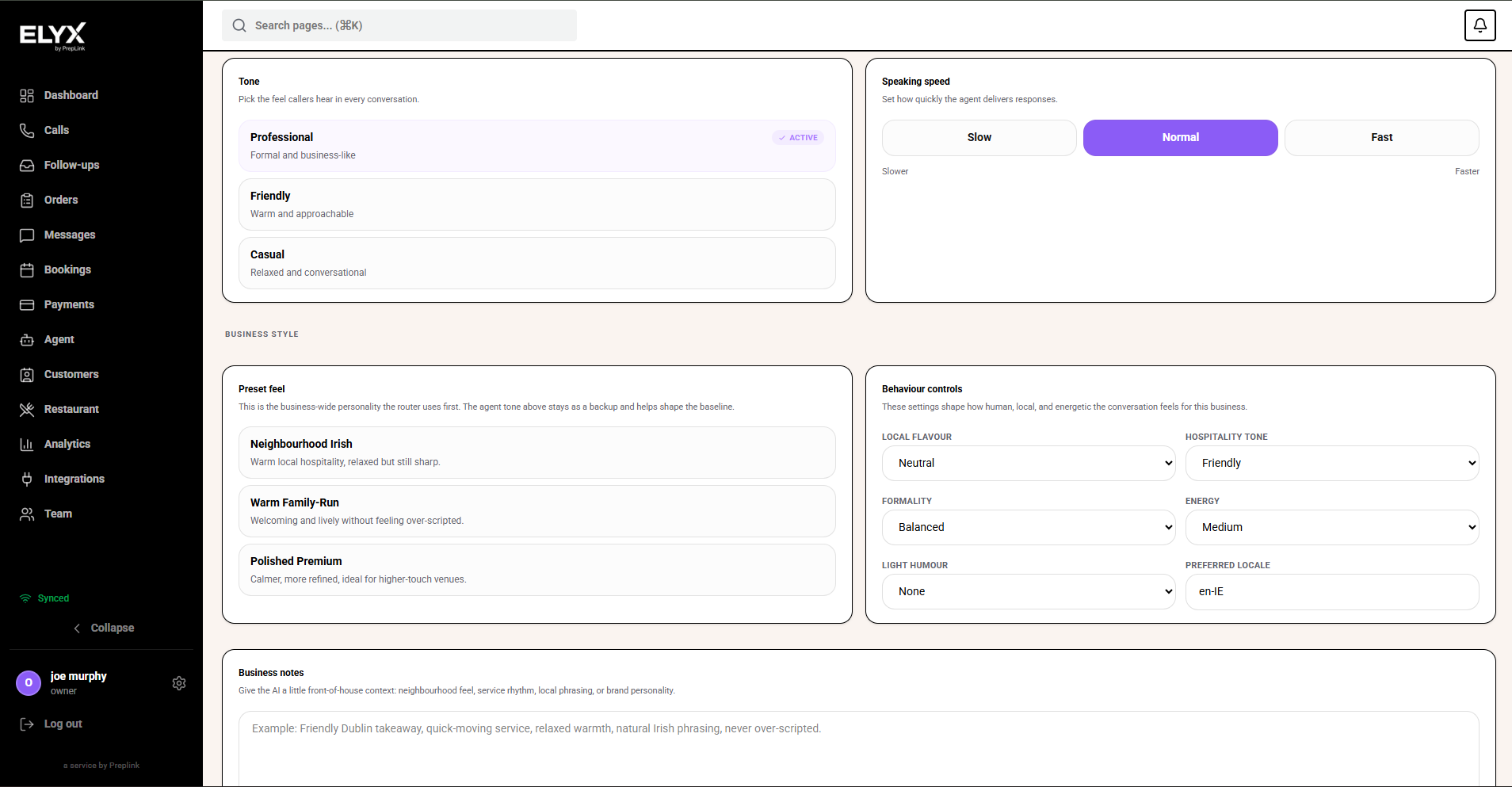
Set the greeting
The greeting is the first thing callers hear.
- Open the greeting or voice section.
- Write a short greeting with the business name.
- Avoid long menus or complicated instructions.
- Save.
- Place a test call and listen from a normal phone.
Good example:
Thanks for calling Riverside Dental. I can help with appointments, opening hours, and messages for the team. How can I help?
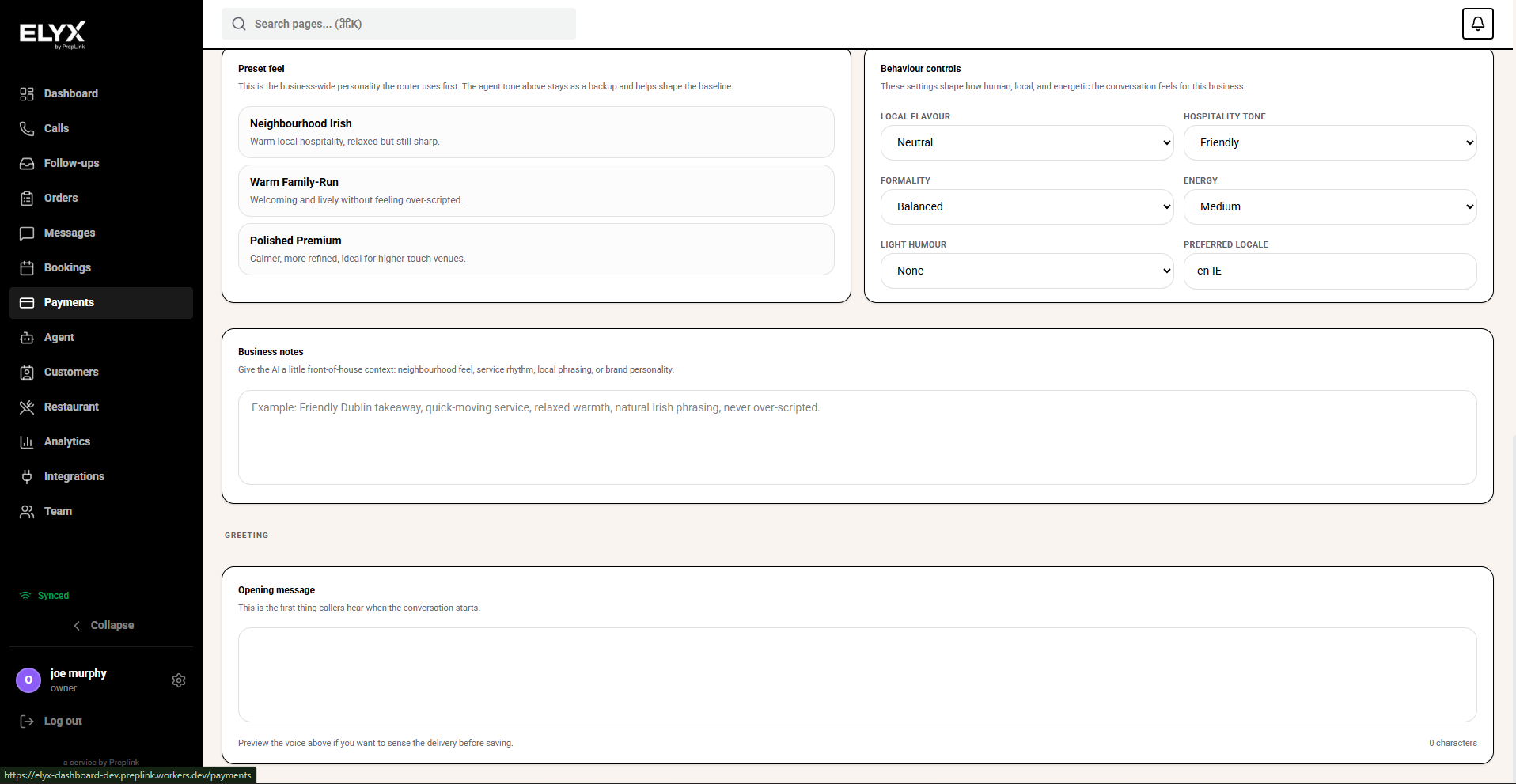
Choose the voice
- Open Voice.
- Play the options.
- Choose a voice that is clear over phone audio.
- Save.
- Test again by calling the Resk number.
Do not choose based only on laptop speakers. Phone audio can sound different.
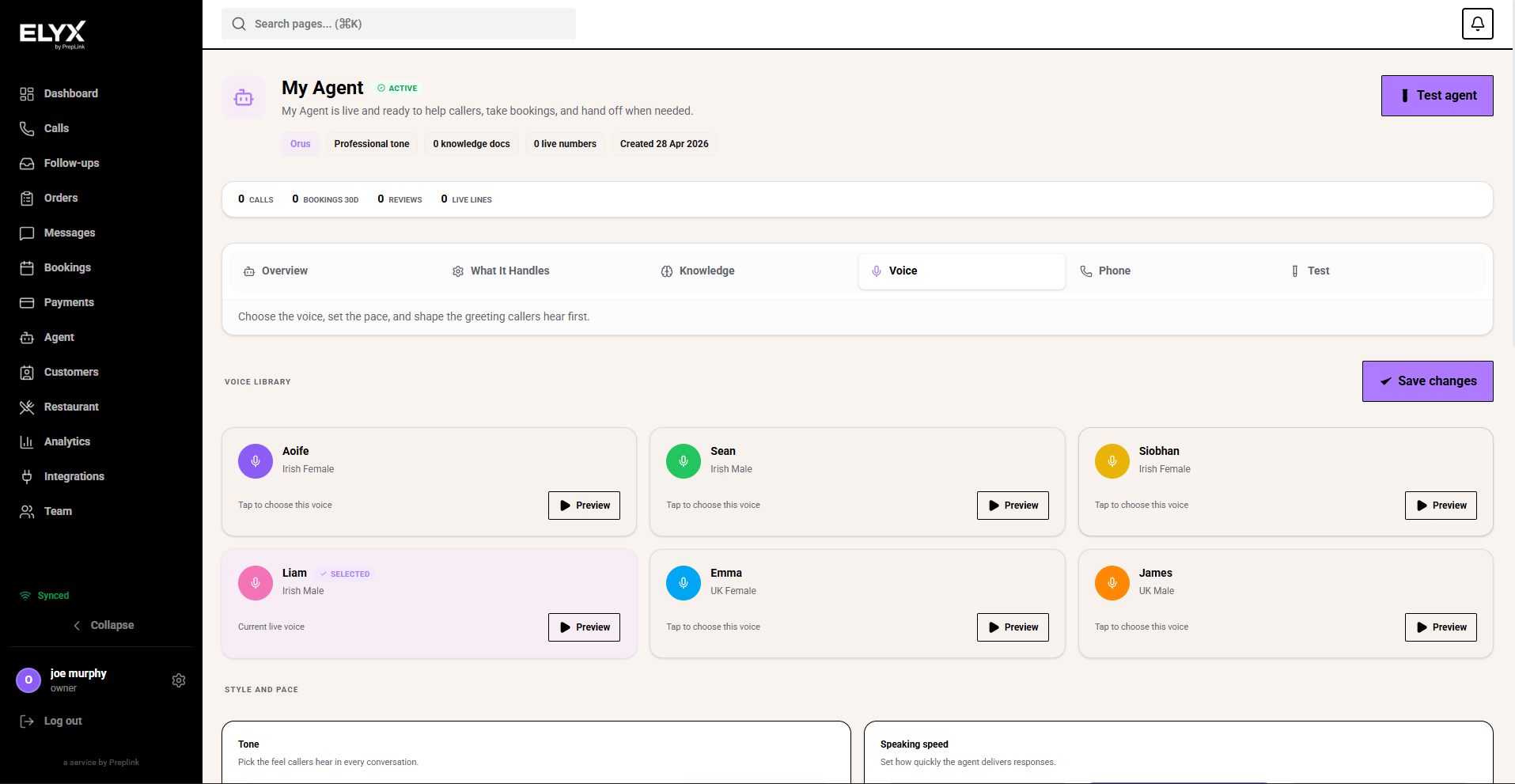
Manage capabilities
Capabilities are the jobs Resk can do.
- Open Capabilities.
- Review each available action.
- Turn on only the actions your team can support today.
- Save.
- Test each action with a real call.
Examples:
- Answer common questions.
- Create a booking.
- Take a message.
- Create a callback.
- Send an SMS.
- Transfer or escalate to staff.
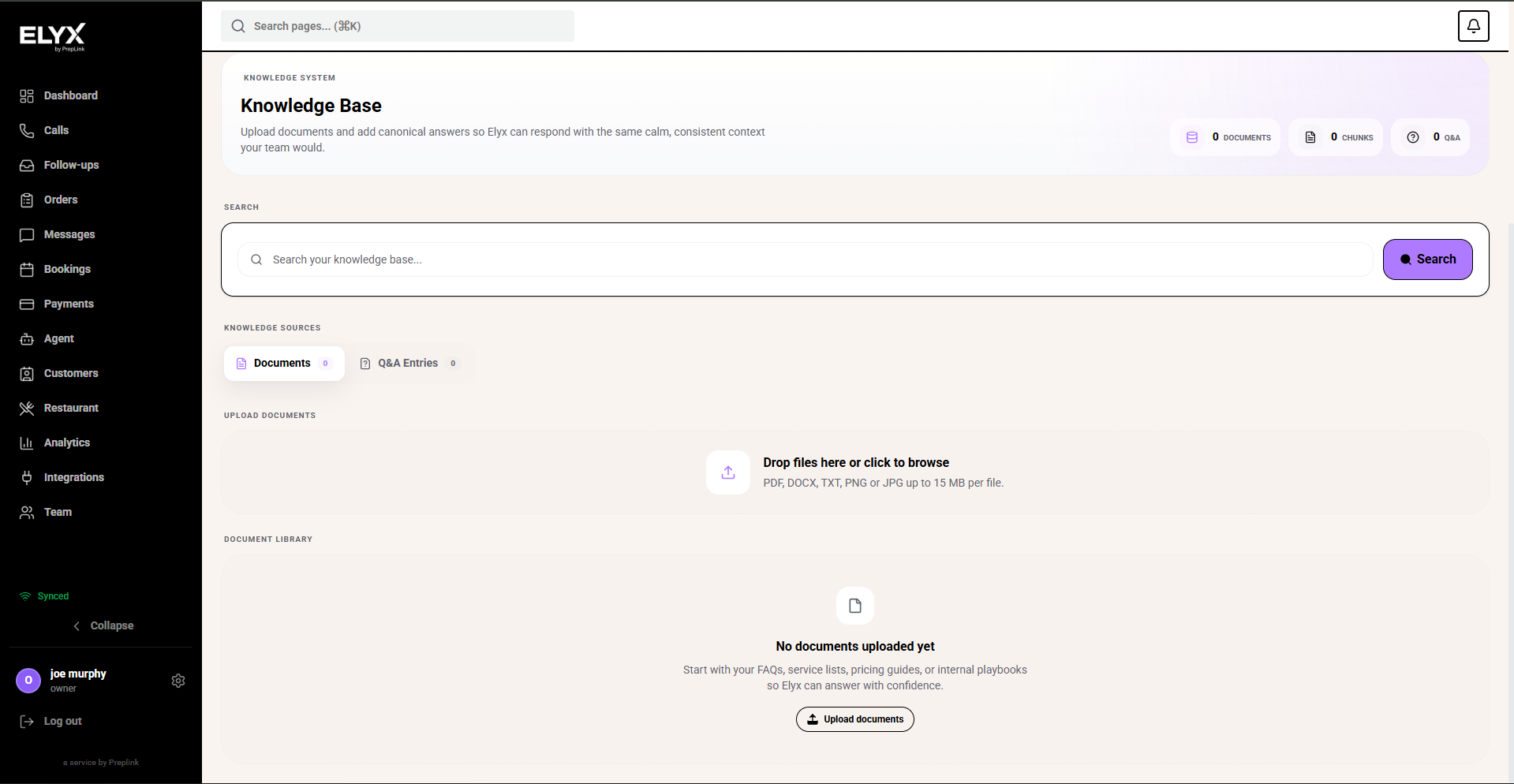
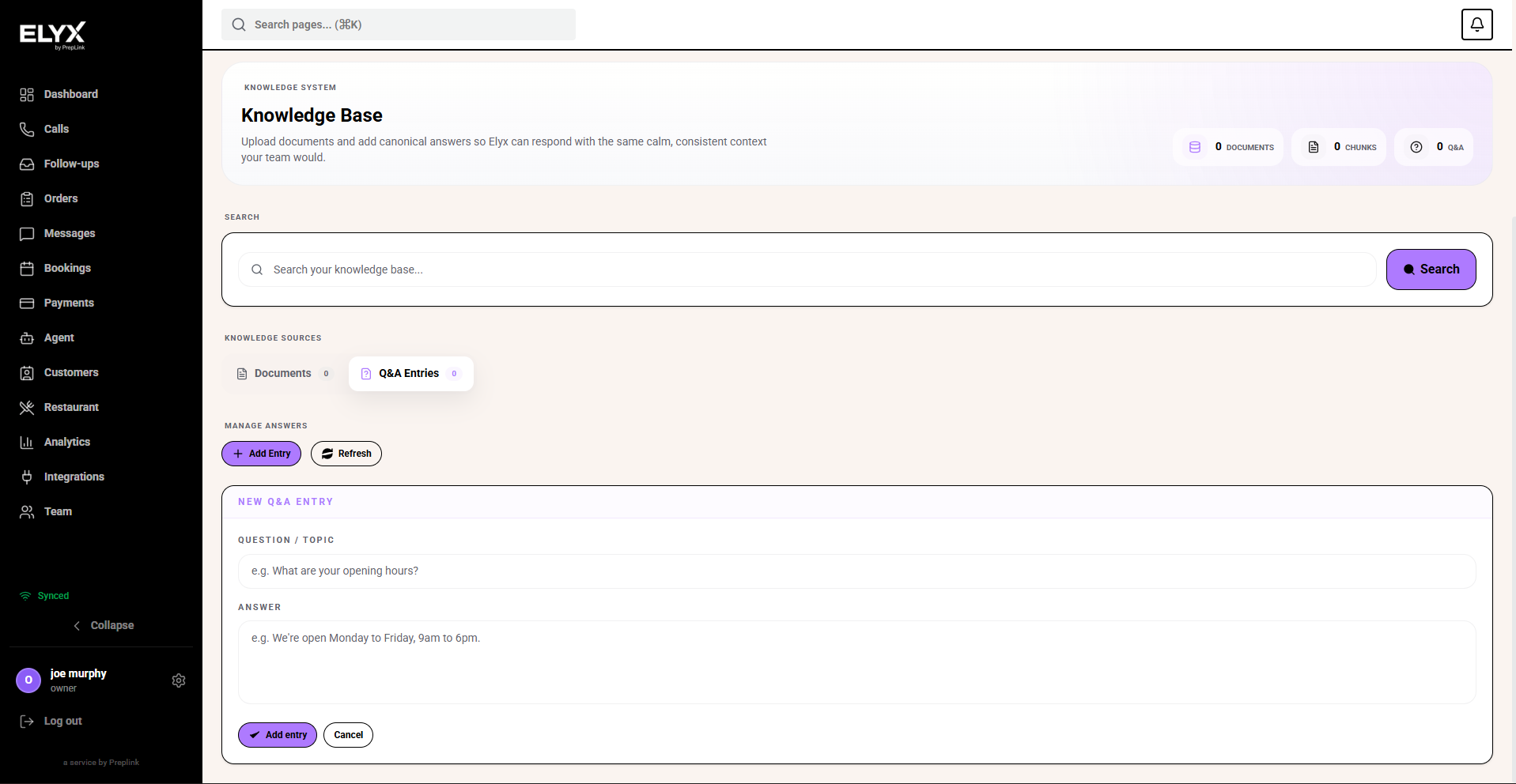
Add knowledge
- Open Knowledge.
- Add short facts customers ask about.
- Add rules Resk must follow.
- Add boundaries for things Resk should not promise.
- Save.
- Test with real questions.
Good knowledge includes:
- Services and prices.
- Opening hours.
- Booking rules.
- Cancellation rules.
- Parking or access instructions.
- Deposit rules.
- Escalation rules.
Set escalation rules
Escalation rules tell Resk when to involve staff.
Add rules for:
- Angry or upset callers.
- Refunds or billing disputes.
- Medical, legal, or safety-sensitive questions.
- Large bookings.
- Urgent same-day requests.
- Anything requiring owner approval.
Test after every major change
- Call the Resk number.
- Ask one simple question.
- Ask one booking or service question.
- Ask one question Resk should escalate.
- Open Calls.
- Review the summary and transcript.
- Check Follow-ups.
- Fix knowledge or capabilities if the result was wrong.
Common mistakes
- Adding long paragraphs instead of short call-friendly facts.
- Leaving old prices or old hours in knowledge.
- Turning on booking before availability is correct.
- Forgetting to place a real test call after changes.
Related articles
Last updated: April 2026