Inventory
Quick answer - Inventory tracks item availability and stock levels for the restaurant. Use it to update counts, flag low stock, mark items out, and prevent staff, ordering, or AI from offering food you cannot sell.
Use this guide when - Kitchen leads, GMs, owners, and anyone responsible for stock or sold-out items.
Before you start - Set up Menu management. Decide which items need stock tracking and which items only need manual availability control.
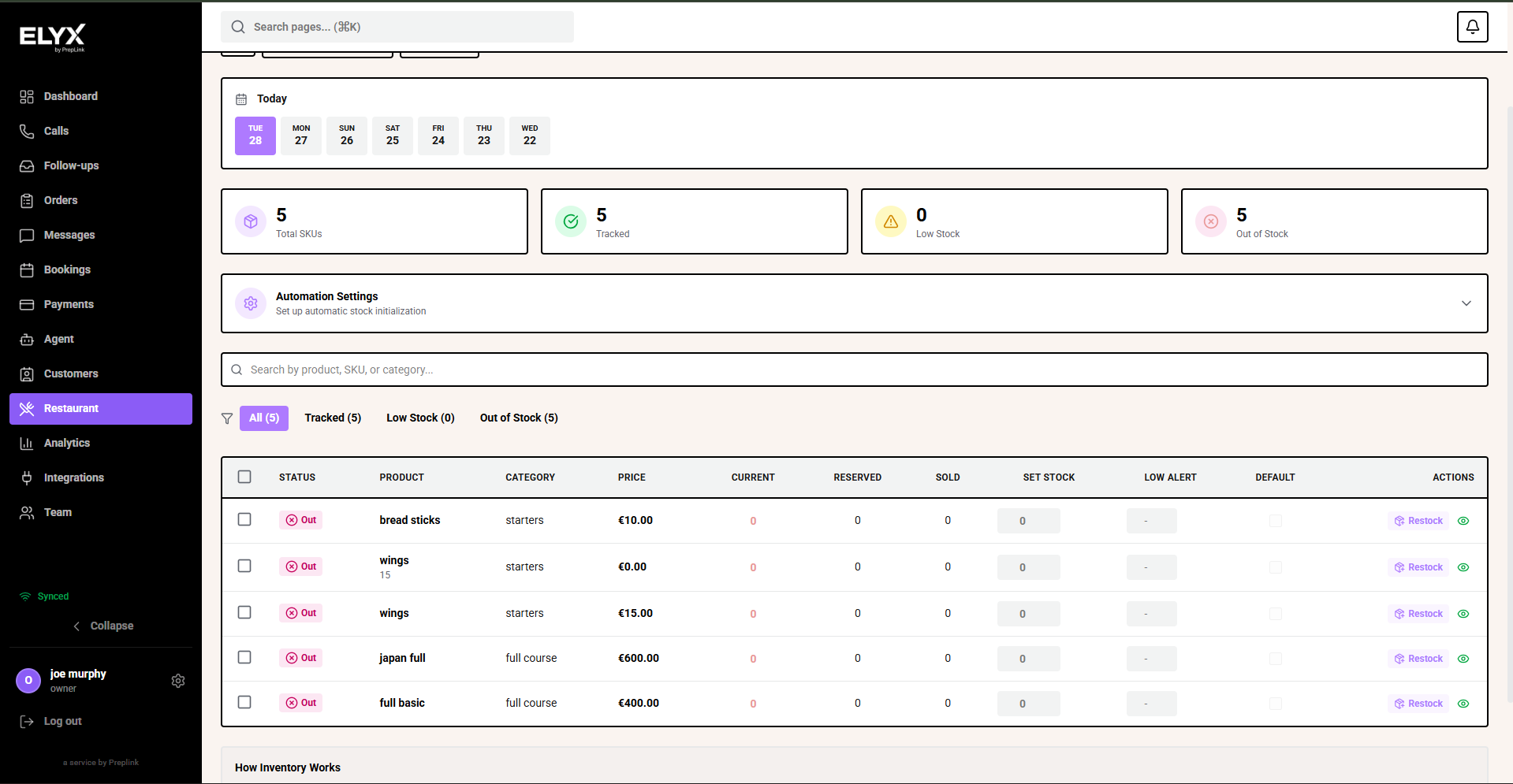
Open Inventory
- Choose Restaurant from the left menu.
- Choose Inventory.
- Pick the date you want to review.
- Check total SKUs, tracked items, low stock, and out-of-stock items.
- Search by product, SKU, or category.
- Use the status filters to focus on tracked, low-stock, or out-of-stock items.
What to track
You do not need to track every ingredient. Start with items that affect sales or guest experience.
Good items to track:
- Specials with limited portions.
- High-value dishes.
- Items that frequently sell out.
- Bottled drinks or retail items.
- Delivery-only items with limited prep.
- Desserts made in small batches.
Items you may not need to track:
- Basic ingredients used across many dishes.
- Items with constant supply.
- Prep components managed in a separate stock system.
Inventory states
| State | Meaning |
|---|---|
| OK | Item has enough stock. |
| Low | Item is below the warning threshold. |
| Out | Item cannot be sold. |
| Not tracked | Resk is not managing the count. |
| Unavailable or 86 | Item is temporarily removed from sale. |
Use Out or 86 when staff and guests should stop ordering the item.
Update stock manually
- Open Restaurant.
- Choose Inventory.
- Search for the item.
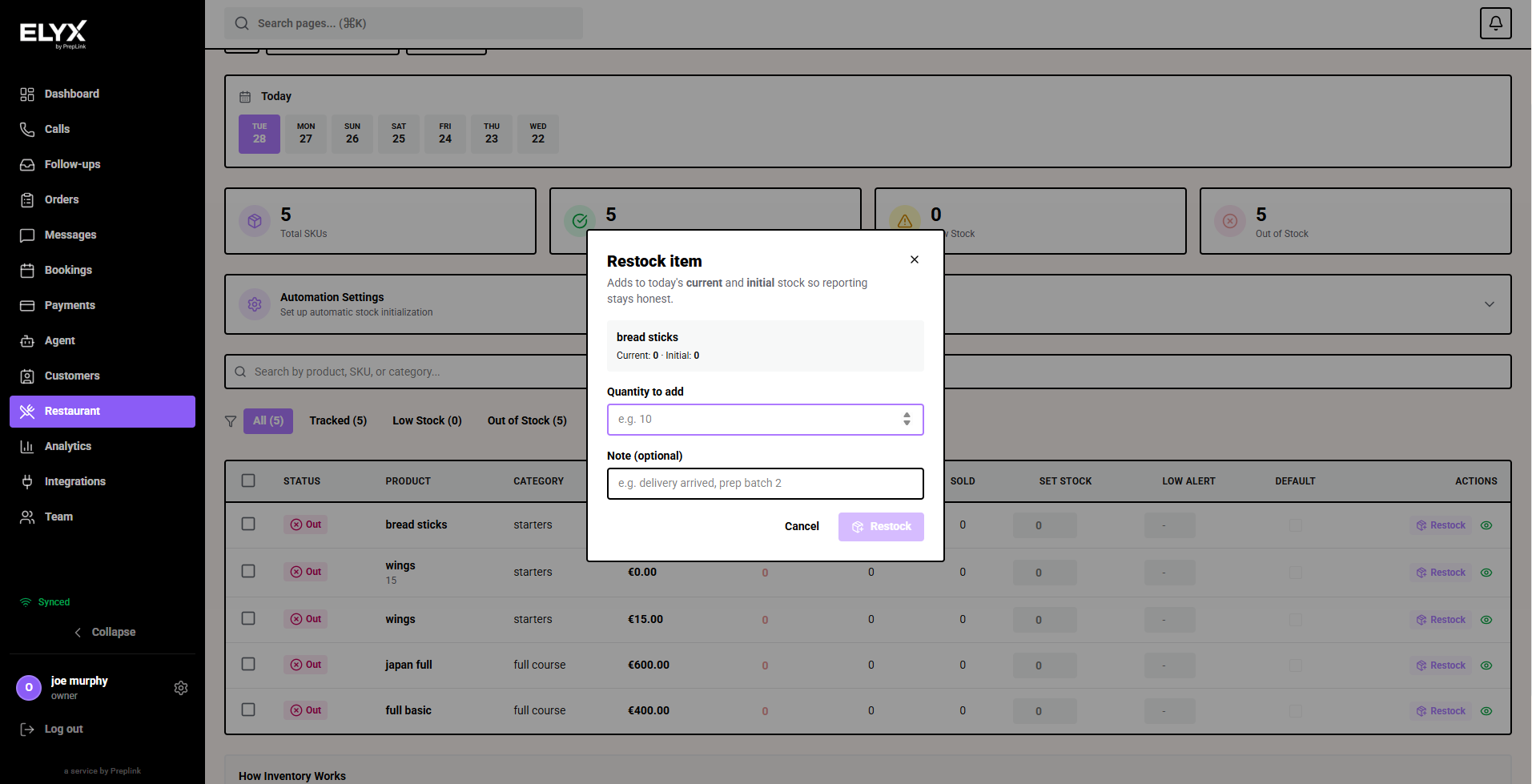
- Open the stock row.
- Enter the current quantity or adjustment.
- Confirm the low-stock threshold.
- Choose whether the linked menu item should remain available.
- Choose Save.
If the item is out, check the linked menu item so it is not still sold through orders, delivery, or public flows.
Set low-stock alerts
Low-stock alerts help staff act before an item sells out.
- Open the inventory item.
- Set the Low stock threshold.
- Choose who should be notified if alerts are configurable.
- Choose Save.
Example: If you have 20 portions of a special, set low stock at 5 so staff can manage expectations before the last one sells.
Use daily opening counts
At opening:
- Count limited-stock items.
- Update inventory.
- Mark sold-out items unavailable.
- Check specials and high-demand dishes.
- Tell front-of-house about limited items.
At close:
- Check remaining stock.
- Record waste or sold-out issues if your process tracks them.
- Save defaults for tomorrow if the product supports it.
- Re-enable items that will be available again next service.
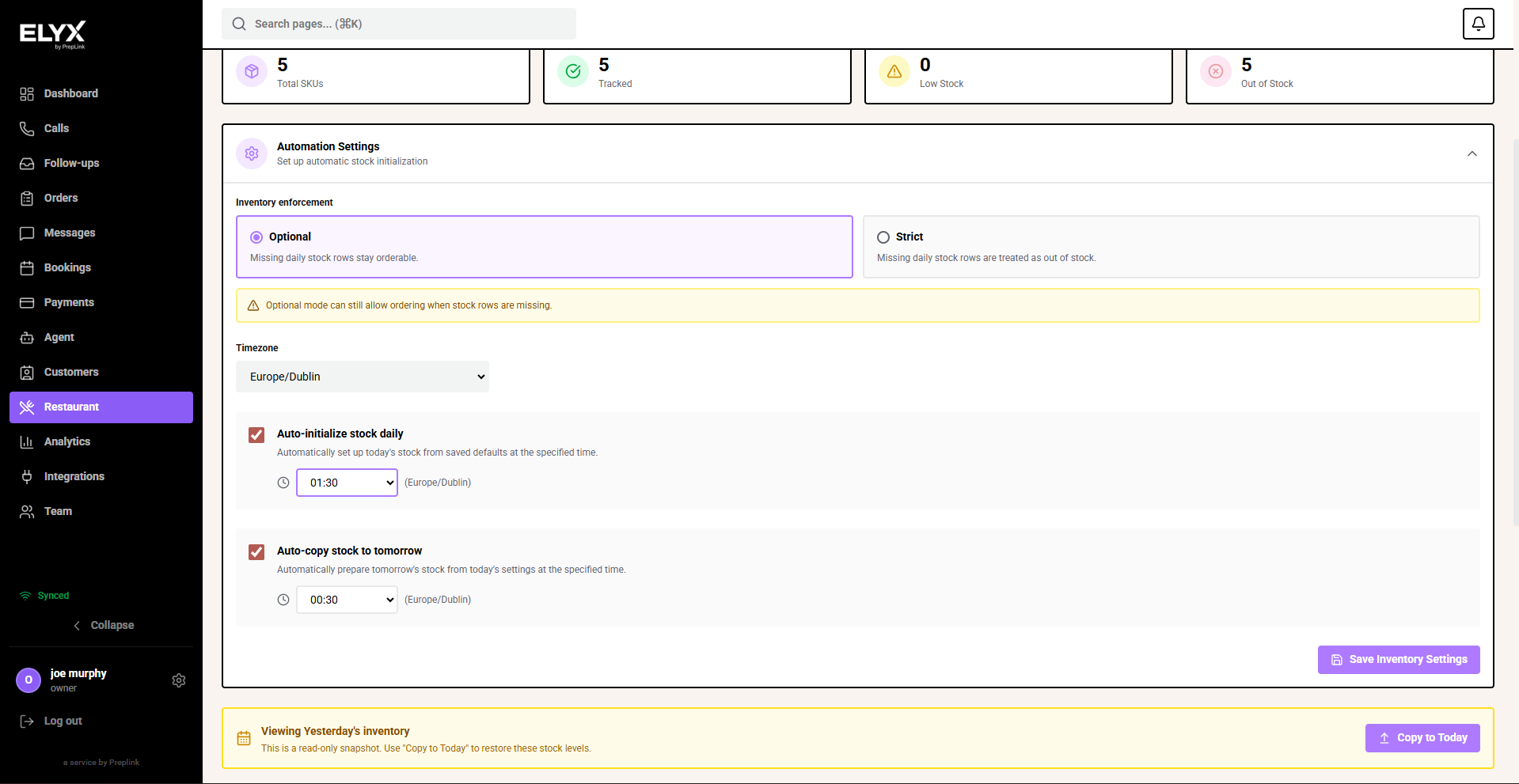
Connect inventory to menu availability
Where enabled, inventory can affect whether menu items are orderable.
Check:
- Which menu item the stock item controls.
- Whether stock decreases when an order is sent, paid, completed, or manually closed.
- Whether stock reaches zero automatically marks the item unavailable.
- Whether staff can override availability.
If automation is unclear, test with a low-risk item before relying on it during service.
Bulk updates
Use bulk updates for opening and closing routines.
Common bulk actions:
- Mark multiple items available.
- Mark multiple items unavailable.
- Set thresholds.
- Copy today’s counts to tomorrow.
- Reset counts from defaults.
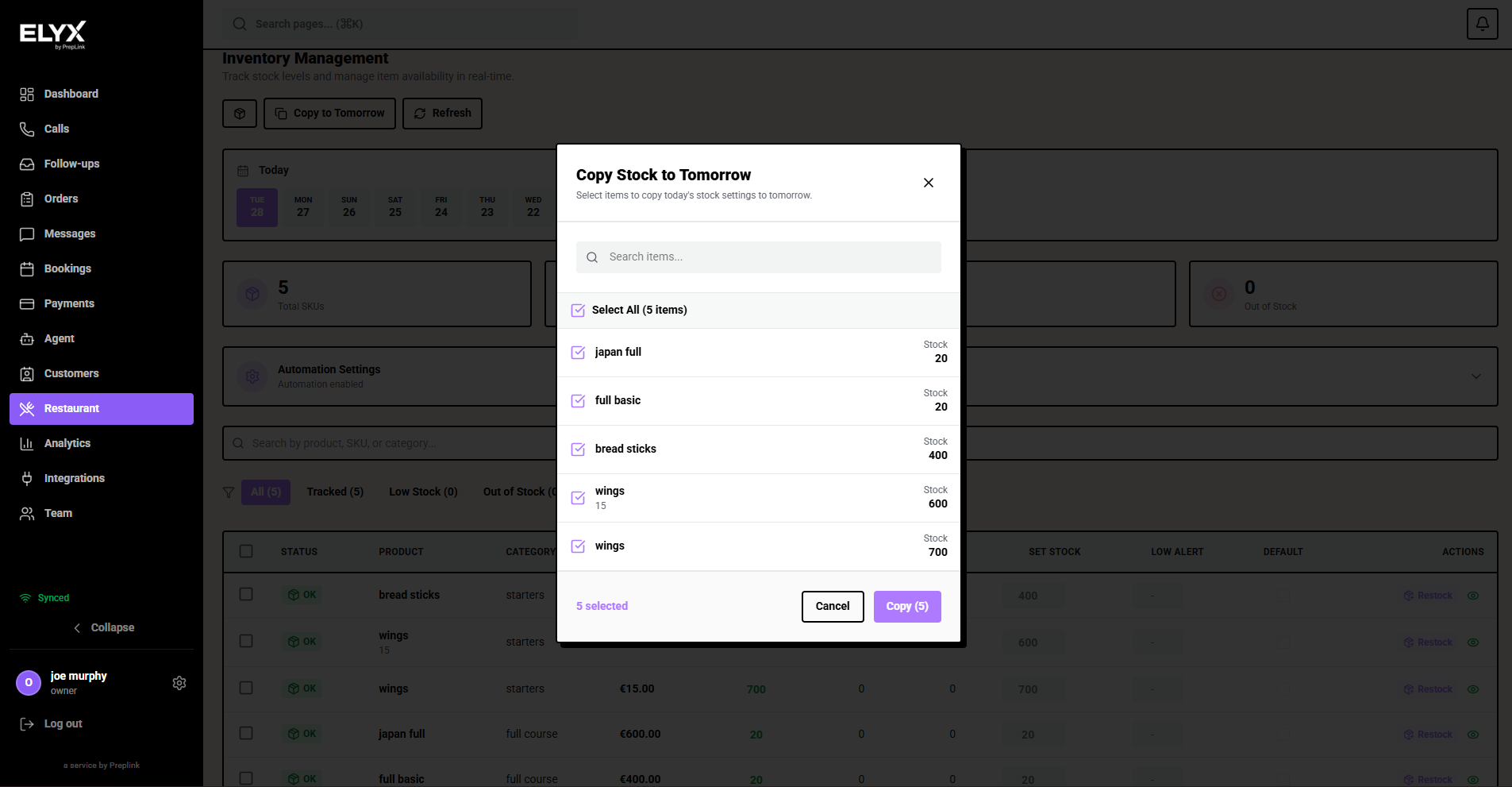
Be careful with bulk actions. A single mistake can hide a whole menu section.
Common mistakes
- Tracking too many items on day one.
- Updating inventory but forgetting to update menu availability.
- Leaving sold-out specials active on delivery platforms.
- Setting thresholds too low to be useful.
- Not telling front-of-house when a popular item is nearly out.
- Assuming automation decrements stock at the same moment your kitchen expects.
If something goes wrong - Check Menu management, Orders, and Kitchen display.
Related articles - Delivery, Restaurant dashboard and analytics.
Last updated: April 2026