Garage module - help hub
Quick answer - The garage module helps workshops manage vehicles, jobs, service pricing, invoices, customer updates, and AI call handling. Start with vehicle lookup, services, and job flow before you rely on invoices, public status links, or AI updates.
Use this guide when - Garage owners, service advisors, workshop managers, and admins are setting up or running garage workflows in Resk.
Before you start - Add your core business details, confirm your Resk number works, and make sure the garage module is enabled on your account.
What the garage module covers
| Area | What it helps with | Start here |
|---|---|---|
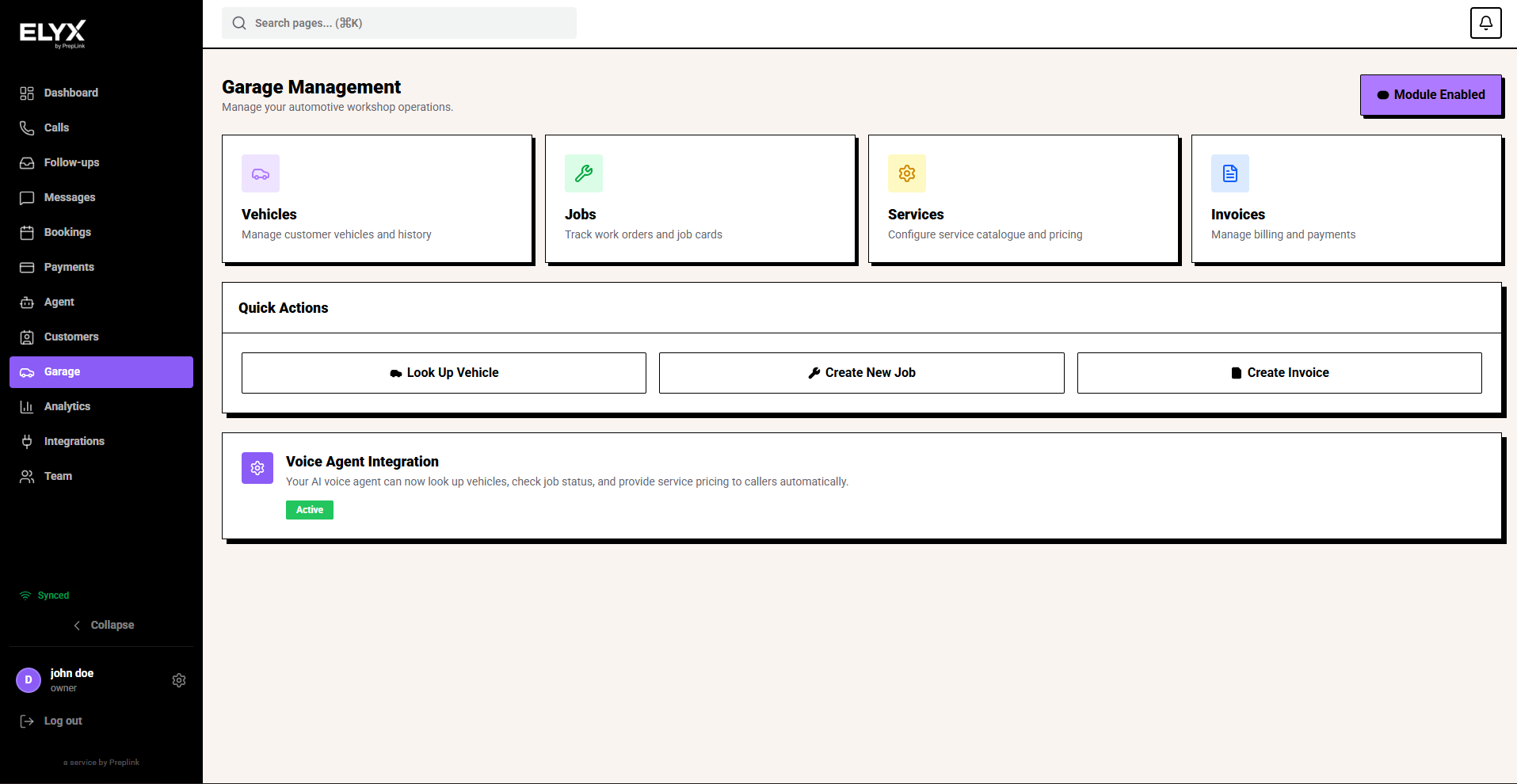
| Daily overview | Open vehicles, jobs, services, invoices, and quick actions. | Garage dashboard |
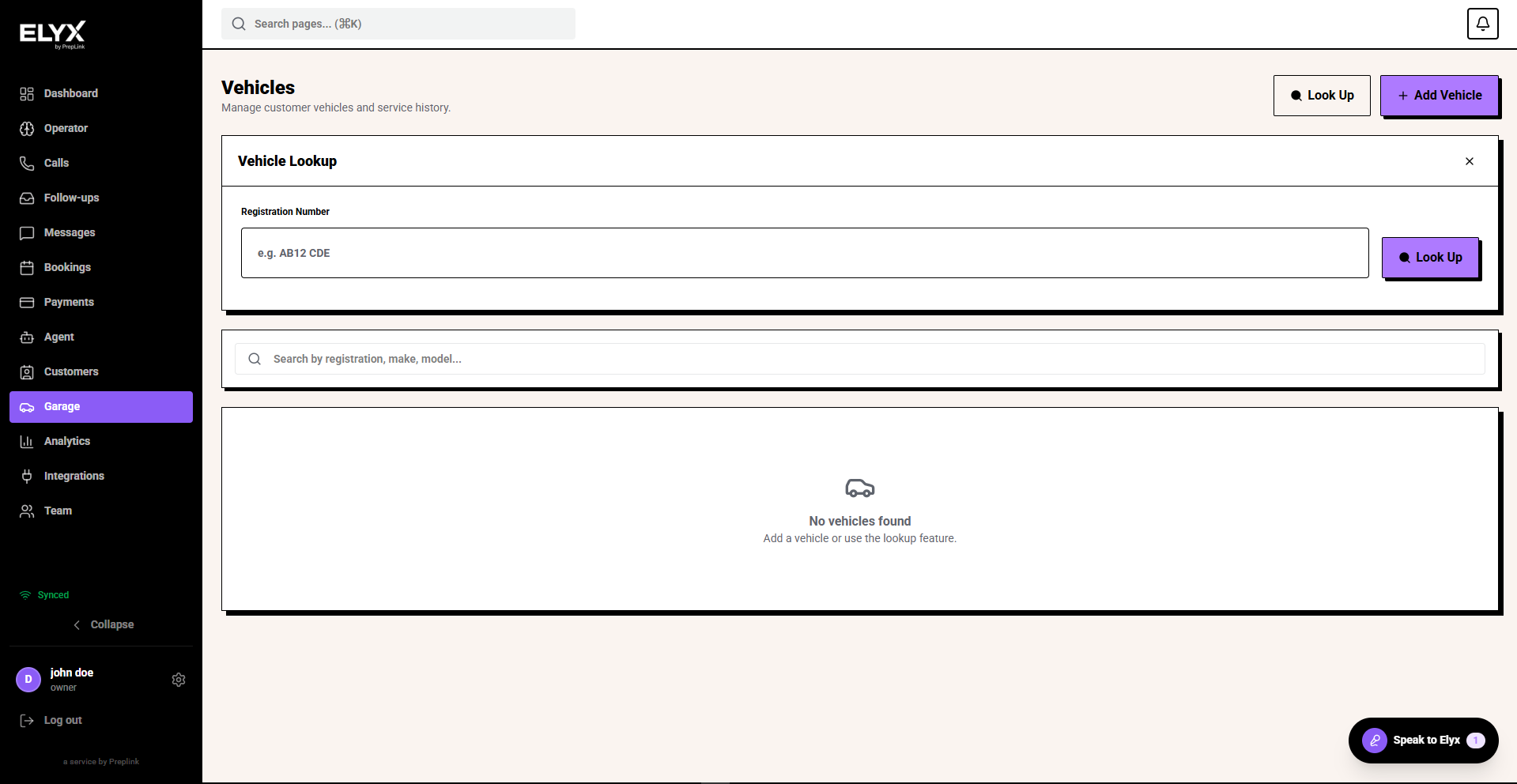
| Vehicles | Look up registrations, owner details, mileage, MOT information, and service history. | Vehicles |
| Services menu | Build the service catalogue, labour items, fixed prices, and quote-required work. | Services menu |
| Jobs | Create work orders, add complaints and line items, assign staff, and track status. | Jobs |
| Invoices | Bill from job work or ad-hoc lines once totals and customer details are correct. | Invoices |
| AI and customer updates | Help callers with service bookings, questions, callbacks, and job status where enabled. | Garage AI, public page, and core |
| Public status and service booking | Let customers request services or check status from a shared link. | Public status and service booking |
| Payments | Connect payment settings for deposits, invoices, and payment links where supported. | Payments |
First setup pass
Use this order for a new garage account. Do not turn on public status links or AI job updates until vehicles, services, and job statuses match how the workshop actually works.
- Open the Garage dashboard and confirm the team can reach Vehicles, Jobs, Services, and Invoices.
- Use Look Up Vehicle with a real registration and check the vehicle result before creating a duplicate record.
- Add the core services customers ask for most often, including price, duration, category, and active status.
- Create a test job with a vehicle, customer, complaint, services, labour, parts, advisor, technician, priority, and due date.
- Move the test job through the statuses your team will use during the day.
- Create a test invoice from the agreed work and check customer, vehicle, line items, tax, due date, notes, and totals.
- Review public service booking and public job status only after the internal workflow is clean.
- Teach the AI agent your service names, price rules, MOT wording, turnaround times, warranty policy, callback rules, and escalation rules.
Full garage walkthrough
Work through the garage section in this order when you are setting up or auditing a workshop from scratch.
- Garage dashboard - Confirm the dashboard cards and quick actions match the work staff need every day: vehicle lookup, new jobs, services, and invoices.
- Vehicles - Search before creating records, check owner details, mileage, MOT information, service history, and linked jobs. Duplicate vehicles make job history hard to trust.
- Services menu - Add common services, packages, labour, prices, durations, active status, and quote-required items before staff build jobs or invoices.
- Jobs - Create jobs from real calls or arrivals, add the complaint, services, labour, parts, notes, advisor, technician, due date, status, and priority.
- Job status and priority - Move work through the same stages the workshop uses: booked, checked in, awaiting approval, awaiting parts, in progress, ready, collected, and completed.
- Completed jobs - Review completed work so old jobs do not stay on the active board and customers can be invoiced or updated correctly.
- Invoices - Create invoices only when work is agreed or complete. Check customer, vehicle, labour, parts, VAT, due date, payment state, notes, and totals.
- Public status and service booking - Test the service request and job status links before sharing them with customers.
- Garage AI and core Resk - Teach garage knowledge, set escalation rules, test common calls, and keep job statuses current before enabling customer status answers.
Move to the next page only when the current page matches how the garage actually runs at the front desk and in the workshop.
Start here
- Garage dashboard
- Vehicles
- Services menu
- Jobs
- Invoices
- Garage AI, public page, and core
- Public status and service booking
- Payments
Daily garage flow
- Use Look Up Vehicle when a customer calls or arrives.
- Create or open the job.
- Add customer complaint, services, parts, labour, and internal notes.
- Move the job through the real workshop status.
- Create an invoice when the work is agreed and complete.
- Send updates or payment links when needed.
Last updated: June 2026