Kitchen display
Quick answer - The kitchen display, or KDS, shows orders the kitchen needs to prepare. Tickets move through columns such as new, preparing, ready, and complete. Keep the display open, visible, audible, and cleared during service.
Use this guide when - Kitchen staff, expeditors, runners, servers, and managers.
Before you start - Staff must send orders from Orders. The KDS cannot show an order that was left as a draft.
What the KDS shows
Each ticket usually includes:
| Field | Meaning |
|---|---|
| Order number | The reference staff use to discuss the ticket. |
| Order type | Dine-in, collection, delivery, or platform order. |
| Table or customer | Where the food is going. |
| Time | How long the ticket has been open. |
| Items | Products sent from the menu. |
| Modifiers | Options, removals, add-ons, or cooking notes. |
| Allergy notes | High-priority safety information. |
| Status controls | Buttons to move the ticket through the flow. |
Typical column flow
| Column | Staff action |
|---|---|
| New | Review the ticket and start work. |
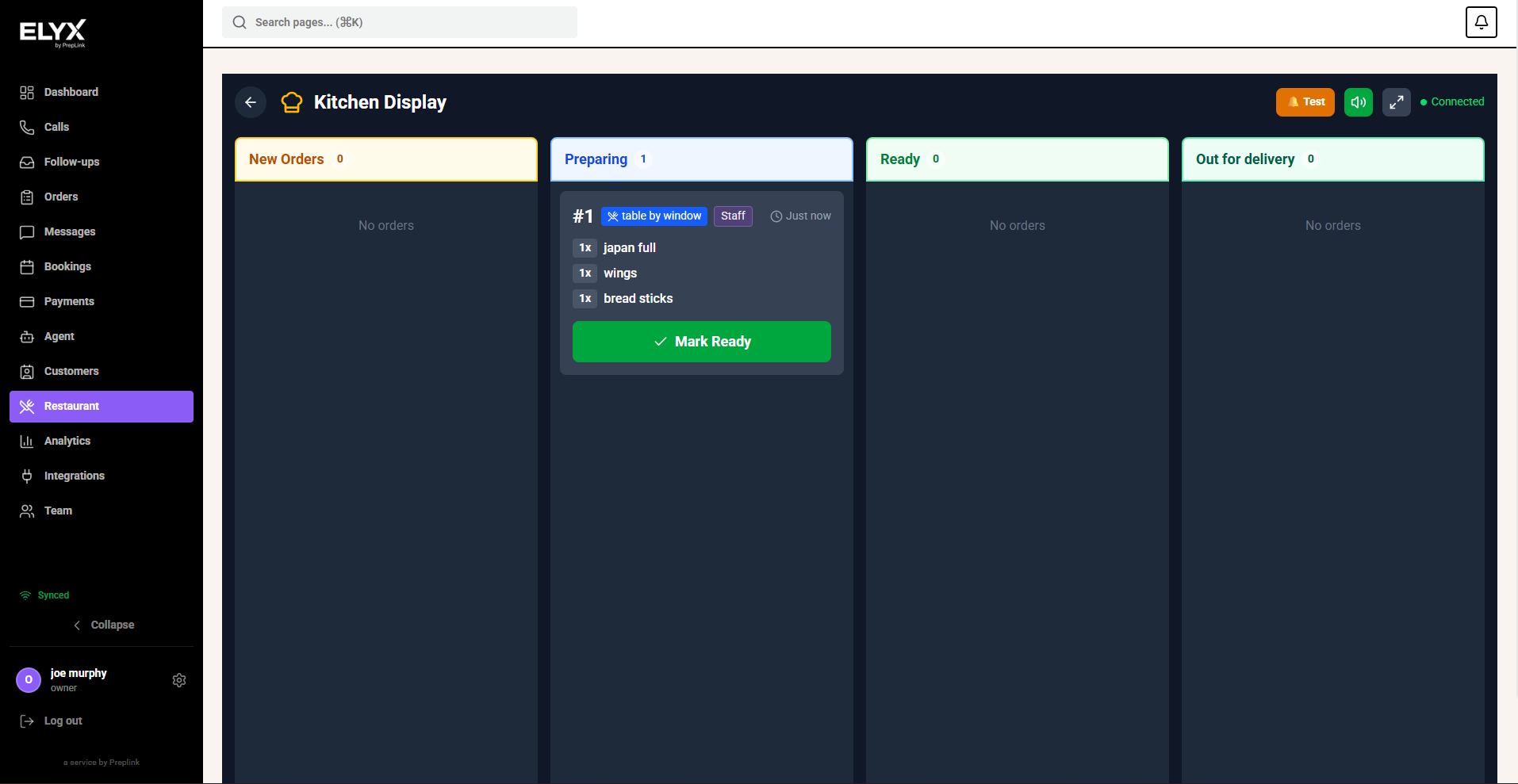
| Preparing | Food is being cooked or assembled. |
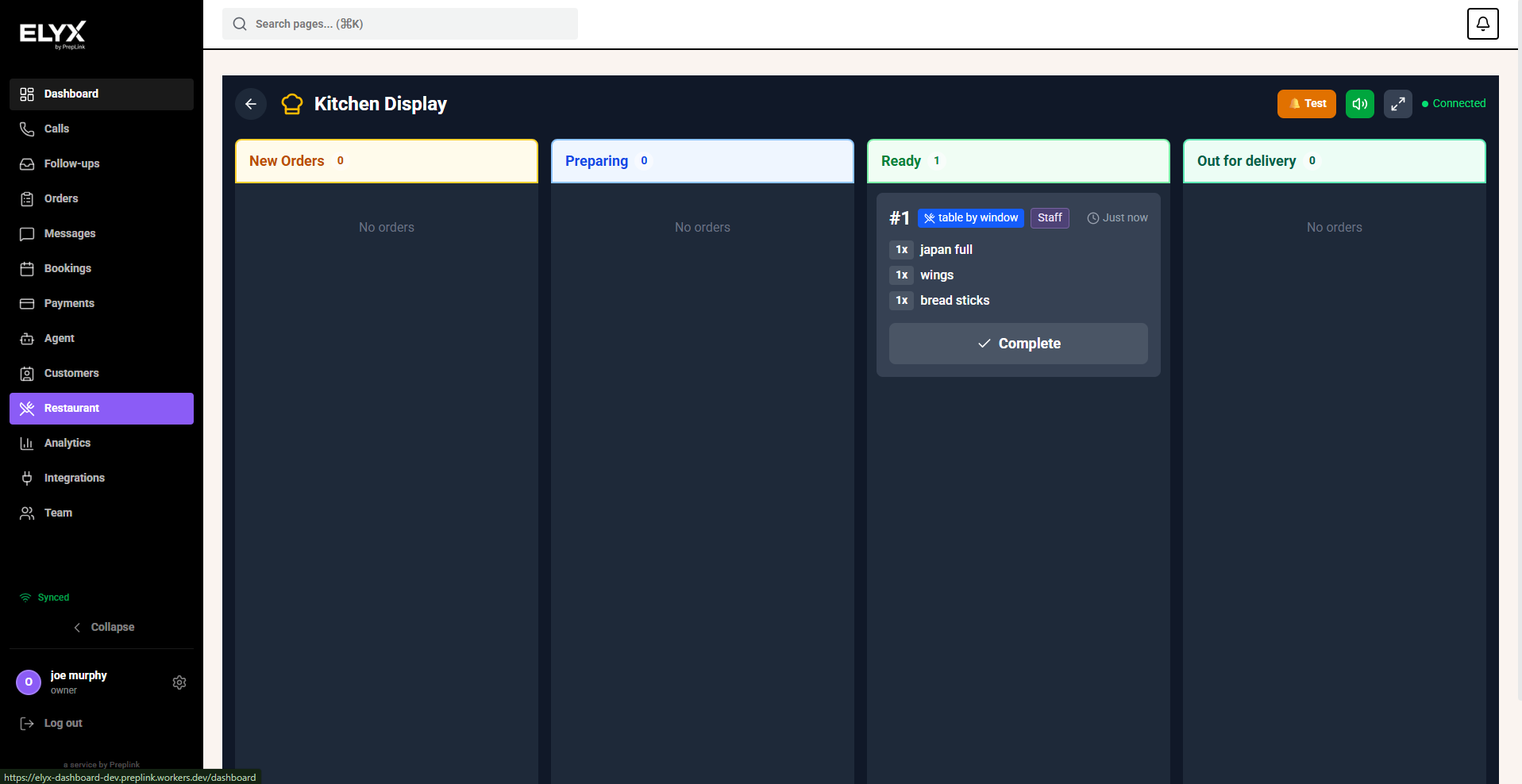
| Ready | Food is ready to run, pack, or hand off. |
| Complete | Ticket is finished and should leave the active screen. |
Column names can vary. Agree on what each status means before service starts.
Open the KDS before service
- Open Restaurant.
- Choose Kitchen display.
- Put the device in the right place for kitchen or pass staff.
- Turn on sound if the kitchen relies on audio alerts.
- Use fullscreen if available.
- Send a test order before service.
- Confirm the ticket appears.
- Clear the test ticket.
If the kitchen uses more than one station, check each screen before service.
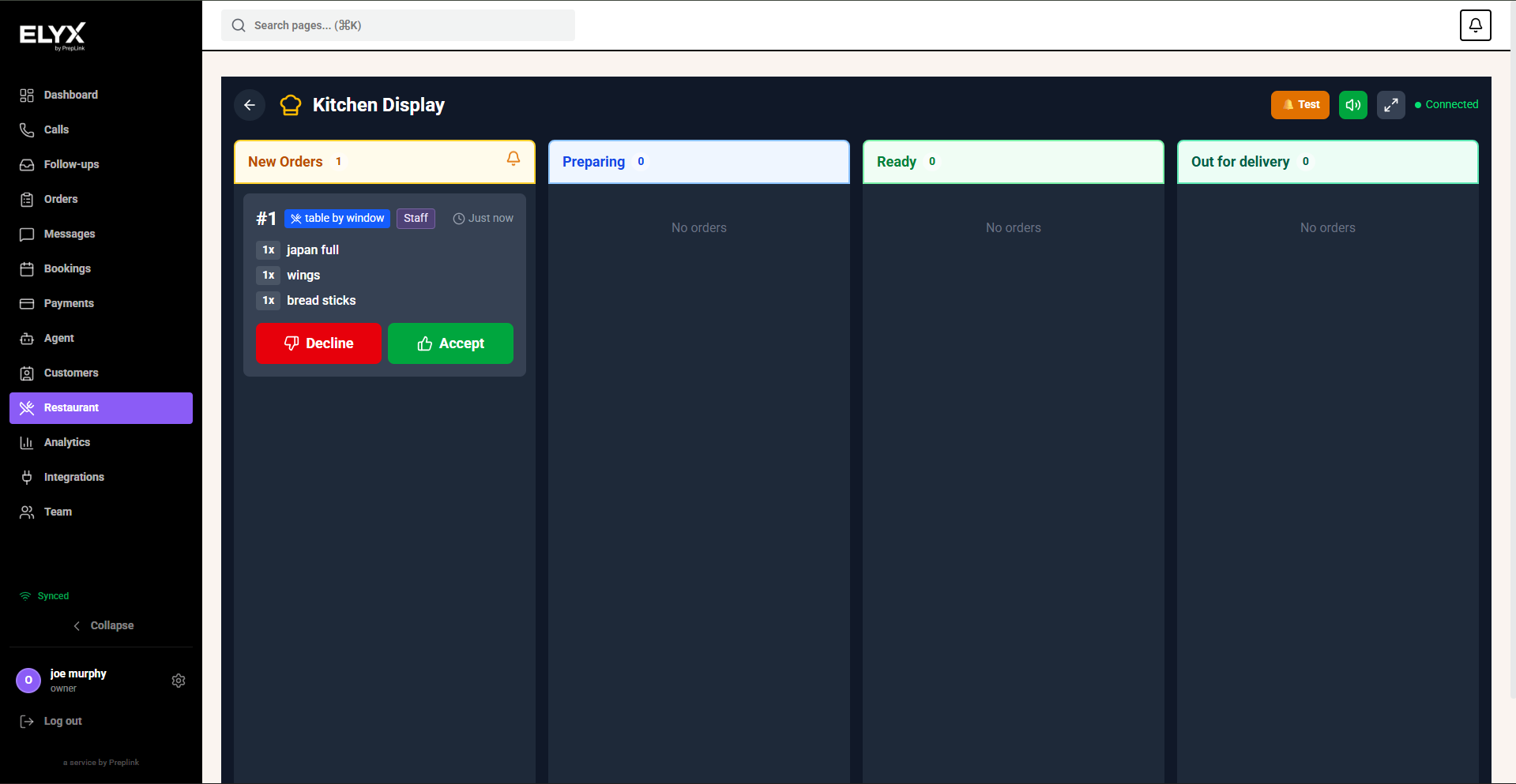
Move a ticket through the kitchen
- Review the ticket in New.
- Check modifiers and allergy notes.
- Choose Start, Preparing, or the equivalent button.
- Cook or assemble the order.
- Choose Ready when the food is ready to leave the kitchen.
- Choose Complete when the food has been run, packed, collected, or handed off.
Do not mark a ticket ready just to make the screen look clean. Ready should mean food is actually ready.
Handle urgent tickets
Tickets may change colour or show warning states when they exceed target times.
When a ticket becomes urgent:
- Check whether it was sent late, started late, or delayed by a specific item.
- Tell the pass or manager if service timing is affected.
- Prioritise safely. Do not skip allergy checks.
- Mark the ticket accurately when ready.
If everything is always urgent, review staffing, prep times, menu complexity, and when front-of-house sends orders.
Handle allergy notes
Allergy notes must be visible and treated seriously.
- Read allergy notes before starting the ticket.
- Confirm unclear notes with front-of-house.
- Follow the restaurant’s allergy process.
- Do not rely on colour alone; read the text.
- Escalate if the restaurant cannot safely prepare the item.
Troubleshoot missing tickets
If an order is not on the KDS:
- Check whether the order is still a draft.
- Check whether it was sent to the correct station.
- Refresh the KDS.
- Check the device network connection.
- Check whether filters hide the order type.
- Ask front-of-house to open the order and confirm status.
Common mistakes
- Leaving the KDS closed during service.
- Muting sound when the kitchen relies on alerts.
- Marking tickets ready before food is actually ready.
- Letting ready tickets pile up because runners do not clear them.
- Ignoring modifiers or allergy notes.
- Blaming the KDS for late orders that were sent late from front-of-house.
If something goes wrong - Check Orders, Menu management, and Troubleshooting.
Related articles - Delivery, Inventory, Restaurant dashboard and analytics.
Last updated: April 2026