Barber public booking page
Quick answer - The public booking page is the customer-facing page where clients choose a service and book a time. Set the link, branding, contact details, reviews, and gallery before you publish it.
Use this guide when - You are setting up the online booking page for a barber shop, salon, or grooming business.
Before you start - Complete services, availability, and booking policies first. The public page should only go live when customers can book the correct services at the correct times.
Open Public Booking Site
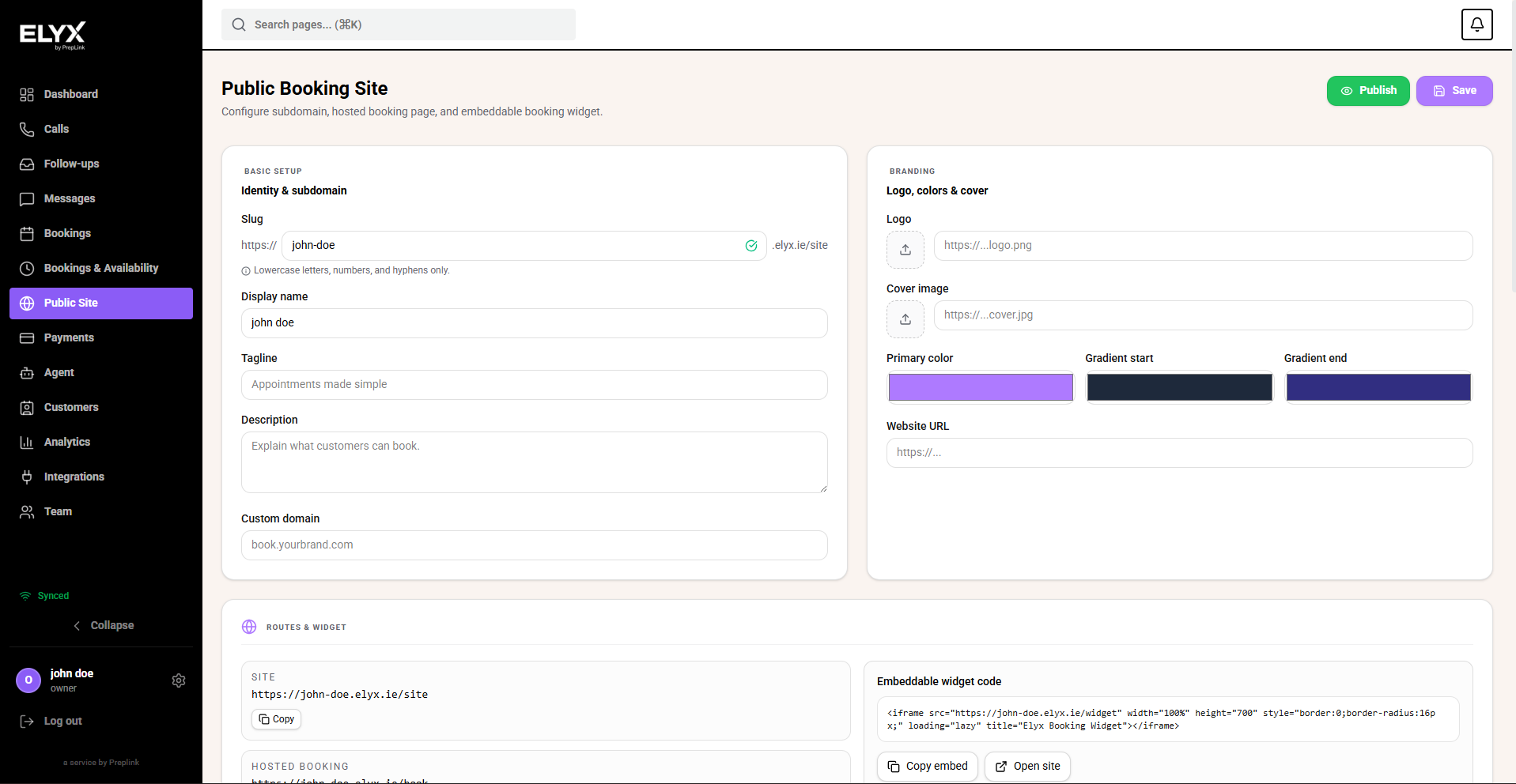
- In Resk, open Public Booking Site or Settings -> Public Booking Site.
- Start with Identity & subdomain.
- Set the slug customers will see in the booking link.
- Add the display name customers know.
- Add a short tagline and description.
- Add a custom domain only if your shop already uses one.
Use customer language. “Book haircuts, beard trims, and fades online” is clearer than internal wording.
Set branding and links
- Add the shop logo.
- Add a cover image that shows the shop, team, or finished work.
- Set the main colours so the booking page matches the brand.
- Add the website URL if customers should be able to return to your main website.
- Check the Site and Hosted booking links under Routes & widget.
- Use Copy embed only when putting booking inside an existing website.
- Use Open site to view the public page.
The hosted booking link is the easiest link to place in Instagram, Google Business Profile, SMS messages, QR codes, and reception signage.
Add contact, reviews, and gallery
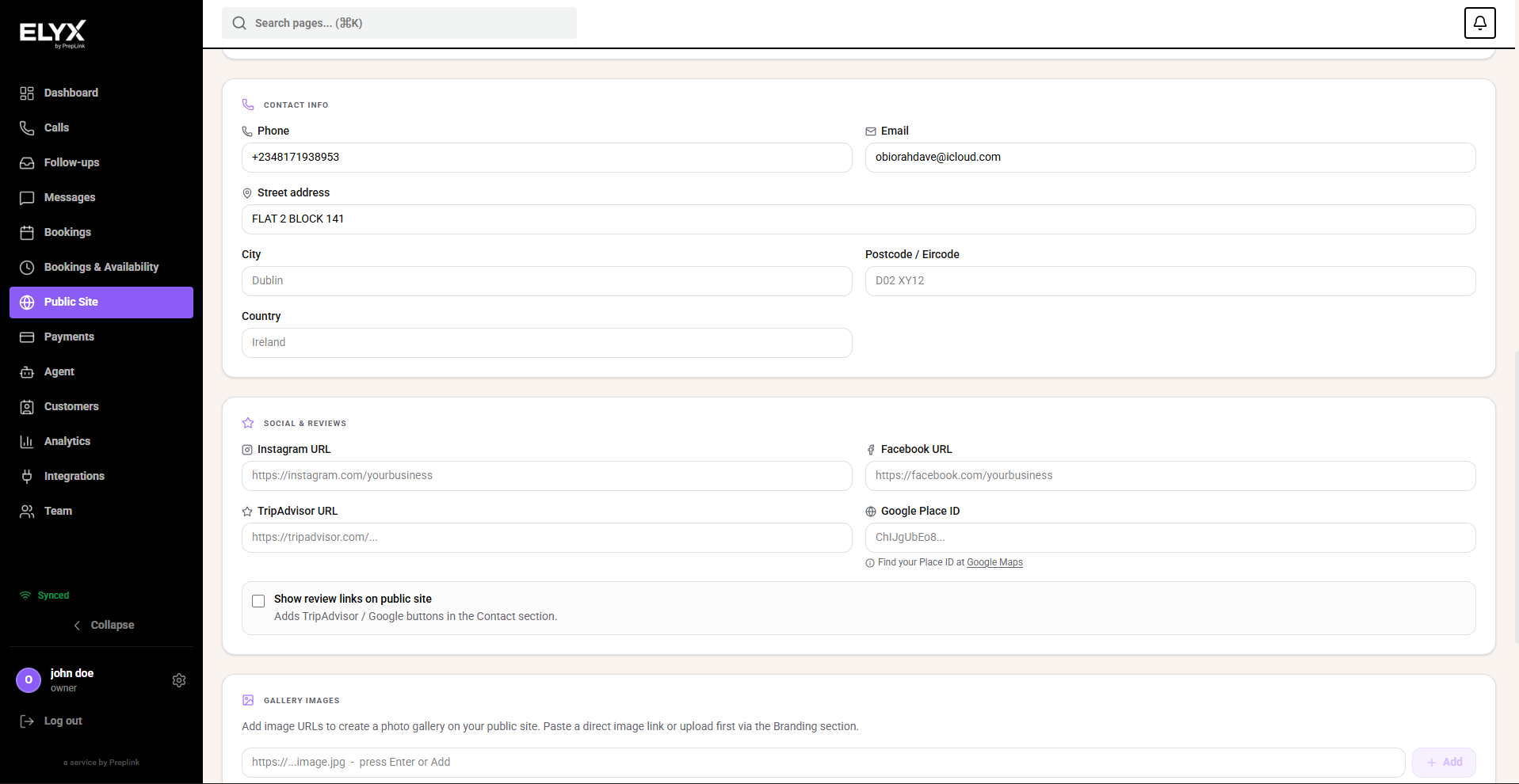
- Fill in phone, email, address, city, postcode, and country.
- Add Instagram, Facebook, Google, or review links only when they point to the right shop.
- Turn on review links if you want customers to see them on the page.
- Add gallery images that show the real shop, haircut examples, beard work, staff, or interior.
- Save.
- Open the page on a phone and check that the top section, booking buttons, contact details, and gallery look right.
Good gallery images help customers decide. Avoid screenshots, posters, or blurry photos that do not show the experience or the work.
Publish safely
- Save the public booking settings.
- Open the public page in a private browser window.
- Start a test booking.
- Confirm services, prices, times, deposit rules, and confirmation text.
- Check the appointment appears in Bookings.
- Delete the test booking.
- Share the link only after the test works.
Last updated: April 2026