Jobs (work orders) - garage
Quick answer - A job is the work order from booked or arrived through invoiced and collected. Keep the status aligned with real workshop progress.
Use this guide when - Service advisors, controllers, and technicians are creating or updating work.
Before you start - Set up Vehicles and the services menu so line items are fast to add.
Create a job
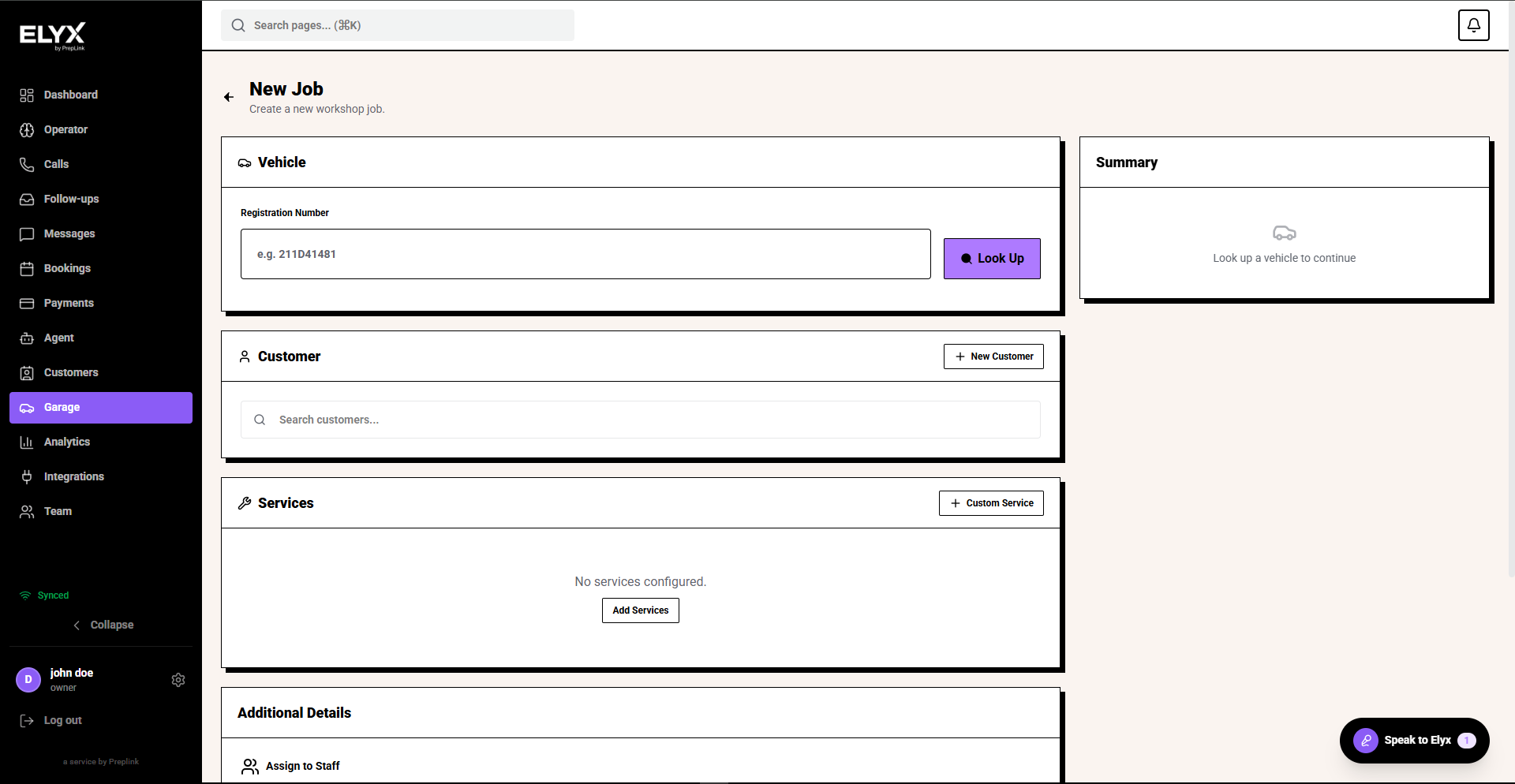
- Open Garage.
- Choose Create New Job or open Jobs and choose New Job.
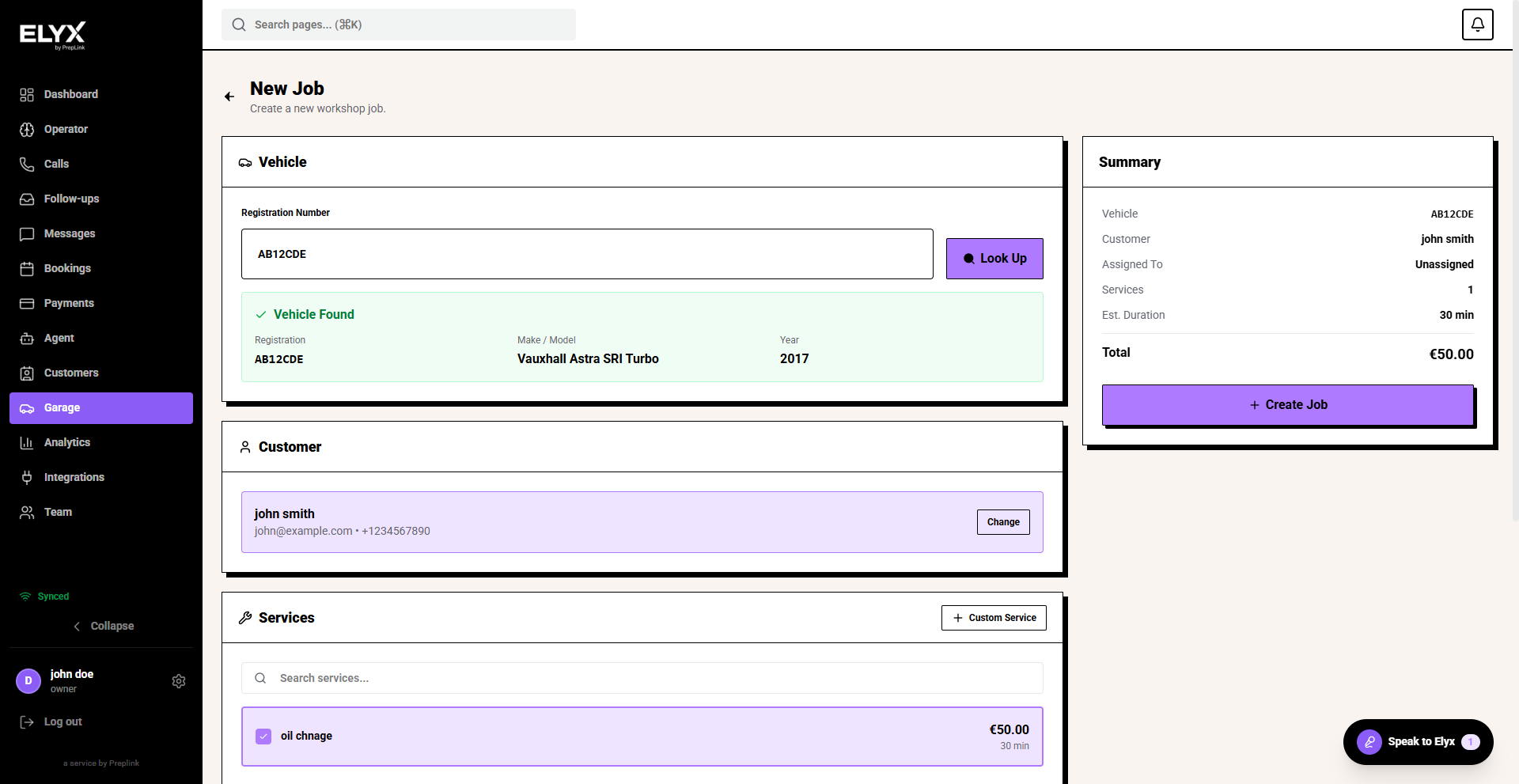
- Select or add the vehicle.
- Select or add the customer.
- Add the complaint or requested work.
- Add internal notes for technicians.
- Add services, labour, and parts as you quote.
- Set date, advisor, technician, and priority if your account uses them.
- Choose Create Job.
Status flow
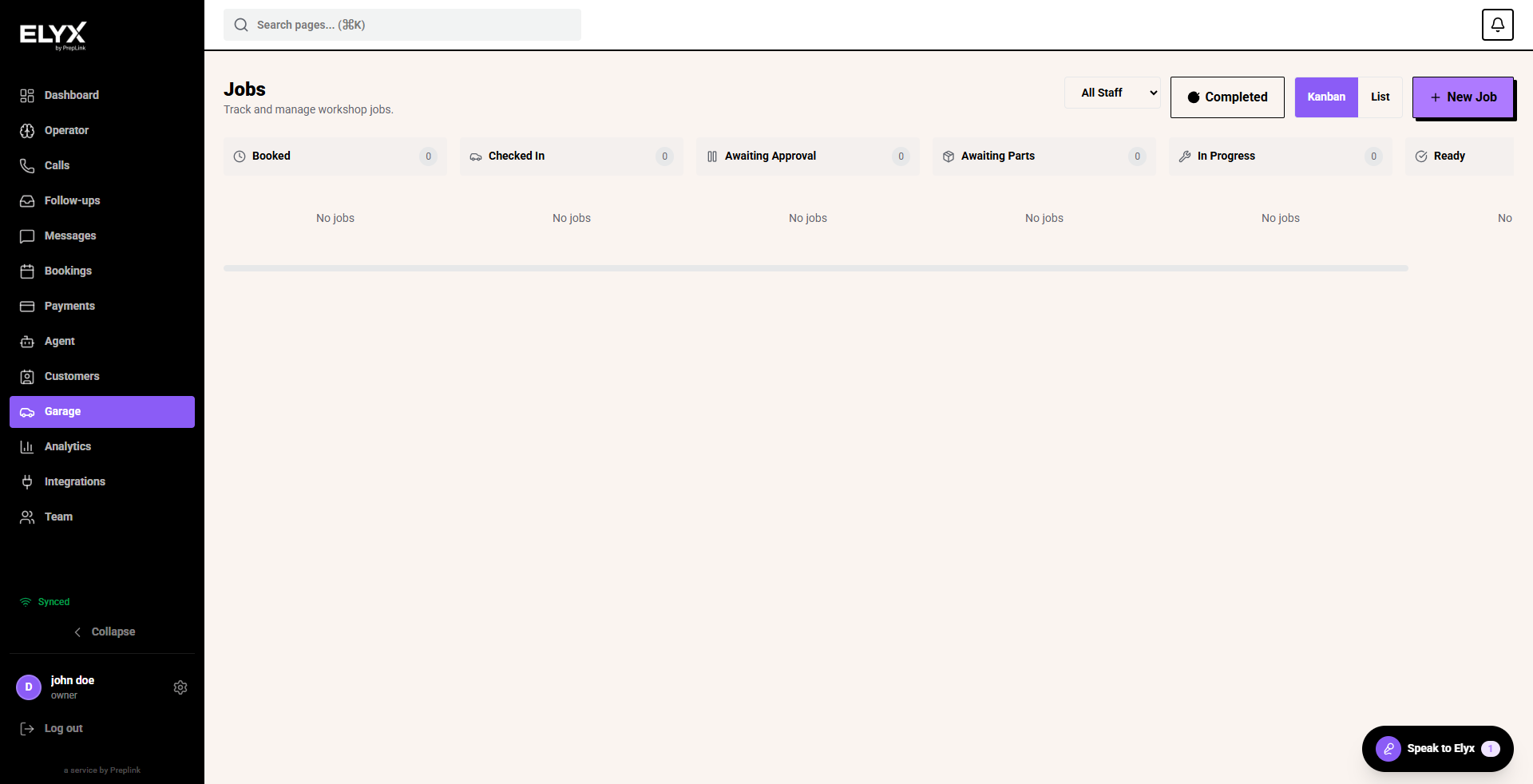
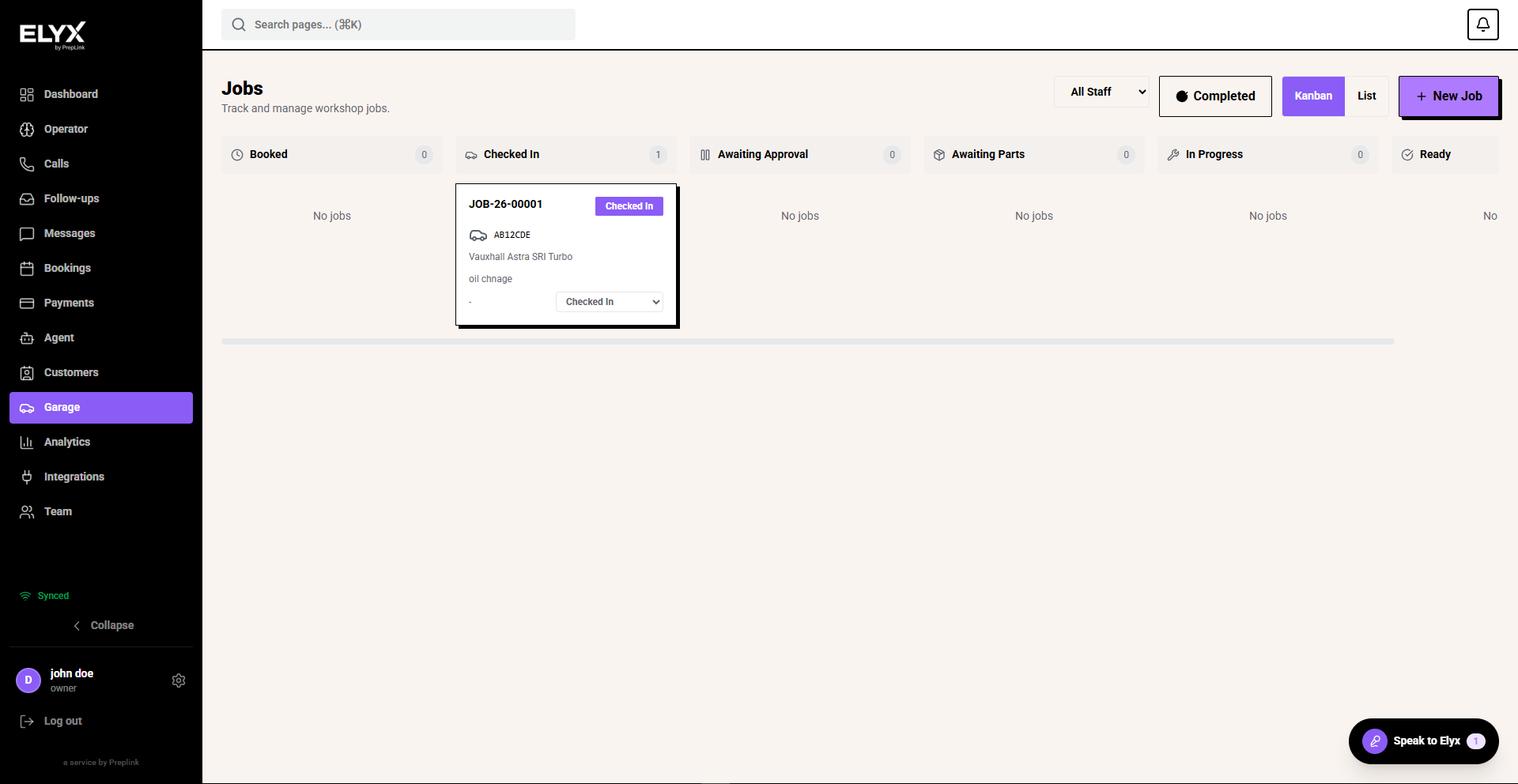
Typical stages include booked, checked in, awaiting approval, awaiting parts, in progress, ready, collected, and completed. Update the status when the real workshop status changes.
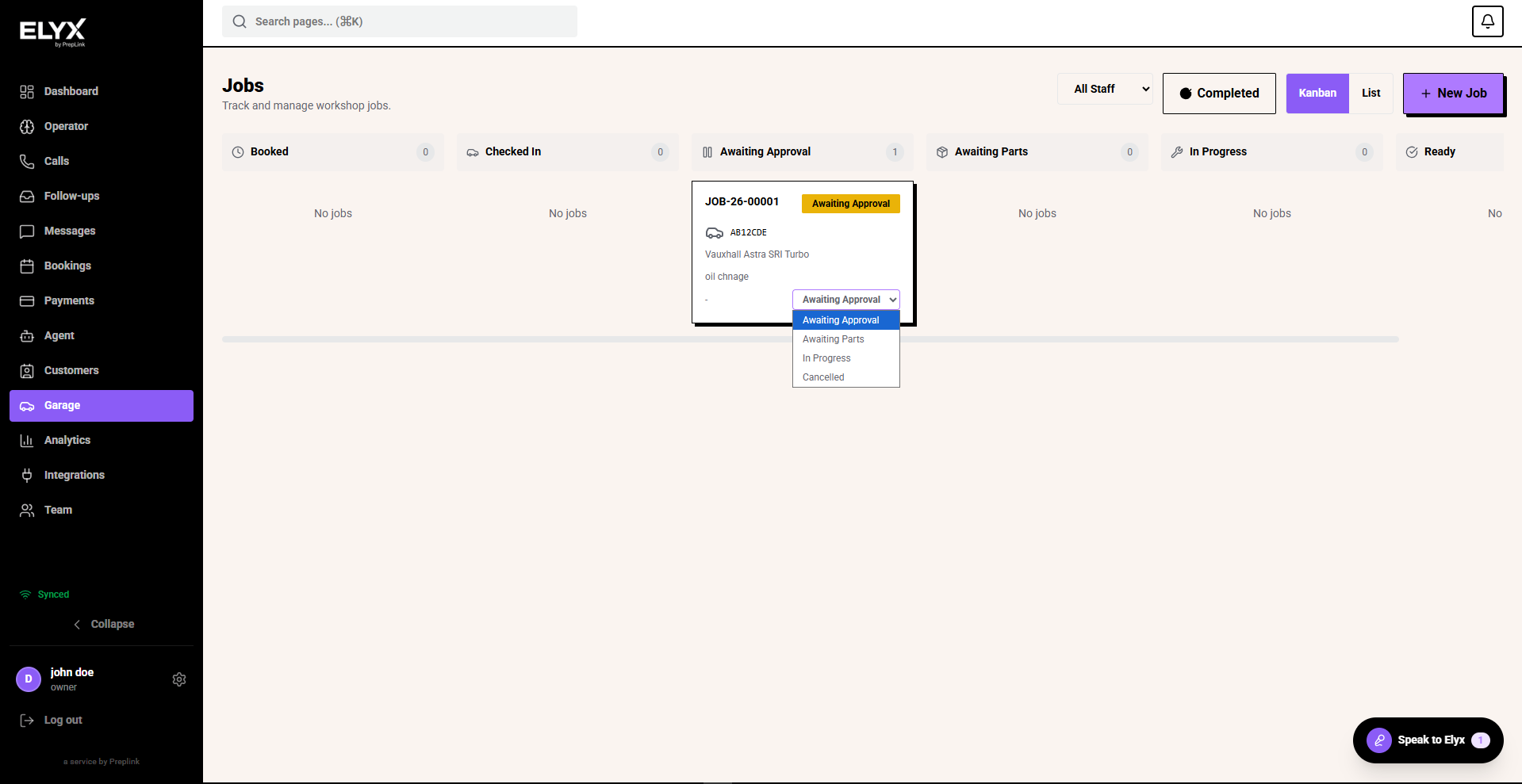
Priority
Use priority to help the team scan the board. Reserve high priority for work that genuinely needs attention sooner than normal, such as a waiting customer, safety issue, or promised collection time.
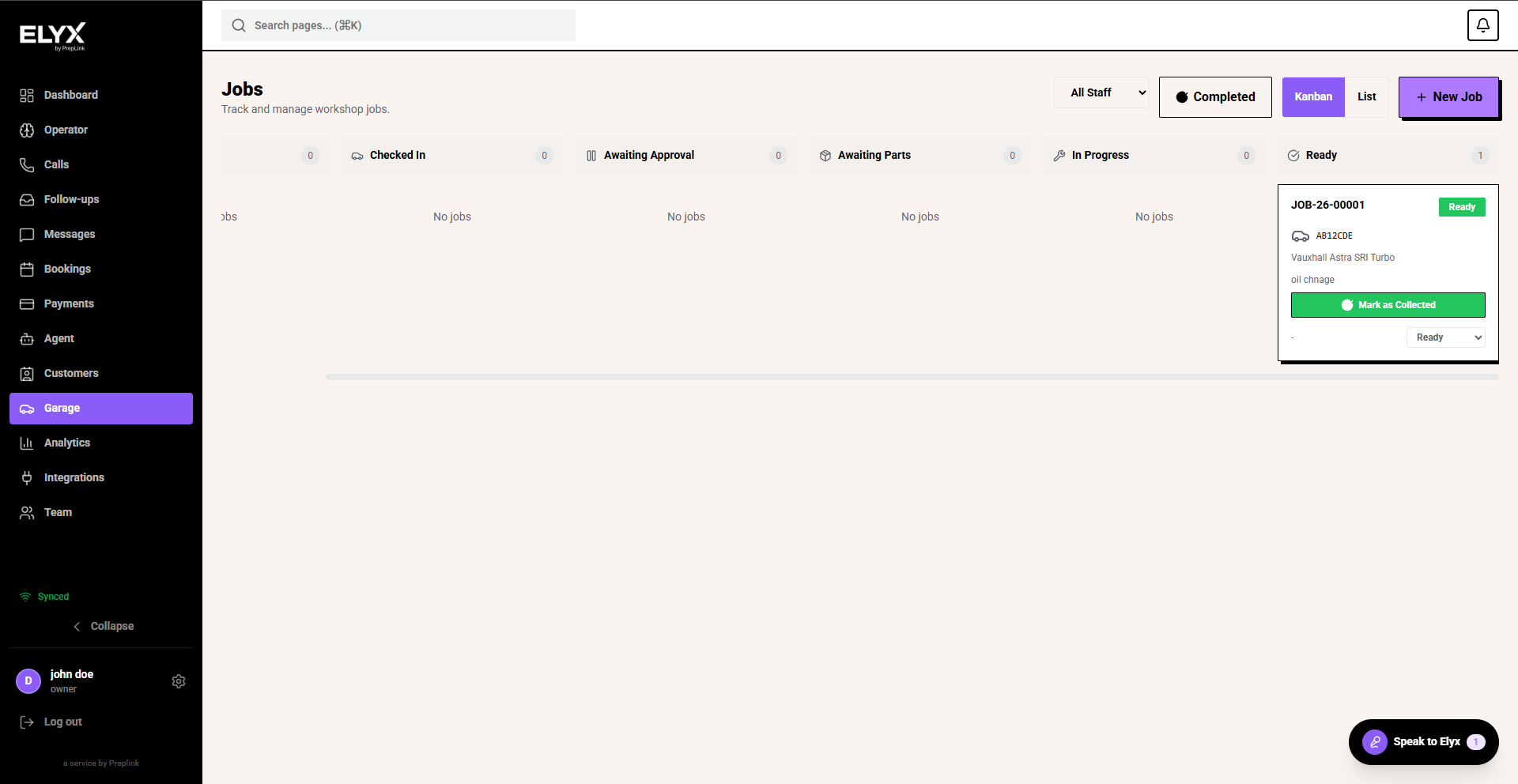
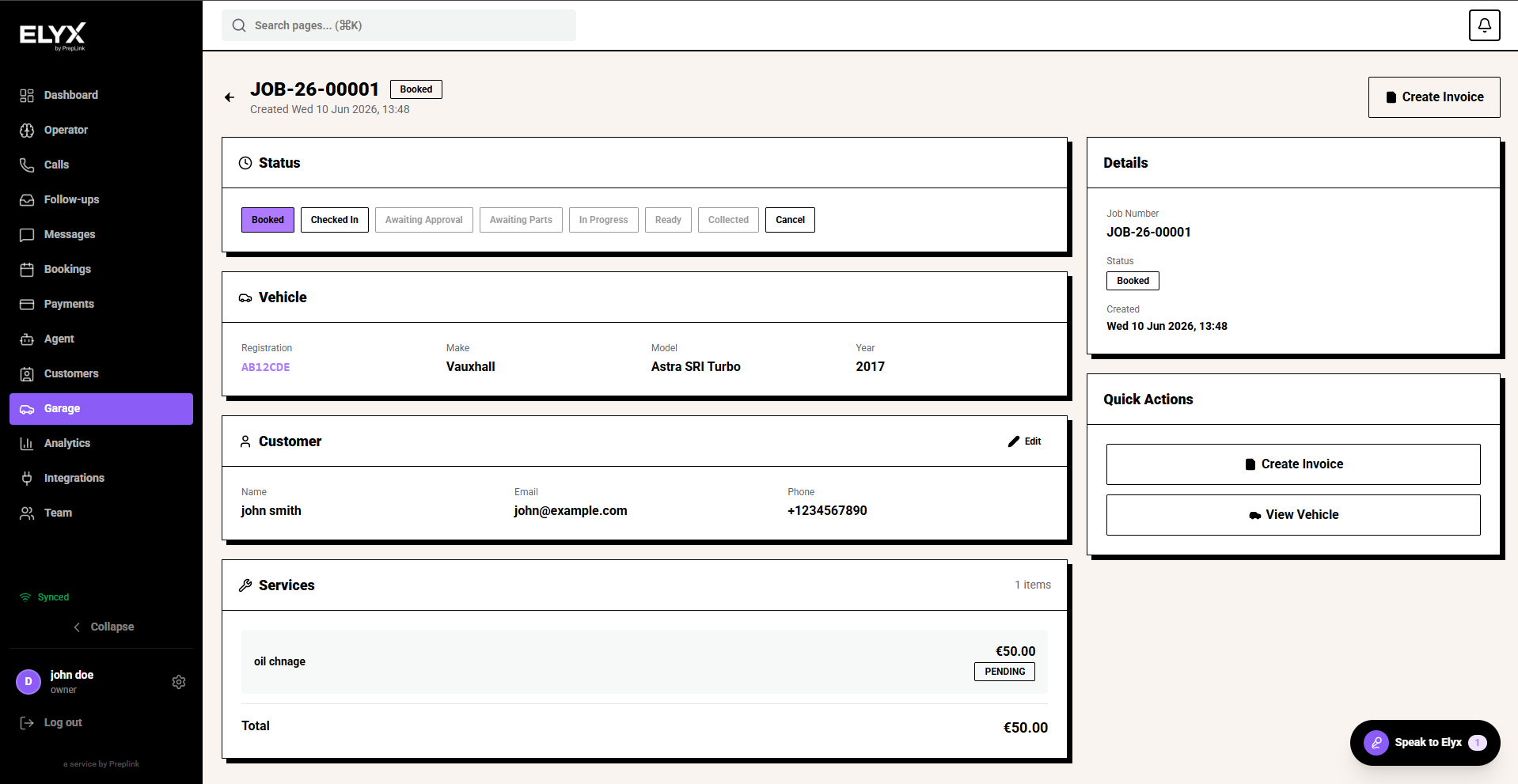
Job detail
Open the job to check customer, vehicle, services, totals, notes, quick actions, and linked invoices before updating the customer.
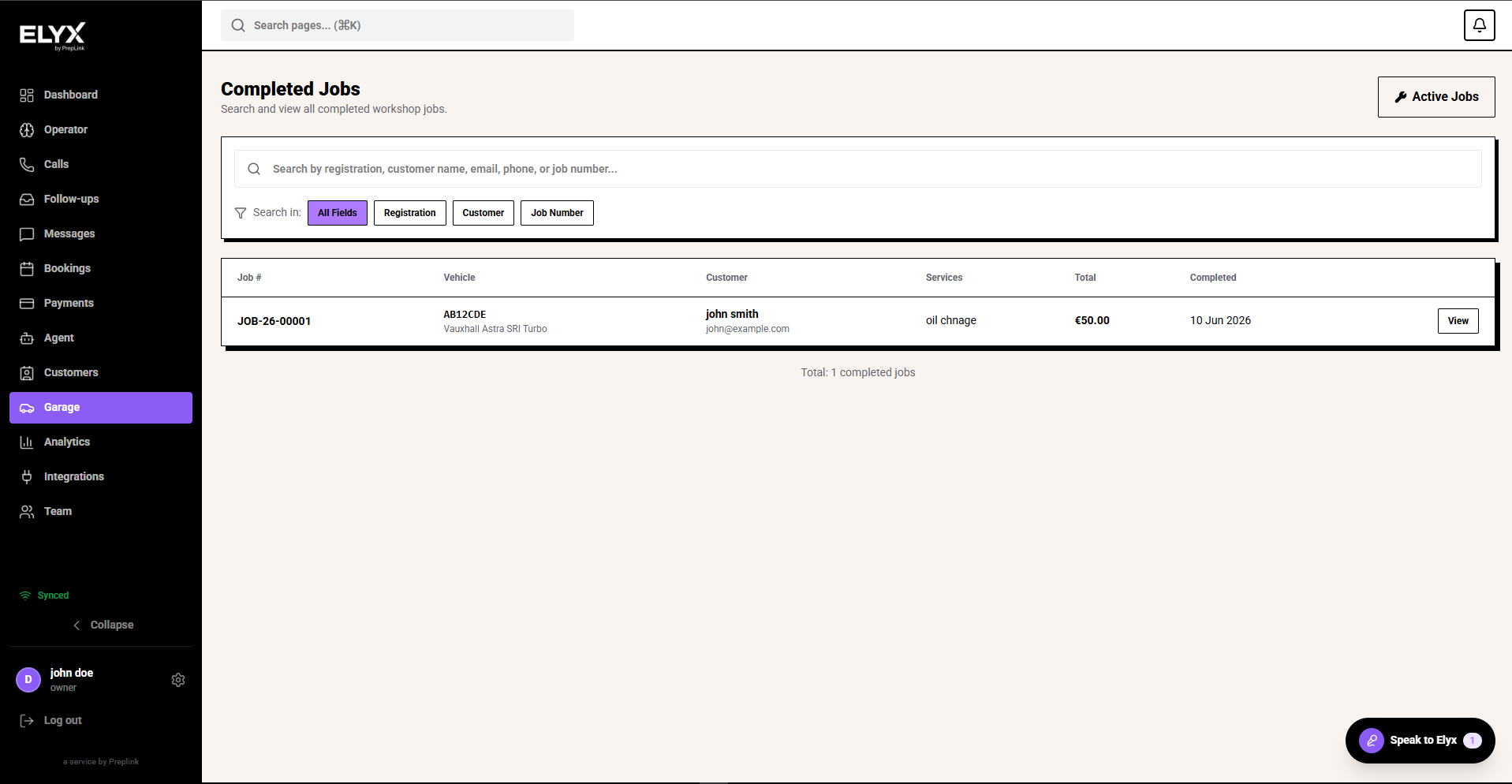
Completed jobs
Use the completed view to confirm finished work is no longer sitting on the active board. This also helps the team see which jobs still need invoicing or customer follow-up.
Common mistakes
- Marking a job ready before checks or retests are complete.
- Leaving jobs in an old status over the weekend.
- Adding no line items for warranty or goodwill work.
Related
Last updated: June 2026