Team invites and roles
Quick answer - Add each person with their own email, then give them the smallest access that lets them do their job. After inviting them, open their team profile to confirm details, module access, and permissions.
Use this guide when - Owners and managers are setting up staff access for the first time.
Before you start - Make a short list of who needs access, what pages they need to use, and who should be allowed to change sensitive settings.
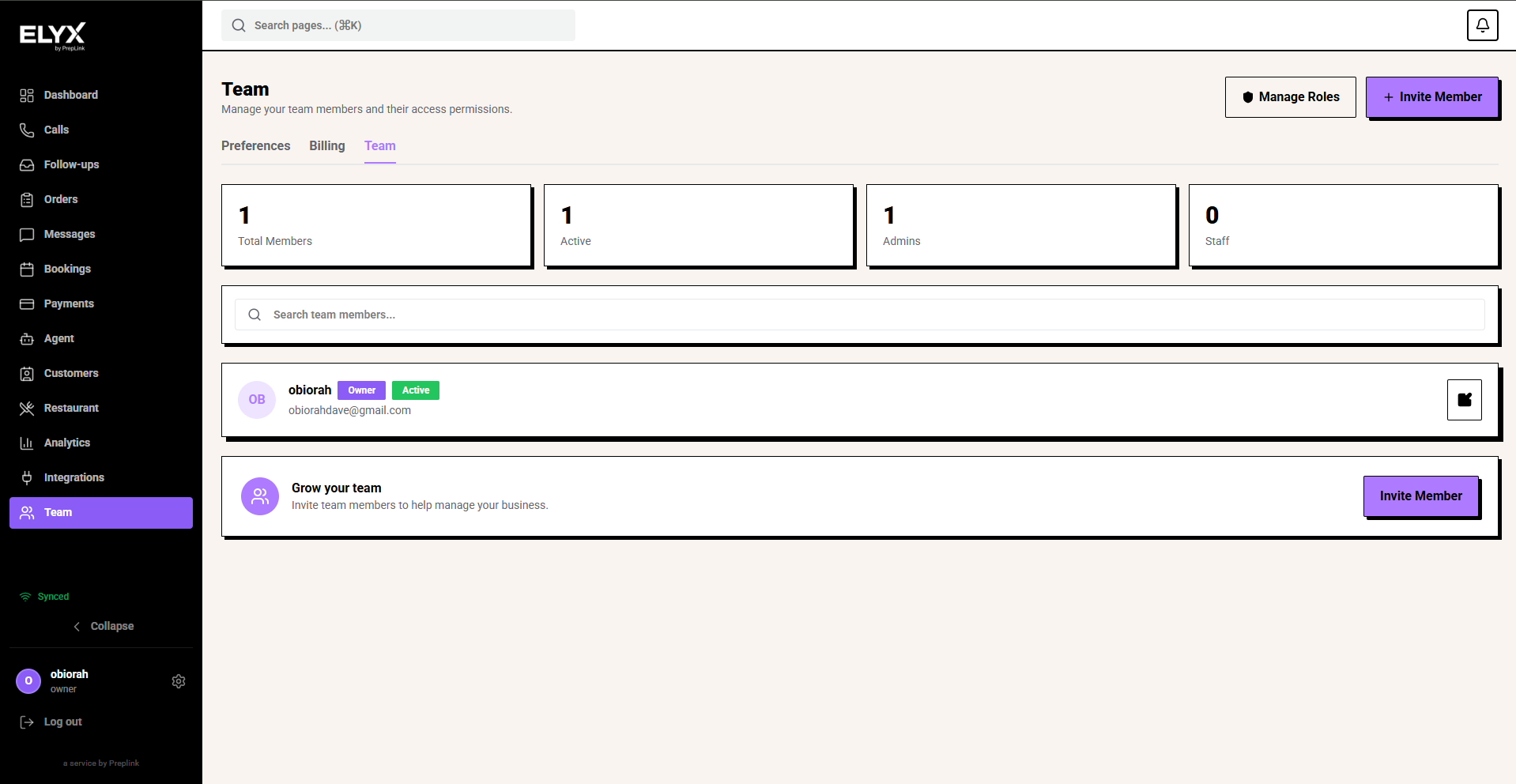
Open Team
- Sign in to Resk.
- Choose Team from the left menu.
- Review the current team list.
- Check whether anyone is already invited.
- Use Manage Roles if you want to create or review permission presets before inviting people.
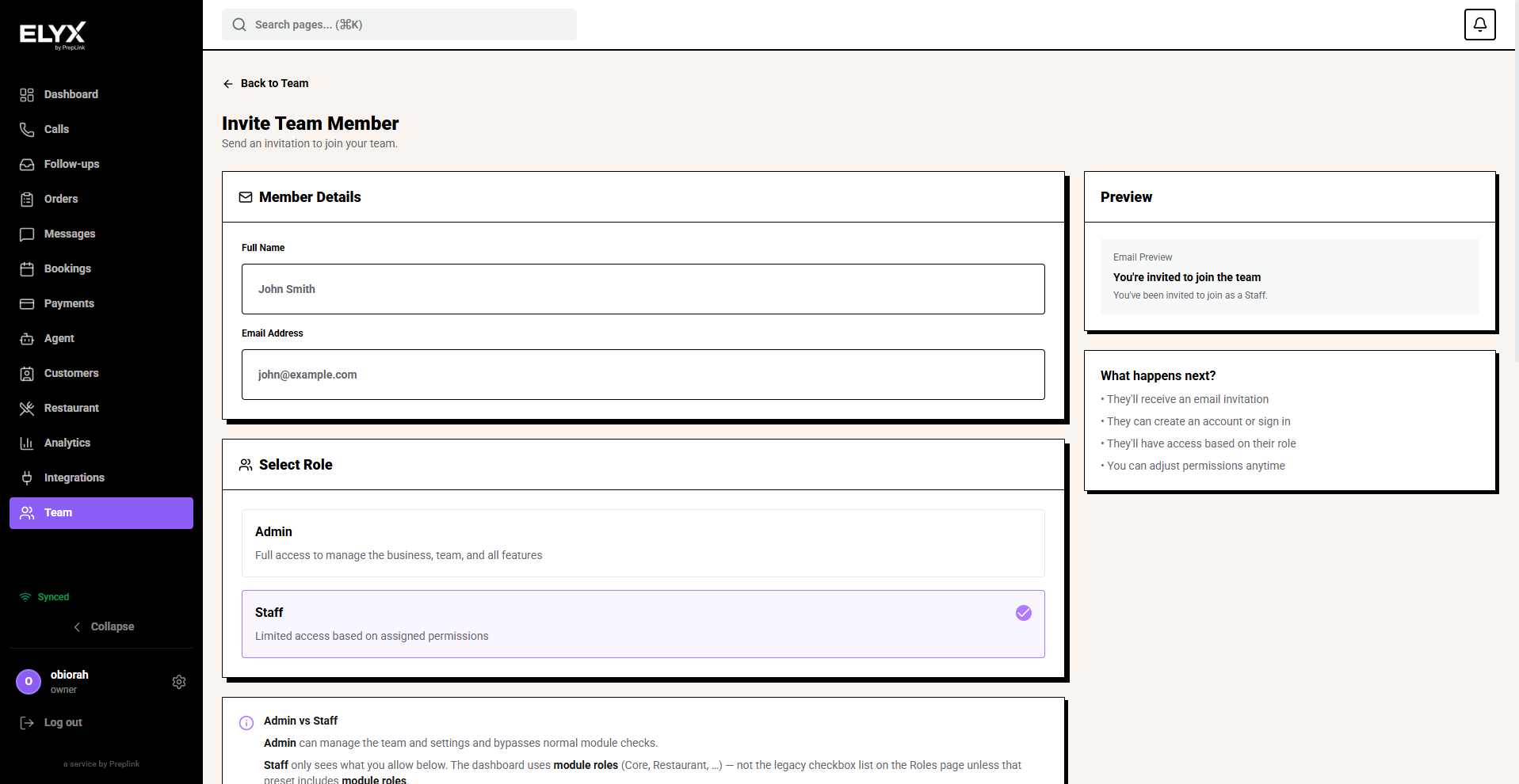
Invite someone
- Open Team.
- Choose Invite Member.
- Enter the person’s work email.
- Enter their name if Resk asks for it.
- Choose a system role, module role, or permission preset.
- Review what they will be able to access.
- Choose Send Invite.
- Ask the person to check their email and accept the invite.
Use one login per person. Avoid shared logins, because shared access makes it hard to know who changed bookings, messages, customers, settings, or payments.
Check the new team member
After you invite someone, open their profile before they start working.
- Return to Team.
- Find the invited person.
- Open the member, or choose the edit icon beside their name.
- Check the Details tab.
- Confirm their full name, email, system role, invite date, and status.
- Choose Save Changes if you update anything.
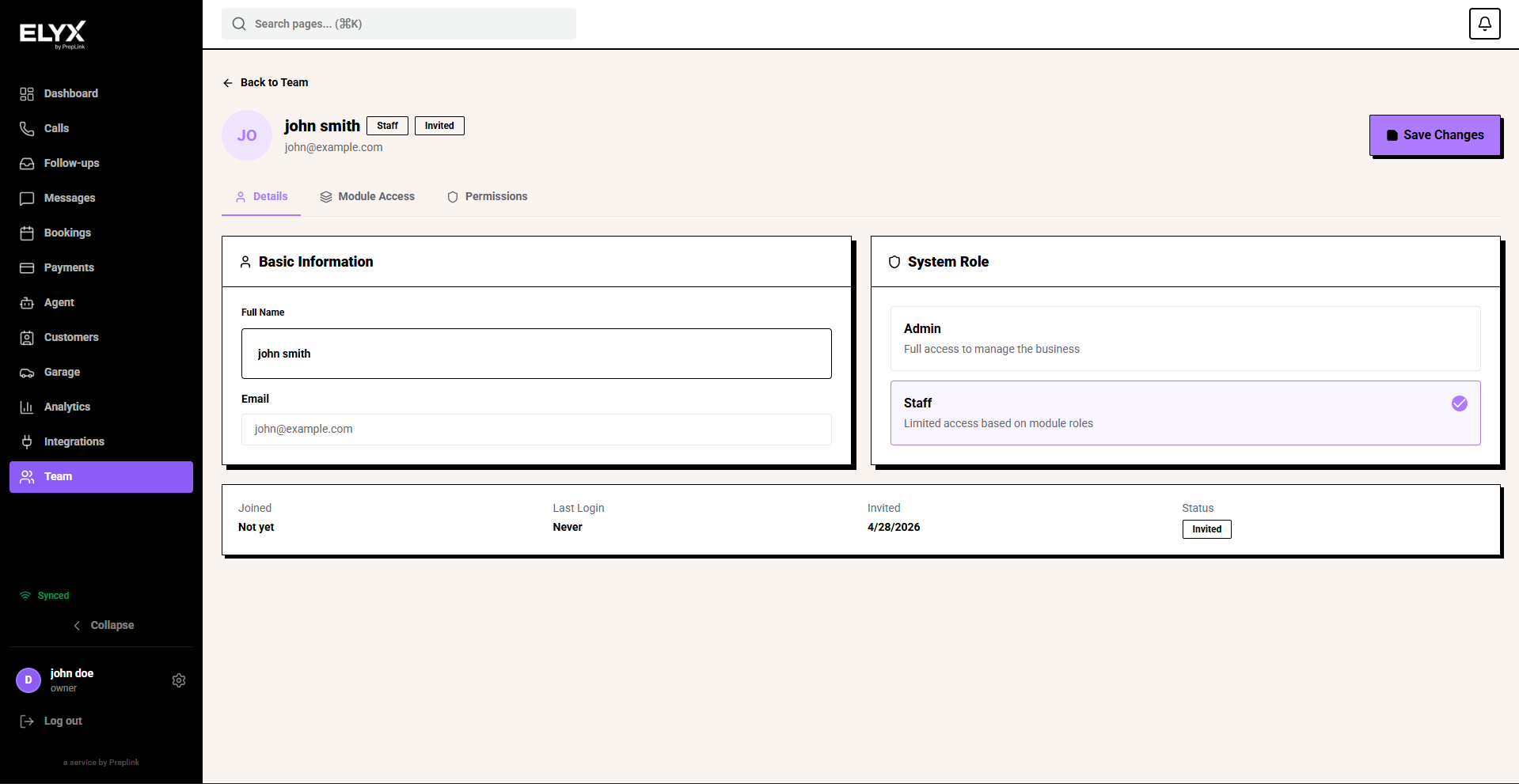
Use Admin only for people who should manage the business. Use Staff for people whose access should be controlled by module roles and permissions.
Set module access
Module access controls what someone can do in each enabled part of Resk.
- Open the team member.
- Choose Module Access.
- Review each module, such as Core, Garage, or any other enabled module.
- Choose No Access for modules they should not use.
- Choose the smallest useful role for modules they do need.
- Choose Save Changes.
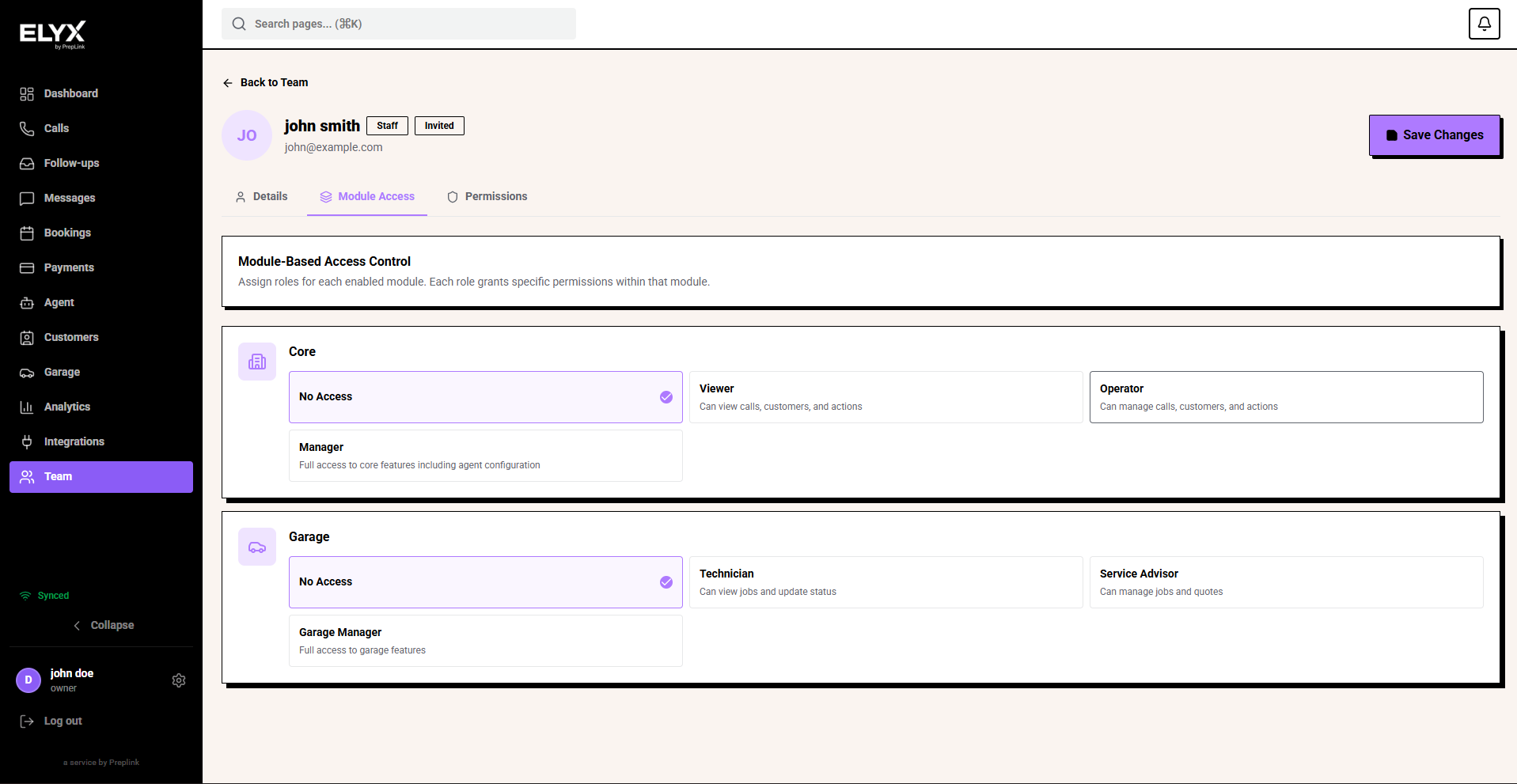
Common module choices:
- Core Viewer - can view calls, customers, and actions.
- Core Operator - can manage calls, customers, and actions.
- Core Manager - can manage core features, including agent configuration.
- Garage Technician - can view jobs and update status.
- Garage Service Advisor - can manage jobs and quotes.
- Garage Manager - has full access to garage features.
Start small. If someone later needs more access, it is easier and safer to add it than to remove sensitive access after it has already been used.
Set advanced permissions
Advanced permissions are extra controls beyond module roles. Most staff do not need many of these.
- Open the team member.
- Choose Permissions.
- Review each permission group.
- Select only the permissions they need.
- Be careful with permissions for billing, settings, integrations, team management, invoices, and service management.
- Choose Save Changes.
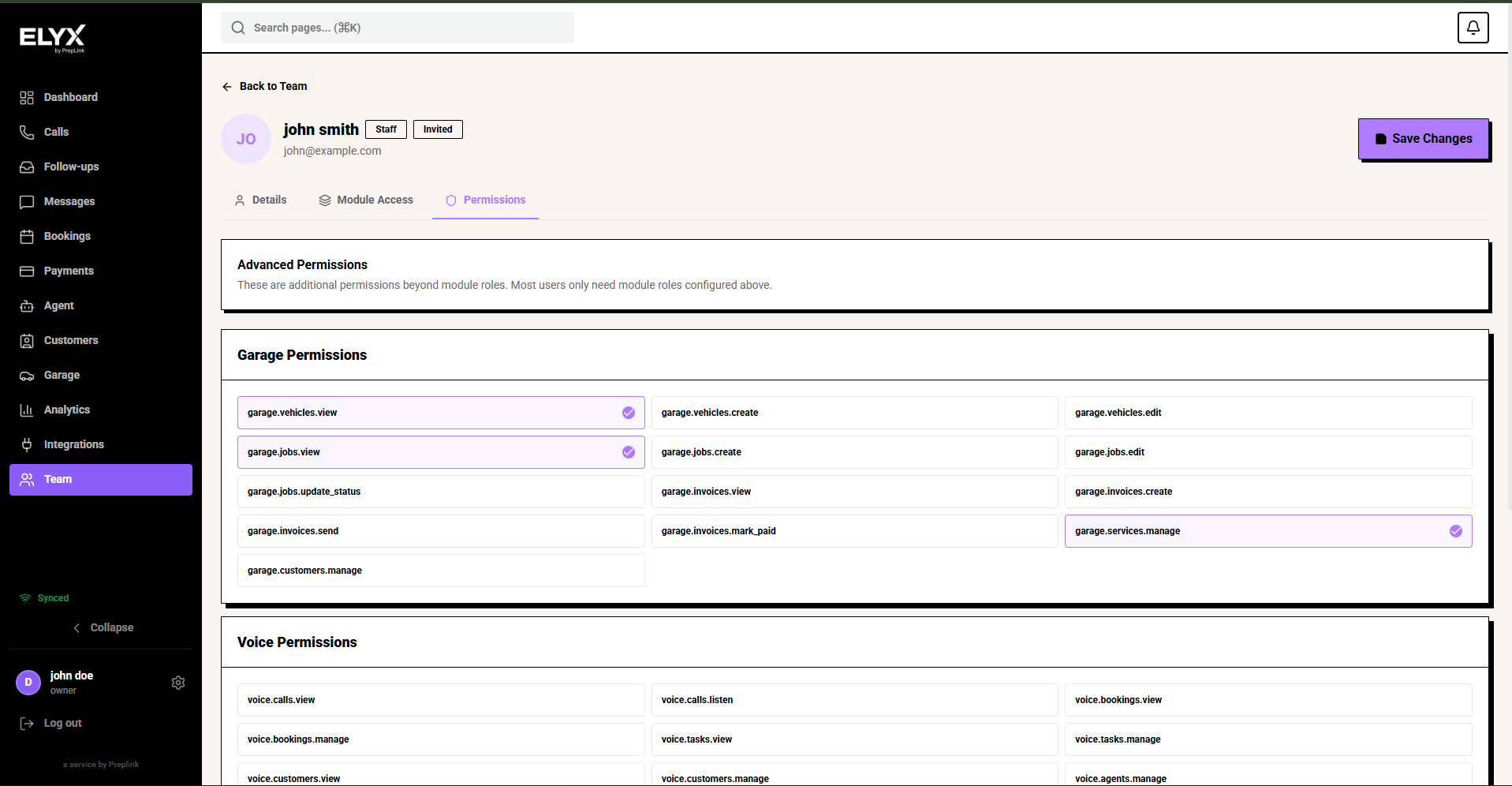
If a permission includes manage, it usually allows the person to make changes. If it includes view, it usually allows them to see information without changing it.
Use permission presets
Permission presets are reusable access templates. They are useful when several people do the same job, such as front desk, service advisor, kitchen, or manager.
- Open Team.
- Choose Manage Roles.
- Select a preset to review it.
- Check the permissions shown in the details panel.
- Use a preset when inviting or editing a staff member if it matches their job.
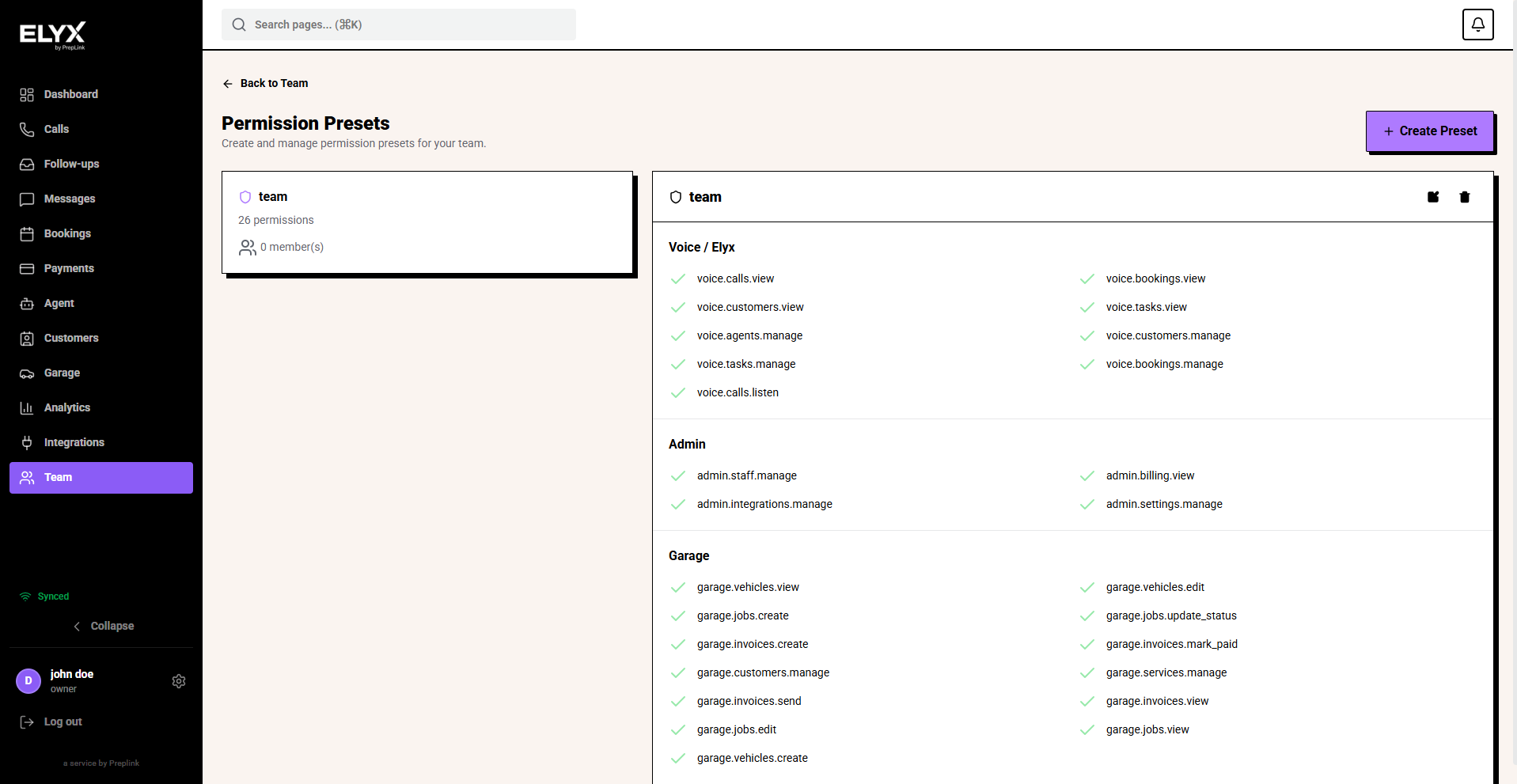
Presets help you avoid rebuilding the same permission set every time you invite someone.
Create a permission preset
Create a preset when your team has a repeatable job role.
- Open Team.
- Choose Manage Roles.
- Choose Create Preset.
- Enter a Preset Name, such as
Receptionist,Service Advisor, orKitchen. - Add a short description if it helps other admins understand what the preset is for.
- Select only the permissions that job needs.
- Leave sensitive permissions off unless the job truly needs them.
- Choose Create Preset.
- Assign the preset to one staff member first.
- Ask them to confirm they can do their work.
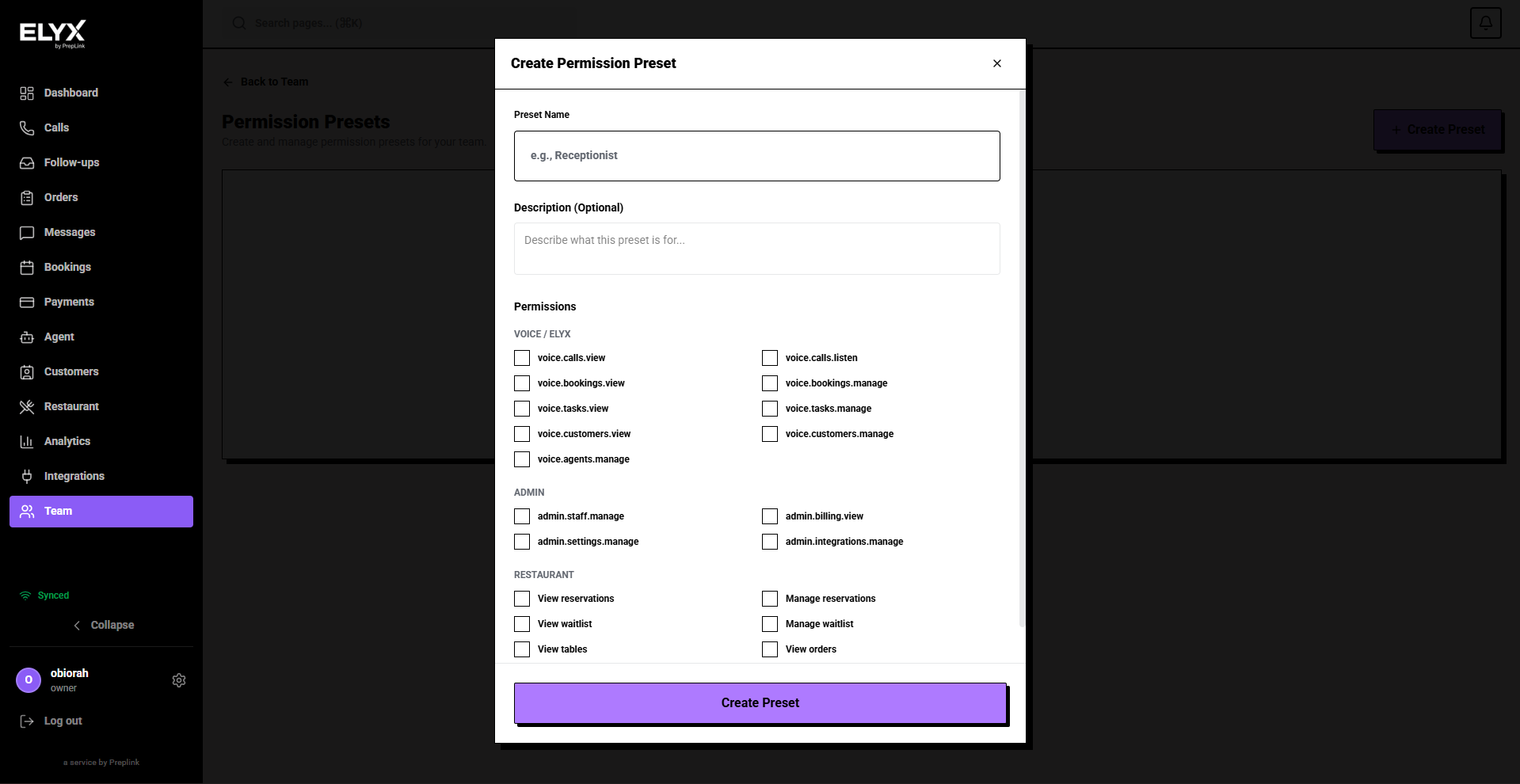
Name presets after jobs, not people. Receptionist is reusable. John access becomes confusing later.
Choose the right access
Before sending an invite or changing access, ask:
- Do they answer calls?
- Do they send messages?
- Do they manage bookings?
- Do they need restaurant or garage access?
- Should they see payments?
- Should they see billing?
- Should they manage integrations?
- Should they invite or remove staff?
When in doubt, start with less access and add more later.
Common starting roles
| Role | Good for | Watch out for |
|---|---|---|
| Owner / Admin | Business owners and senior managers. | Can usually change sensitive setup. |
| Manager | People who run daily operations. | May not need billing access. |
| Front desk | Calls, bookings, messages, customers. | Usually should not manage billing. |
| Restaurant staff | Orders, reservations, tables, kitchen, guests. | Limit settings access unless needed. |
| Garage staff | Vehicles, jobs, service bookings, invoices. | Limit team and billing access unless needed. |
After they join
- Ask them to sign in.
- Ask them to open the pages they need.
- Confirm they can do their work.
- Confirm they cannot see pages they should not use.
- Adjust their module access, permissions, or preset if needed.
When someone leaves
- Open Team.
- Find the person.
- Remove, suspend, or deactivate access.
- Reassign their open follow-ups if needed.
- Check whether they owned any integrations, calendars, or payment settings.
Do this the same day someone leaves the business.
Common mistakes
- Sharing one login across the team.
- Inviting personal emails instead of work emails.
- Making everyone an admin.
- Giving billing access to staff who only need bookings.
- Leaving module access on for modules a person does not use.
- Forgetting to remove someone after they leave.
Related articles
Last updated: April 2026