Settings
Quick answer - Settings is where you manage business profile details, notifications, payments, team access, and security. Keep this current so the AI, booking pages, and staff screens all say the same thing.
Use this guide when - Owners and admins. Some staff may only see part of Settings.
Before you start - Know which details customers should see and which details are only for your internal team.
Open Settings
- Look at the bottom-left corner of Resk.
- Find your profile area with your name and role.
- Choose the gear icon beside your profile.
- Resk opens Settings.
- Select the settings area you want to update.
- Make one group of changes at a time.
- Save before moving to another page.
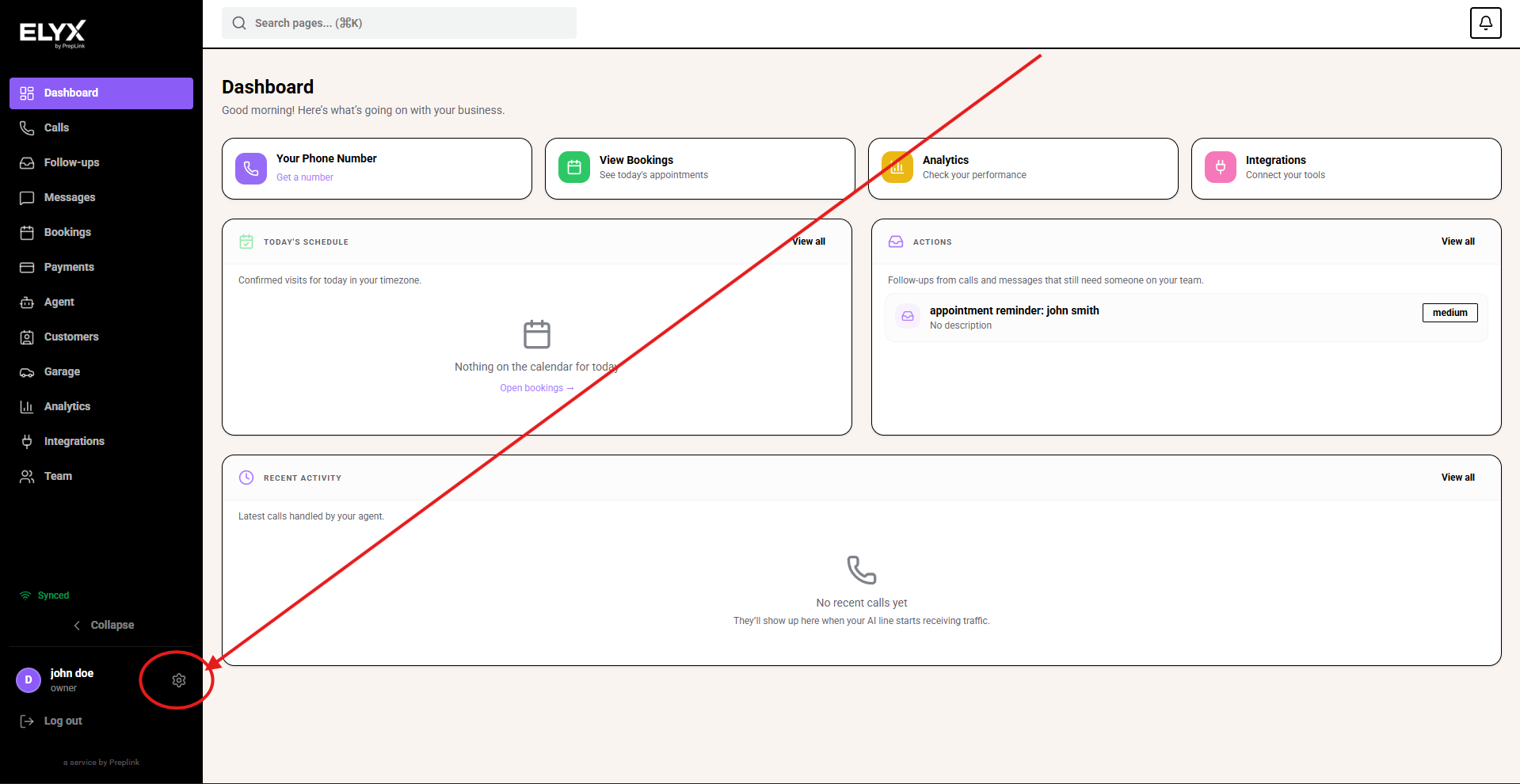
On desktop, the Settings shortcut is the small gear beside your profile at the bottom of the sidebar. If the sidebar is collapsed, expand it first or look for the same gear icon near your account controls.
Update business profile
- Open Profile.
- Check business name.
- Check contact email.
- Check phone number.
- Check address.
- Check regular hours.
- Save.
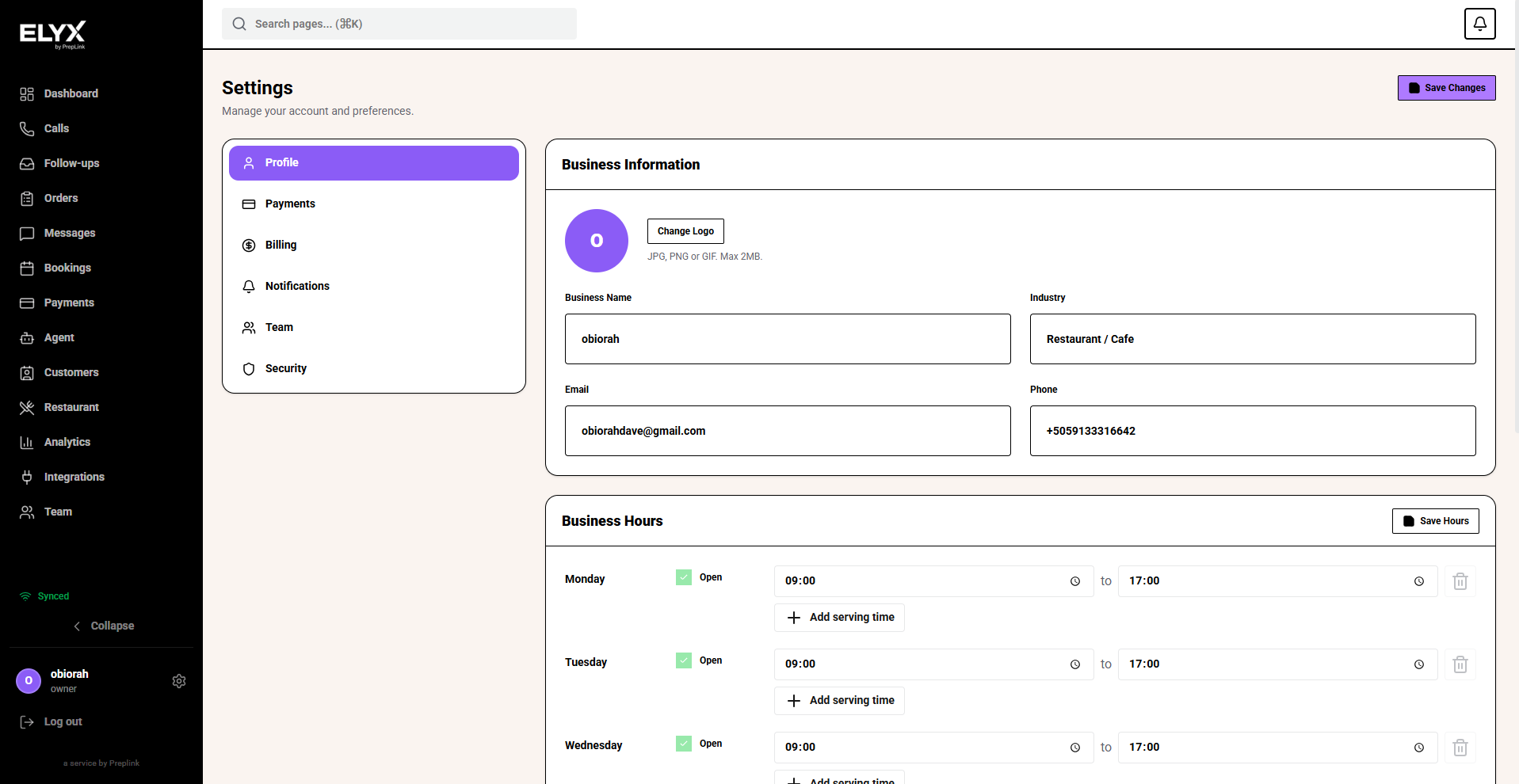
These details can affect what staff see, what customers see, and what the AI says.
Align hours with availability
Business profile hours and bookable availability are related, but they are not always the same.
Example:
- Phone hours: 9am to 5pm.
- Bookable appointments: 10am to 4pm.
If they differ, add clear knowledge so Resk can explain the difference to callers.
Update notifications
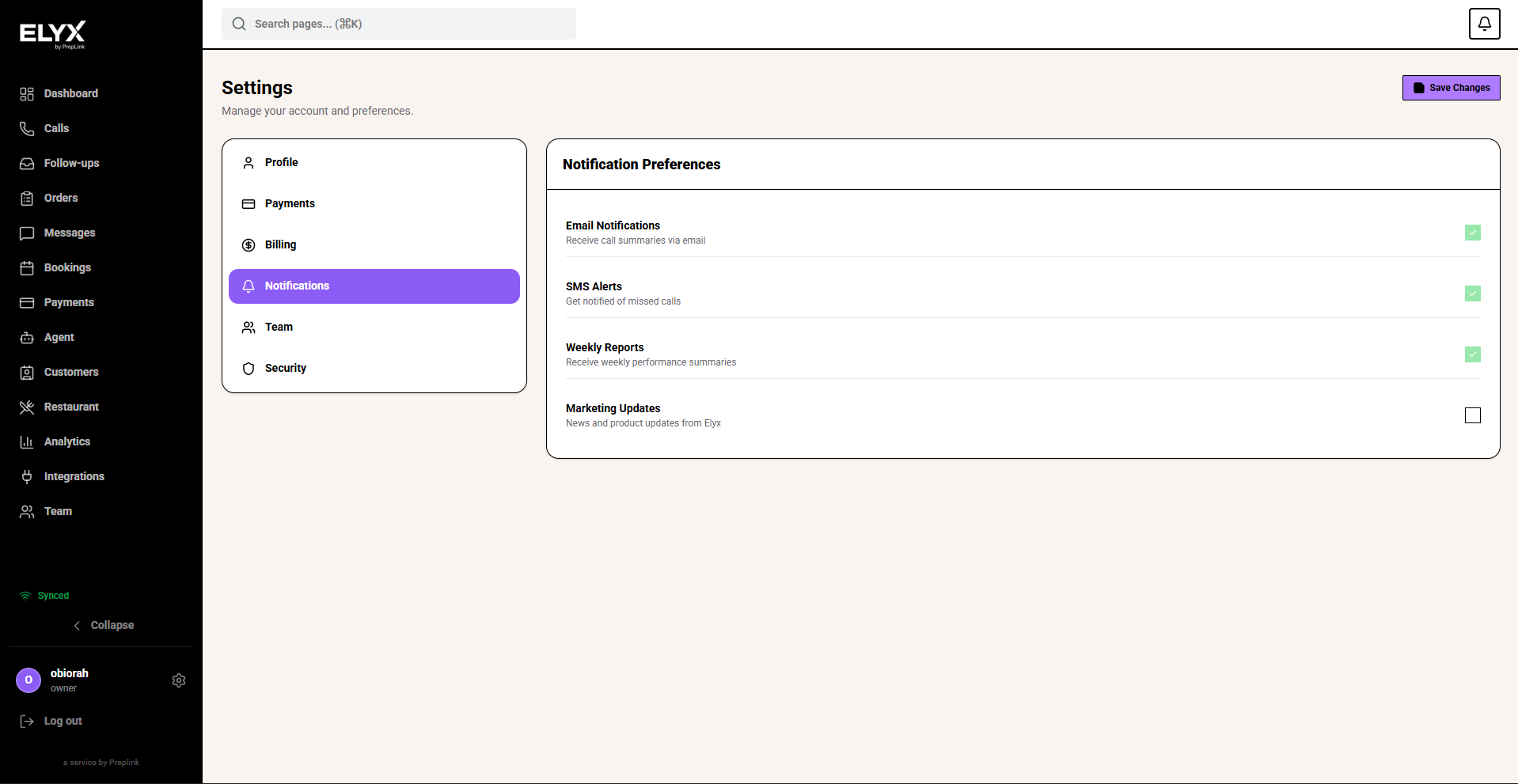
- Open Notifications.
- Review each notification type.
- Turn on alerts for missed calls, callbacks, bookings, payments, and module events you cannot miss.
- Choose who receives each alert if the screen allows it.
- Save.
- Trigger a test event where possible.
Manage team access
- Open Team from the left menu, or open Settings and choose Team.
- Invite new staff.
- Review existing staff.
- Open a staff member to check details, module access, and permissions.
- Remove people who no longer work with you.
- Check role or permission presets.
Use one login per person.
Review payments and billing
Payments are for taking money from customers where supported. Billing is for your Resk subscription.
- Open the payment or billing tab.
- Check connection status.
- Confirm the owner or billing contact is correct.
- Save changes.
Security
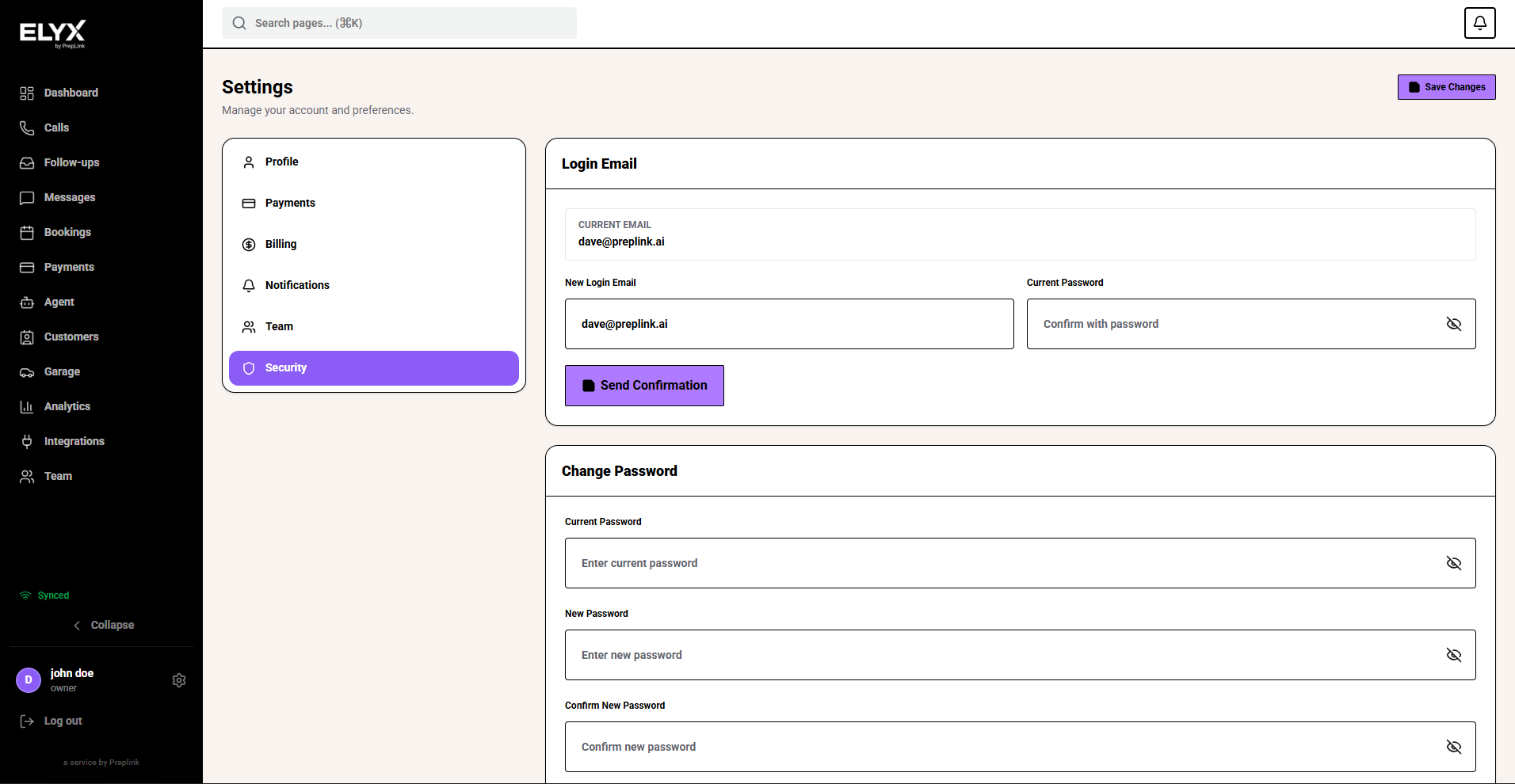
Use security settings for password changes, sessions, and account controls shown in your account.
If a staff member leaves, remove them from Team instead of changing a shared password.
Common mistakes
- Setting business hours in Settings but different bookable hours in availability without explaining the difference.
- Inviting one shared email for several people.
- Giving billing or payment access to staff who only need bookings or calls.
- Forgetting to save before moving to another tab.
Related articles
Last updated: April 2026