Voice, capabilities, and go-live
Quick answer - Pick the voice, choose what Resk is allowed to do, test real customer questions, then go live only when calls, bookings, messages, and escalation rules behave correctly.
Use this guide when - Owners and managers completing onboarding.
Before you start - Finish data and knowledge setup, confirm opening hours, and decide which tasks the AI can handle without staff approval.
Choose the voice
- Open Choose Resk’s voice.
- Play the available voice previews.
- Choose the voice that fits your business.
- Save the choice.
- Place a test call if the setup lets you preview the greeting.
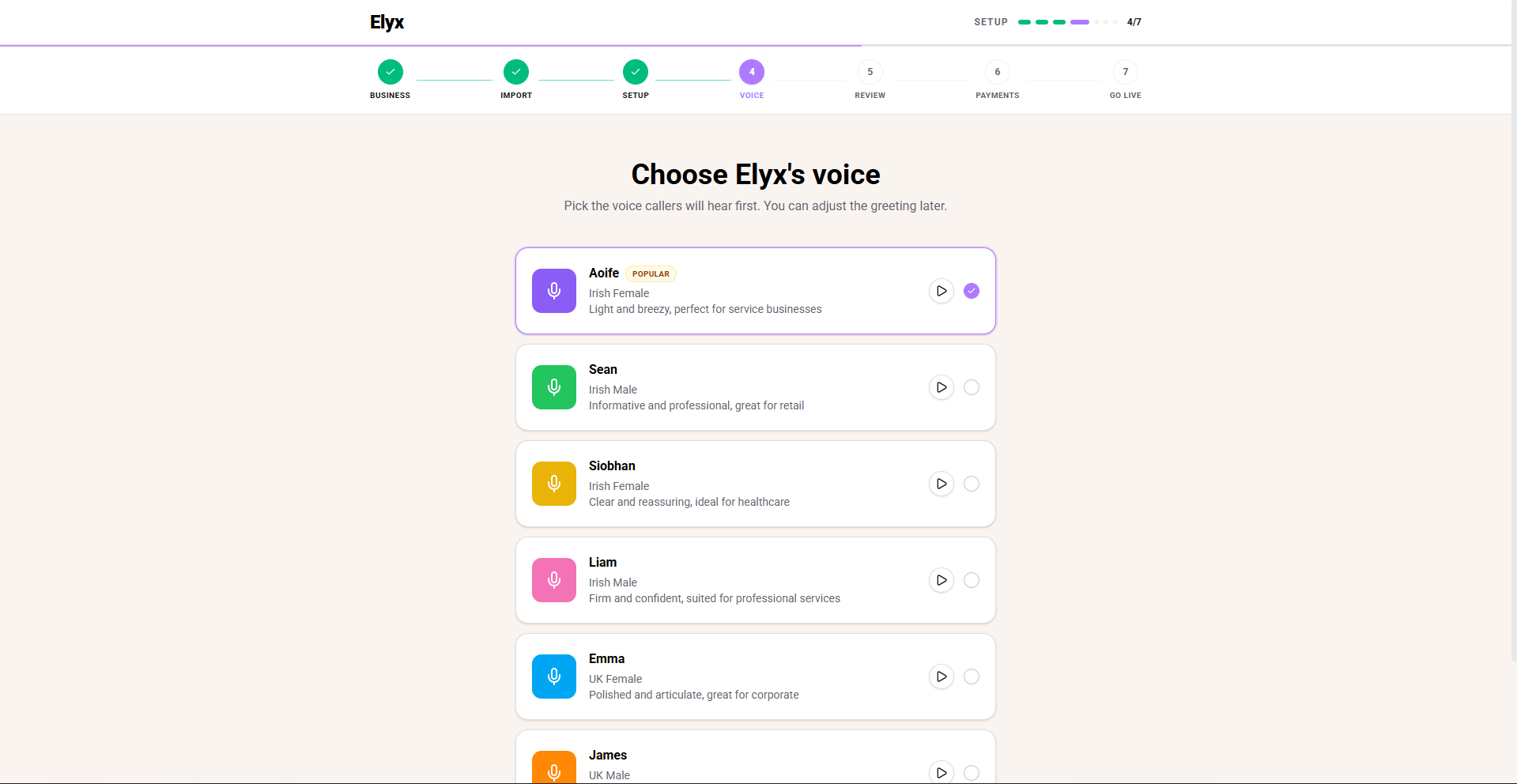
Pick a voice that sounds clear over a normal phone call. Do not choose only from laptop speakers.
Choose services and capabilities
Capabilities decide what Resk can do for callers.
- Open Capabilities, Tasks setup, or the service setup step.
- Add the services customers can ask for.
- Add durations, prices, or notes if the screen asks for them.
- Turn on the actions Resk may perform.
- Leave risky actions off until staff have tested them.
- Save.
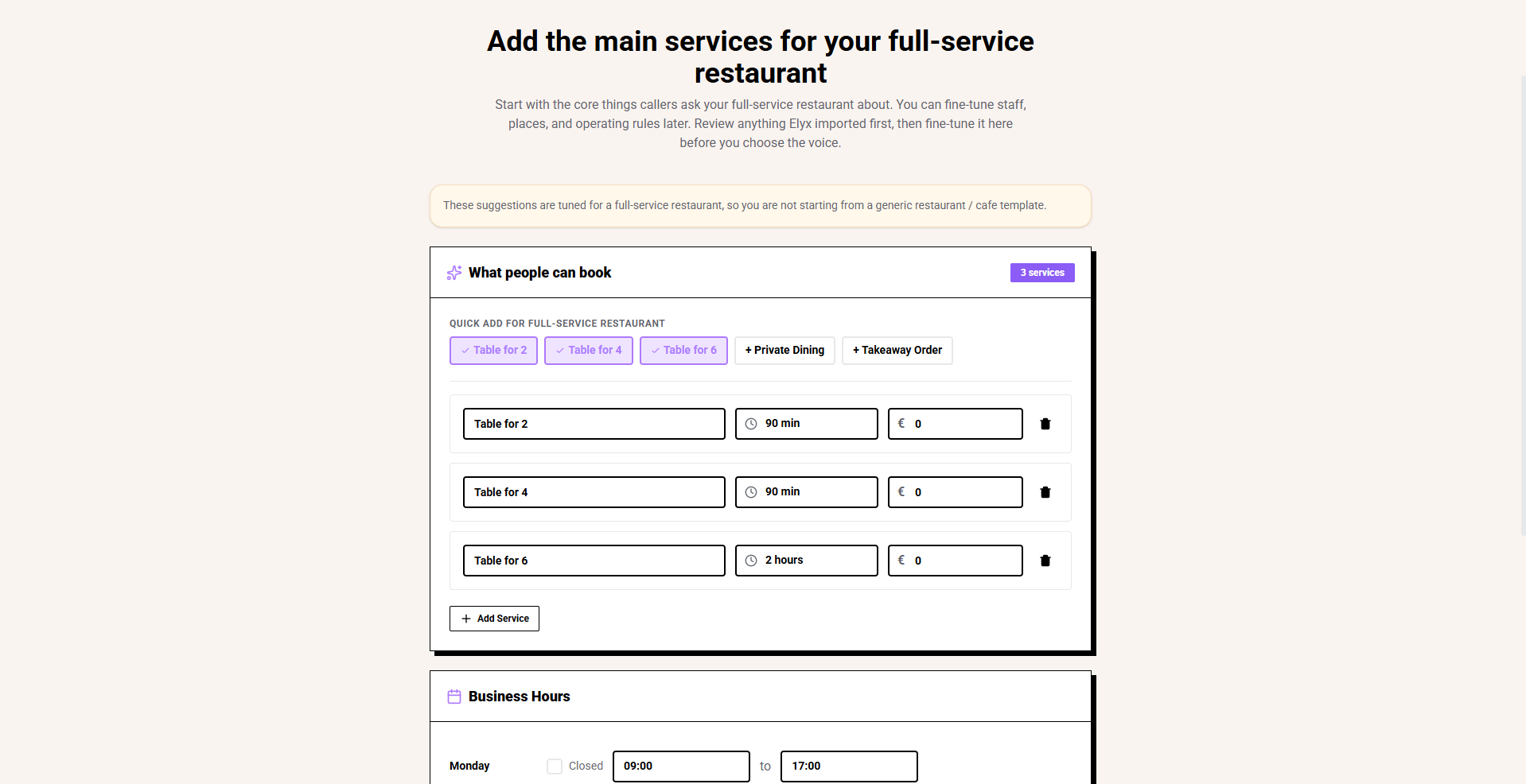
Examples of capabilities:
- Answer common questions.
- Create a booking.
- Take a message.
- Create a callback.
- Send an SMS.
- Transfer or escalate to staff.
Decide what Resk should not do
Write down the boundaries before go-live:
- Refunds.
- Complaints.
- Medical, legal, or safety-sensitive advice.
- Large bookings.
- Same-day exceptions.
- Price overrides.
- Anything that needs owner approval.
For each boundary, decide whether Resk should create a follow-up, take a message, or ask the caller to contact staff directly.
Run a go-live test call
- Call the Resk number from your mobile.
- Ask a simple opening-hours question.
- Ask for a normal booking or service.
- Ask for something unavailable.
- Ask for something Resk should escalate.
- End the call.
- Open Calls.
- Review the transcript and summary.
- Open Follow-ups and confirm the right tasks were created.
- Repeat until the answers are safe to use with real customers.
Payment step
If onboarding asks for payment or plan selection:
- Review the plan shown on screen.
- Confirm who should own billing.
- Add payment details only when you are ready to activate.
- Save or continue.
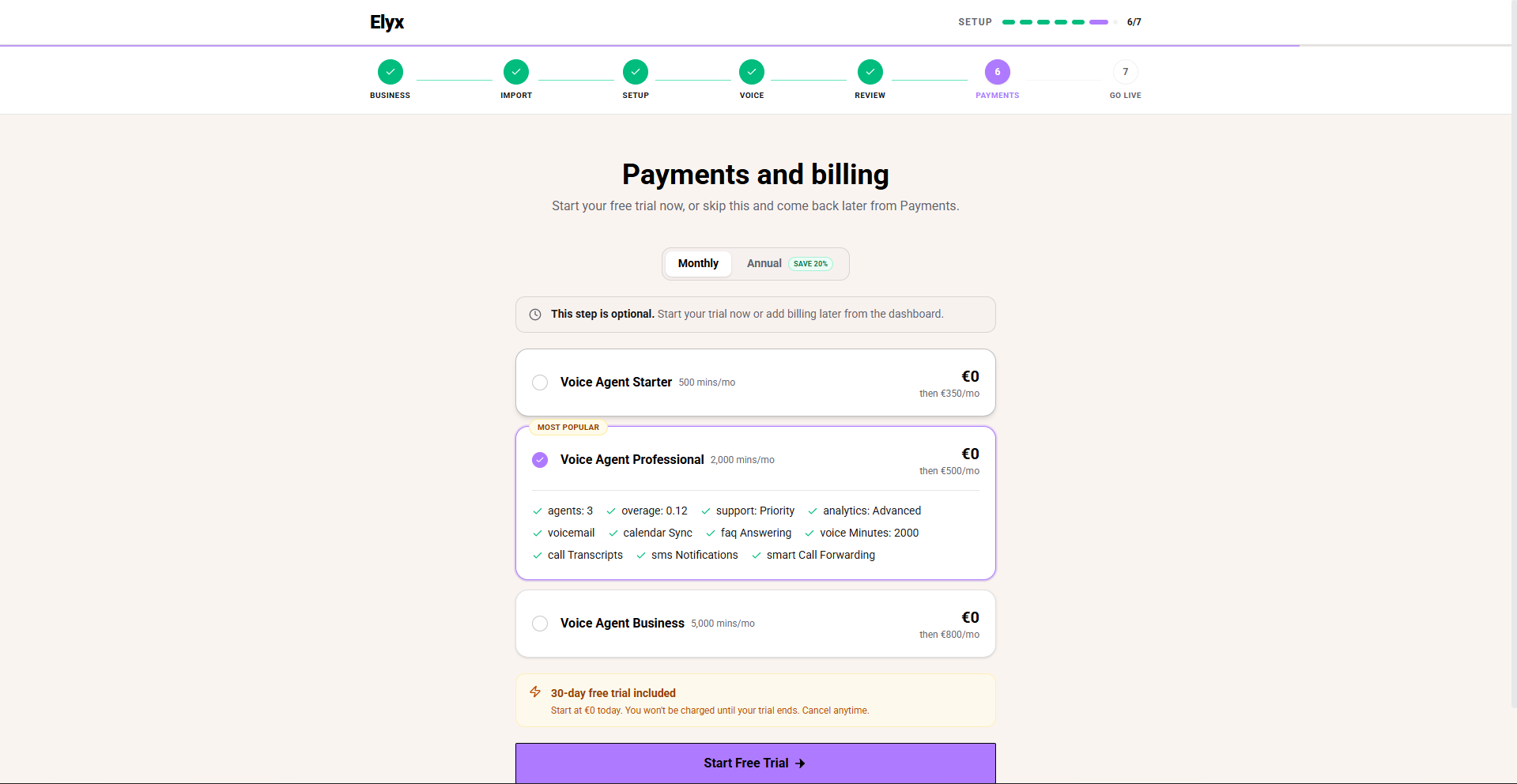
You are ready to go live when
- The greeting sounds right.
- The AI answers common questions correctly.
- Bookings or service requests land in the right place.
- Follow-ups are assigned to the right team.
- Staff know where to check calls and tasks.
- You have tested the number customers will actually call.
Common mistakes
- Turning on every capability before business rules are ready.
- Testing only happy-path questions.
- Forgetting to check how Resk escalates a caller to staff.
- Going live before the Resk number or forwarding setup has been tested.
Related articles
Last updated: April 2026